Blog Archives
365SportTV window position

applehelpwriter.com
The 365SportTV app for Mac leaves a great deal to be desired. As anyone who’s used it has no doubt discovered, basic functionality is missing. Whoever knocked up the Mac version of the app for them has clearly never used Xcode before…
Of the many frustrations with this app, the only one I’ve been able to solve without completely re-writing it (365SportTV people: I’d be happy to give you a kind price…;) ) is moving the position of the window. That’s good because it is particularly annoying if you’re watching it on a large external monitor and the image is stuck where it doesn’t make best use of your screen.
Of the many frustrations with this app, the only one I’ve been able to solve without completely re-writing it (365SportTV people: I’d be happy to give you a kind price…;) ) is moving the position of the window. That’s good because it is particularly annoying if you’re watching it on a large external monitor and the image is stuck where it doesn’t make best use of your screen.
To move the window, launch the AppleScript Editor (just type Apples in Spotlight or Launchpad) and paste in the following code:
tell application "System Events"
tell application process "365SportTV"
activate
set position of front window to {100, 50}
end tell
end tell
Fire up 365SportTV app, get your match going and then switch back to AS and click the green ‘Run’ button.
You can play with those two numbers near the end to suit your own screen. The first number is the number of pixels from the left, the second number is the number of pixels from the top.
Hope this helps. 🙂
Related Posts:
getting to grips with AppleScript
FastTasks – free utility from Applehelpwriter
disable captive network assistant

If you use coffee shop wifi services or others that require internet login, you’ve probably noticed in both Lion and Mountain Lion that OS X will produce a pop-up Safari window asking you to login. This can be annoying for several reasons:
1. The window floats on top and gets in the way if you’re trying to do something else
2. The window doesn’t keep cookies or allow plug-ins like 1Password, so you have to enter the login details manually every time
3. Sometimes the pop-up window will simply produce an error message that it can’t connect to the network. You either have to dismiss it manually or wait for it to go (it’ll normally auto-close after about 30 seconds)
If you find this behaviour annoying and want to stop it, there’s a very simple solution (and one that’s also easy to undo if you want to reverse it). Here’s what you do.
1. First go to
[Hard Disk] > System > Library > CoreServices > Captive Network Assistant.app
Click on the app once, and hit ‘return’ on your keyboard. This will make the name editable.
2. Hit the ‘left arrow’ key once to move the cursor to the beginning of the name and to unselect the text.
3. Type an ‘X’ (actually any letter will do, but I like ‘X’ so I can easily find the app later at the bottom of the list even if I forgot its exact name).
4. Hit ‘return’ on the keyboard. At this point, OS X will ask you to provide an Admin password as only Admin users are allowed to mess with files in the System directory. Type in your password and hit ‘OK’.
The name should now read ‘XCaptive Network Assistant.app’.
And that’s it! Captive Network Assistant will never run again unless you decide to change its name back to what it was (to do so, just repeat the procedure above and remove the ‘X’). Of course, you can still login to your internet or coffee shop wifi services by opening a normal browser window. The bonus is now your browser can fill the login details from cookies (if enabled) or your password manager.
🙂
featured picture: illuminated jellyfish by weaverglenn
how to remove your name from Lion’s menubar


If you do not want your account name showing in the menubar (perhaps you’re doing screenshots or some screencasting), there’s a simple way to remove it.
1. Go to > System Preferences… > Users & Groups
2. Click the padlock at the bottom and enter your Admin password.
3. Click ‘Login Options’, then select ‘Icon’ from the dropdown menu associated with the Show fast user switching menu as option.
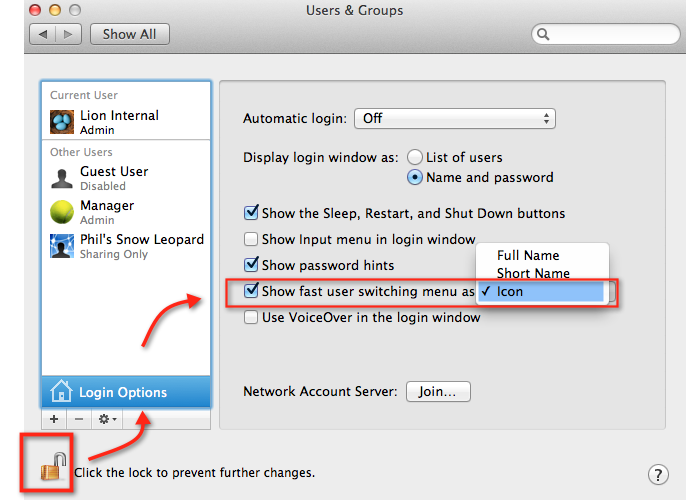
You can also just deselect the option entirely if you don’t use fast switching at all.



 applehelpwriter.com