Deciphering the searchpartyd macOS process and its impacts
The searchpartyd process in macOS is an integral part of Apple’s innovative location tracking system, introduced with macOS 10.15 Catalina, iOS 13, and iPadOS 13.1. This daemon is a cornerstone of the Find My service, enabling users to locate their devices, even when offline. Understanding searchpartyd, its functionality, and addressing common issues like high CPU usage is crucial for macOS users.
The Integral role and functionality of searchpartyd
At its core, searchpartyd serves as a major daemon within the Offline Finding (OF) system of the Find My app. Its primary function is to generate the necessary cryptographic keys and perform all related cryptographic operations. This process is vital for synchronizing keys, sending location reports as a finder device, and obtaining location reports for devices owned by the user.
When a device equipped with the Find My feature is lost, it emits Bluetooth Low Energy (BLE) signals containing a public key. These signals are picked up by finder devices, which then use the key to encrypt the location of the lost device and send this information back to Apple’s servers. The Find My app accesses these reports to help users locate their missing devices.
The dual nature of searchpartyd process
Although the authentic searchpartyd process is an integral component of macOS’s security and geolocation functionalities, it is crucial for users to remain vigilant against potentially intrusive programs (PIPs) that could disguise themselves with analogous nomenclature. Such deceptive applications have the capability to alter web browser configurations, leading to unwarranted redirects and the proliferation of diverse forms of online advertisements. This activity not only disrupts user experience but also contributes to a noticeable reduction in the Mac’s operational efficiency.
Addressing high CPU usage and management concerns
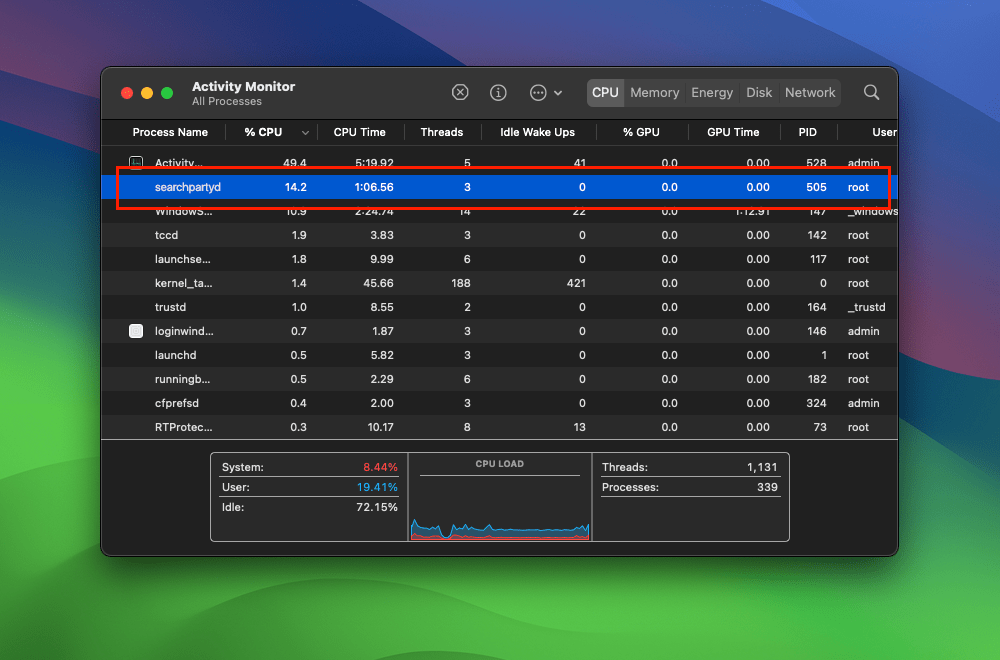
A frequently reported issue among macOS users is the high CPU usage associated with searchpartyd. This can lead to problems like overheating and rapid battery depletion. Despite some misconceptions, searchpartyd is not a form of malware or virus but an authentic and essential part of macOS. However, users have limited control over this process due to its protected status within the operating system. Tools like EtreCheck are invaluable in identifying applications that may be causing excessive CPU usage by searchpartyd.
Troubleshooting high CPU usage caused by searchpartyd process
When users encounter high CPU usage by the searchpartyd process, it can be a source of significant concern, impacting the device’s performance and battery life. Addressing this issue involves a few steps that users can take to mitigate the problem:
1. Identifying legitimate vs. malicious processes
Check the Activity Monitor for any suspicious processes related to searchpartyd. If the process seems to be consuming an unusually high amount of CPU resources, further investigation is warranted.
2. Force quitting searchpartyd
The first step in addressing high CPU usage is to force quit the process. This can be done through the Activity Monitor, where users can locate searchpartyd, select it, and use the force quit option. This action doesn’t prevent searchpartyd from re-launching but can help it restart fresh, potentially resolving the high CPU usage issue temporarily.
3. Disabling Find My Mac
Since searchpartyd is a part of the Find My Mac service, disabling this feature can help eliminate the process and reduce CPU usage. Users can disable Find My Mac through the System Preferences or System Settings, depending on their macOS version. This involves navigating to the Apple ID section, selecting iCloud, and toggling off Find My Mac. This action requires entering the Apple ID password to confirm.
4. Addressing keychain access issues
Sometimes, searchpartyd may request access to the login keychain for verification purposes. This usually indicates that searchpartyd is not synced with the keychain and needs to verify credentials. Granting access and entering the password can resolve these prompts. However, if searchpartyd repeatedly asks for the keychain password, users might consider turning off keychain auto-lock. This can be done by opening the Keychain Access application, selecting the login keychain, and modifying the settings to prevent it from locking automatically.
5. Monitoring after troubleshooting
After performing these troubleshooting steps, it’s important for users to monitor their Mac’s performance and CPU usage. If the issue persists, it may be indicative of a deeper problem within the macOS system or a conflict with another application.
To recap
Searchpartyd plays a significant role in macOS, especially in the context of the Find My service. While it enhances the capability of locating offline devices, it can sometimes lead to high CPU usage, causing performance issues. Understanding its role, functionality, and effective troubleshooting methods is essential for maintaining optimal performance of macOS devices.

Posted on September 14, 2019, in Mac and tagged apple, how to, Mac, MacOS, problem, process, security, technology. Bookmark the permalink. Leave a comment.



 applehelpwriter.com
Leave a comment
Comments 0