Category Archives: AppleScript
how to turn off Maps’ location circle

If you’re finding that the large blue location circle is obscuring your view of your current location, here’s a quick script that will allow you to toggle it on and off. You could create a Service and then a hotkey for it, or save the script as an Application and add it to your Dock. That’ll give you a one-click method for toggling the circle on and off – you can also turn it back on (but not off!), just by clicking the usual Location button in Maps’ user interface.

how to create your own AppleScript commands

It being Christmas an’ all, we thought we’d contribute something special. What’s the one thing every AppleScripter wants for Christmas? Why “the missing command” of course.
You can bug report Apple all you like to add some command like “remove whitespace from a string” or “get substring” without having to mess around with offsets and so on, but there’s nothing better than helping your self. And that’s what we’re going to do today: learn how to add our own AppleScript commands with a bit of help from AppleScript-ObjectiveC and the use of Scripting libraries.
Put on your party hat and get ready to unwrap your gift. We’re going to learn how to add commands so we can write something like the script shown in the screenshot above.
That requires defining 3 new commands for AppleScript:
substring following — get the rest of a string after a designated substring
substring preceding — get all the string before a designated substring
remove whitespace — remove all the extraneous spaces and new line characters at the beginning and end of a string.
In order to define your own commands (note to the unwary: beware name clashes!), you need to write an SDEF file and include it in a Library’s script bundle.
The steps are nicely laid out in this complete 26-minute video from OSXAutomation:
(The video is interesting in it’s own right as it sounds like its entirely narrated by the one of the mac’s built in voices).
The library and the sdef file that I created are below, but you’ll need to watch the video to figure out how to put it all together.
A couple of ‘gotchas’ to watch out for:
i. the video doesn’t tell you that you need to include the ‘use framework “Foundation”’ line (you don’t on 10.9, but on 10.11 I couldn’t get it to compile otherwise);
ii. make sure the sdef file name, suite name and library script name all match or you might have trouble compiling.
iii. You’re going to need a heads-up on Objective-C and Cocoa if you don’t already know your way around Apple’s main programming language (Swift? Never heard of ya!) and APIs. Best place to get started with that is Shane Stanley’s intro guides to AppleScript-Objective-C.
If you get stuck, post a comment below and we’ll try to walk you past the obstacles. Once you get the bug, you’ll be writing your own commands left, right and centre!
After you’ve watched the video, you can either write your own commands or come back and copy our sdef file and library script.
If tackling AppleScript-ObjectiveC isn’t something you want to take on right now, let us know in the comments what kind of command you really want to add to your script library and we’ll see if we can’t cook up the code for you.
Alternatively, you can browse through some ready-made script libraries full of extra goodies from this collection.
Merry Christmas all, we’ll see you in the New Year!
🙂
Here’s our sdef file:
<?xml version=”1.0″ encoding=”UTF-8″?>
<!DOCTYPE dictionary SYSTEM “file://localhost/System/Library/DTDs/sdef.dtd“>
<dictionary>
<suite name=”ASTU” code=”ASTU” description=”Commands to edit text”>
<command name=”substring preceeding” code=”SQTXSUBB” description=””>
<direct-parameter type=”text” description=”Get the string up to a first occurrence of a substring”/>
<parameter name=”from” code=”FRoM” type=”text” description=”…”/>
<documentation>
<html>
<![CDATA[<p>set s to substring preceeding “world” from “hello world”</p>
<p>–> “hello “</p>]]>
</html>
</documentation>
</command>
<command name=”substring following” code=”SQTXSUBA” description=””>
<direct-parameter type=”text” description=”Get the rest of the string after the first occurence of a substring”/>
<parameter name=”from” code=”FRoM” type=”text” description=”…”/>
<documentation>
<html>
<![CDATA[<p>set s to substring following “hello ” from “hello world”</p><p>–> “world”</p>]]>
</html>
</documentation>
</command>
<command name=”remove whitespace” code=”SQTXRMWS” description=””>
<direct-parameter type=”text” description=”Remove extraneous whitespace and new line characters from beginning and end of a substring”/>
<documentation>
<html>
<![CDATA[<p>set s to remove whitespace ” hello world “</p><p>–> “hello world”</p>]]>
</html>
</documentation>
</command>
</suite>
</dictionary>
And here’s our library script, which we called “ASTU” (short for “AppleScript Text Utilities”).
use framework "Foundation"
on substring preceeding aSubstring from aParentString
set the sourceString to current application's NSString's stringWithString:aParentString
set the searchString to current application's NSString's stringWithString:aSubstring
set theRange to sourceString's rangeOfString:searchString
set theRest to sourceString's substringToIndex:(theRange's location)
return (theRest as Unicode text)
end substring preceeding
on substring following aSubstring from aParentString
set theLength to aSubstring's length
set the sourceString to current application's NSString's stringWithString:aParentString
set the searchString to current application's NSString's stringWithString:aSubstring
set theRange to sourceString's rangeOfString:searchString
set theRest to sourceString's substringFromIndex:((theRange's location) + (theLength))
return (theRest as Unicode text)
end substring following
on remove whitespace aString
set the sourceString to current application's NSString's stringWithString:aString
set trimmedString to sourceString's stringByTrimmingCharactersInSet:(current application's NSCharacterSet's whitespaceAndNewlineCharacterSet())
return (trimmedString as Unicode text)
end remove whitespace
how to see active internet connections

I was playing around with some ways of detecting active network connections to add as a function in one of my apps — didn’t really work out, so far — but as I was prototyping the code in AppleScript I came up with this little ditty which some of you might be able to make use of:
1. Open the Script Editor
2. Paste the code below into it and hit ‘Run’
#start of script
on getConnections()
set theCmd to "lsof +c 0 -i -n | grep -i established | cut -d \" \" -f 1 | awk '!_[$0]++'"
set theMsg to (do shell script theCmd)
display dialog "The following apps & processes are actively using your internet connection: " & return & return & theMsg with title "Net Tattler" buttons {"Refresh", "OK"} default button "OK"
set theRes to button returned of the result as string
if theRes = "Refresh" then
getConnections()
end if
end getConnections
getConnections()
#eof
If you need more information than just the names of the process, you can play around in Terminal with lsof -i. Here’s a great little tutorial.
For something a bit more heavy-duty, check out either Little Snitch or Charles Web Debugging Proxy, both of which are paid-apps but offer free trials. If even those aren’t enough to satisfy your network monitoring desires, head on over to MurusFirewall.com and check out their packet filter GUI offerings for the Mac.
Enjoy 🙂
Acknowledgements
Thanks to the folks over at Etresoft for additional suggestions.
how to learn more about error codes
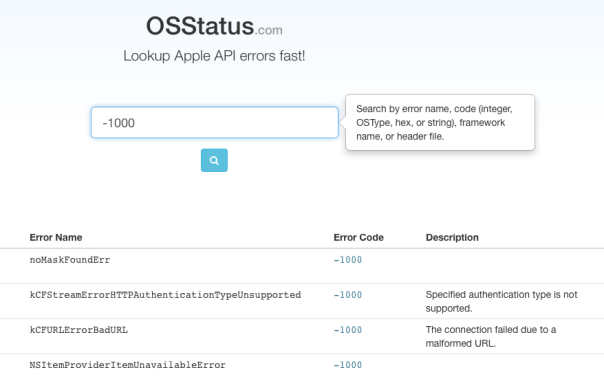
Scripters and coders are forever battling errors, and access to information on Apple’s error codes is always a bit of a hunt and dig around header files or documentation. Now thanks to Seth Willits from Araelium group, there’s a handy free search tool to spare us the effort.
I’ve already got osstatus.com bookmarked. Thanks Seth! 🙂
how to use AppleScript to help you use AppleScript!

Learning AppleScript can be frustrating. You need a good book, lots of patience, and core documentation like the AppleScript Language Guide and the annual release notes, but most of all you’re going to need access to instant advice. It’s in this last respect that we’re going to build a helpful little AppleScript tool to help us solve AppleScript problems.
The two best places to get help from are Apple’s AppleScript mail list and MacScripter. So, basically, we’re going to combine a couple of tools that you’ve already got (or can get for free) on your mac into a single keystroke-activated, dedicated search engine. When finished, we’ll be able to do something as simple as pressing cmd-ctl-S, type in a short search term like “display dialog” and get specific results for AppleScript.
Our tool basically relies on that fact that in Google you can do site specific searches by using the site: keyword. We’ll then add a couple of AppleScript-specific choices and use a free tool, Red Sweater’s FastScripts, to allow us to assign an easy shortcut (you could assign the keyboard shortcut without FastScripts using Mac’s Services menu, but FastScripts is a great tool you should have anyway if you’re using AppleScript, so now’s a good time to go get it!).
To get started, let’s open Script Editor and start a new script. Our script is really short, and not very complicated, here it is:
set theChoices to display dialog "Search for what?" default answer "" with title "AppleScript Search" buttons {"Cancel", "ASUsersList", "MacScripter"} default button "MacScripter"
set searchTerm to the text returned of the theChoicesset theSite to button returned of theChoicestell application "Safari"
activate
if theSite = "ASUsersList" then search the web for "site:http://lists.apple.com/archives/applescript-users " & searchTerm else search the web for "site:http://macscripter.net " & searchTerm end ifend tell
Run the script now, and try a couple of searches. I’ve plugged in MacScripter and ASUsers List, you might like to play with a “choose from list” and add stackOverflow, OS X Technologies or any other sites you know of. Not sure how to do that? OK, try searching for “choose from list” with your new tool, and you’ll soon find out how!
Once you’re finished with the script, use FastScripts or Services to create a shortcut. Now, the next time you’re working in Script Editor and get stuck writing a script or keep stalling over some persistent error message, just hit your shortcut and type in an appropriate search term.
Fast and simple! Automation, that’s what it’s all about!
Addendum: If you’re feeling very ambitious and want to combine several sites into one set of search results, Google allows you to set up your own personal search engine for free.
how to easily import images into new Photos.app


So with 10.10.3 and Apple’s new Photos’s app, people have been asking how to easily import whole folder’s worth of images into it. Here’s a nice little AppleScript that’ll do it for you very easily. Just plonk the code into Script Editor and hit the run button. 🙂
Click the image below to get the code ꜜ
Here’s the unformatted code that you can cut and paste into Script Editor, or get if from my pastebin here:
--import images from a folder into Photos.app
-- by Applehelwriter 2015 -- requires Yosemite 10.10.3
set importFolder to choose folder
set extensionsList to {“jpg”, “png”, “tiff”}
tell application “Finder” to set theFiles to every file of importFolder whose name extension is in extensionsList
if (count of theFiles) < 1 then
display dialog “No images selected!” buttons “OK”
else
display dialog “Create a new album with name” default answer “Imports”
set albumName to text returned of the result
set timeNow to time string of (current date)
set today to date string of (current date)
set albumName to albumName & ” ” & timeNow & ” ” & today
set imageList to {} repeat with i from 1 to number of items in theFiles
set this_item to item i of theFiles as alias
set the end of imageList to this_item
end repeat
tell application “Photos”
activate
delay 2
import imageList into (make new album named albumName) skip check duplicates yes
end tell
end if
Script Editor battle

Here’s a short video showing some of the differences between Apple’s own Script Editor and my DisplayDroid.
If you haven’t got 5 minutes, the highlights include:
DisplayDroid shows result of each line of the script
DisplayDroid offers more informative error messages
DisplayDroid has automatic language detection (between AppleScript and JavaScript)
DisplayDroid allows you to set a breakpoint on any line in your script
DisplayDroid lets you step through the script line by line
DisplayDroid – limited free betas available

The first beta of DisplayDroid is, for a limited time, freely available to anyone interested in testing (requires Yosemite, 10.10). DisplayDroid executes an AppleScript or JavaScript whenever you connect or disconnect an external monitor, primarily with the intent of automatically setting up the environment depending on your display status. DisplayDroid includes its own script editor and a number of presets (i.e., built-in scripts) to get beginners started.

Full details of DisplayDroid can be found here: http://sqwarq.com/displaydroid/ To get a free beta copy of the app, please register for the Community forum here: http://displaydroid.proboards.com and I will email you a beta copy of the app in the next few days.
applescript: toggle Notification Centre (Yosemite)

Ever since Apple introduced Notification Centre, scripting it has been anything but easy.
I’ve seen brutal shell scripts and a variety of GUI scripts that variously work in Mountain Lion and Mavericks to turn ‘Do Not Disturb’ on and off. With Yosemite, Apple made yet another change to the ui process that controls Notification Centre, which means scripts like this one will choke.
If you’re wondering how to simply toggle whether Notification Centre is enabled or not with AppleScript on Yosemite, here’s the trick (whether this will continue to work in 10.11 is anyone’s guess** — see the comments below for the El Capitan version).
Enjoy it while it lasts!
🙂
tell application "System Events" tell application process "SystemUIServer" try if exists menu bar item "NotificationCenter, Do Not Disturb enabled" of menu bar 2 then key down option click menu bar item "NotificationCenter, Do Not Disturb enabled" of menu bar 2 key up option else key down option click menu bar item "Notification Center" of menu bar 2 key up option end if on error key up option end try end tellend tell



 applehelpwriter.com
Xcode: wrap code in comment tags
Nov 29
Posted by philastokes
While AppleScript’s Script Editor has long had a built-in function for wrapping or unwrapping code with comment tags, for some reason this seems to be missing in Xcode.
Not to worry, nothing a bit of AppleScript and Automator can’t sort out. This will work in most text editors as well as in Xcode. Here’s what it does:
Install the Service by double-clicking on the downloaded .workflow file and clicking through the dialog boxes. When it’s installed, you can assign it whatever hotkey you want in System Preferences | Keyboard | Shortcuts.
Download Toggle Comments for Selection workflow.zip
If you want to use it for languages that have different comment tags you can adjust the code in Automator. Likewise, it would be fairly simple to have the script detect a number of different tags and respond appropriately, but here I’ve just stuck with the /* …. */ tags.
A note on usage: when uncommenting, it’s best to ensure that the selection begins at the leading forward slash and ends at the trailing forward slash (in other words that there’s no whitespace at either end of the selection). I have built in some attempt to strip leading and trailing whitespace, but an accurate selection will always be the most reliable.
Download Toggle Comments for Selection workflow.zip
Enjoy 🙂
Share this:
Posted in AppleScript, Automator, Developer, Xcode 6
Leave a comment
Tags: comment, comment blocks, comment tags, comments, hotkey, keyboard, keychord, shortcuts, Xcode