Blog Archives
exploring sshd-keygen-wrapper on Mac
The sshd-keygen-wrapper tool, located within macOS Privacy settings, has garnered attention from users, particularly when they discover it in the Full Disk Access section of their Privacy preferences. While its presence might be disconcerting to some, a deeper understanding of its purpose and functionality can dispel any concerns.
The inclusion of sshd-keygen-wrapper in the Full Disk Access section can be perplexing. Some users may interpret it as an indication of a security compromise or malware. However, the reality is that sshd-keygen-wrapper is an integral component of macOS, functioning as an SSH secure shell key generator. Its primary role is to facilitate users in enabling or disabling remote access to their Mac via the Secure Shell Protocol (SSH).
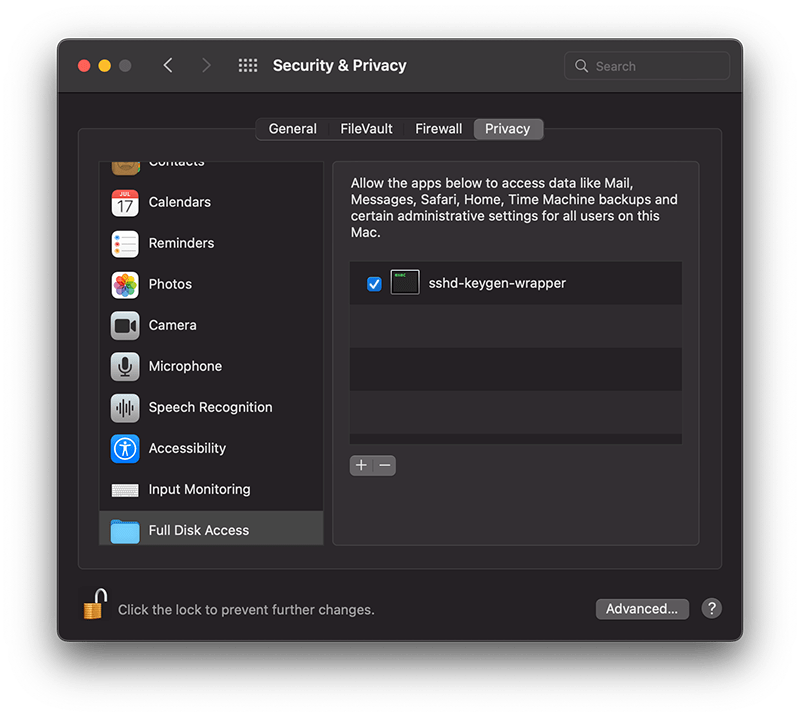
The visibility of sshd-keygen-wrapper in Full Disk Access correlates with the Remote Login setting. Users who have never activated Remote Login will not encounter this tool. But for those who have, the tool will be present, albeit disabled by default, indicating that its access and permissions are inactive.
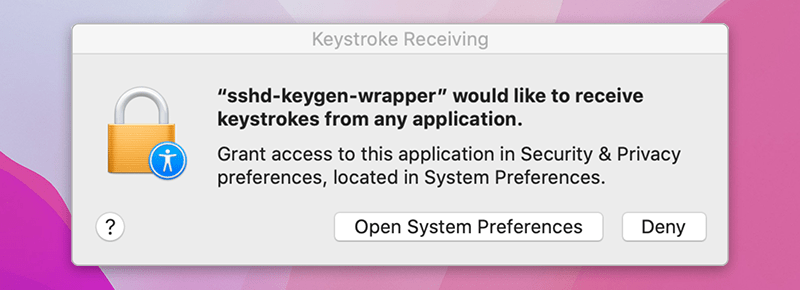
While navigating the Privacy settings on a Mac, users might come across a popup message stating, “‘sshd-keygen-wrapper’ would like to receive keystrokes from any application.” This message can be particularly perplexing, leading to concerns about the tool’s intentions and whether it poses any security risks.
Is it malware?
A prevalent misconception is associating sshd-keygen-wrapper with malware or unwanted software. Contrary to this belief, the tool is an authentic part of macOS and poses no malicious intent. Its placement in the Full Disk Access section is inherently tied to the SSH remote access feature. Activating SSH remote access from System Preferences ensures the association of sshd-keygen-wrapper, which then guarantees the generation of secure SSH shell keys for remote connections.
Should sshd-keygen-wrapper be granted Full Disk Access?
A frequently posed question revolves around whether sshd-keygen-wrapper should receive full disk access. Users contemplating remote access to their Mac via SSH might consider this option. By granting Full Disk Access to sshd-keygen-wrapper, macOS inherently extends the same privilege to SSH. As a result, any individual accessing the Mac through SSH can access all data, encompassing emails, messages, and files. The choice to activate this feature should stem from individual security assessments and requirements.
kernel_task at 103%!!

Overheating on MacBook Pro’s is a rare problem, usually down to nothing more than new users mistakenly thinking the aluminium casing is supposed to feel cool to the touch. However, you know something’s wrong when the glass touchpad feels warm and the fan’s not even stirring…
When Finder and other apps start crashing, what might have been a small concern now starts to look like a real problem. You can try re-booting, but if you find that the reboot takes ten minutes or so and/or the keyboard doesn’t function at the login window, chances are your kernel_task process is running wild. If you’ve still got access to the desktop, you can check this in Activity Monitor, or use Terminal by typing:
>top -u
Normally, kernel_task won’t take up much more than one or two percent of CPU activity, so if you’re running at over 100% or you can’t get past the login window, its time to do a PRAM/VRAM reset.
Here’s how:
1. Power down the machine.
2. Locate the following keys on your keyboard in preparation for Step 4:
‘command’ – ‘option’ – ‘P’ – ‘R’
3. Press the ‘power on’ button.
4. Immediately – and before the grey screen appears – hold down ‘command-option-P-R’ all together.
5. Keep them held down until you’ve heard the start-up chime twice. After you release them you should hear it again, and hopefully your Mac will boot up as it should and with the kernel_task process back to normal.
Tooltip: download and run smcFanControl in your ‘Login items’ to keep an eye on your temps and fan speed in the Menubar. 😉
Have you still got this problem, or found another solution? Let us know in the Comments! 🙂
Related posts:
Why is my mac running so hot?
Why is my mac running so slow?
Also see:
Resetting the System Management Controller (SMC)
featured picture wormhole by IVIXIVIXVXII



 applehelpwriter.com