Blog Archives
adware extensions erode trust in Apple, Google app stores
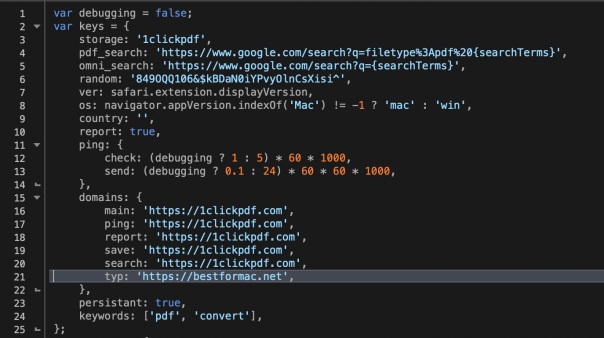
Browser extensions are a staple of almost every user’s set up. Even in managed environments, users are often able to install extensions or ‘Add Ons’ without authorisation when these are sourced from trusted sources like Apple’s Safari Extensions Gallery and Google’s Chrome store. Of course, there’s nothing new about attackers exploiting the browser extension as a means to gaining a foothold in a target environment. The problem has been around for years: what is surprising is just how difficult it is to contain the problem. In this post, I take a look at the risks involved with what appears to be a harmless extension available for both Safari and Chrome. As we’ll find out, not everything appears as it seems.
malware can make Safari windows invisible
Given news that some hackers are using websites to mine cryptocurrency even when users apparently close their browser on Windows, I got to wondering whether a similar exploit would work on macOS.
As the video above shows*, a malicious app can easily hide an open Safari window from all desktop workspaces, making it incredibly difficult for users to notice or to make visible again even when they do. This trick can be exploited without elevated privileges, and it doesn’t matter whether the malicious app is code-signed or not.
An invisible Safari window is a problem because it could be running scripts, mining cryptocurrency, redirecting to sites for adware revenue or doing all manner of other things. Note the window could contain multiple tabs that the user may have already been tricked into opening before the window is made invisible.
As can be seen in the video, the Safari window isn’t in another full screen workspace, or minimized in the Dock or hidden by any other window or toolbar (as in the Windows 10 trick).
On the contrary, it can’t actually be found anywhere, and nor will Window > Bring All To Front help. If you open a new window and then try to use Merge All Windows to bring the hidden window out, all that happens is your new window will disappear with the hidden window too.
The only visible indicators that there’s an invisible window open are the window list in the Window menu, and the invisible outline revealed by Expose (four-finger swipe down).
So what if you find there is an invisible window hiding from you, how do you get it back?
To retrieve and kill the hidden window, you need to click View > Enter Full Screen, then click the red close button. Don’t click the green button to take it out of full screen though, as that’ll just cause it to hide again, with a nice animation that you can see on the video!
Another day, another hacker trick to watch out for folks!

* This vulnerability was demonstrated on 10.12.6. It also exists in both 10.11.6 El Capitan and 10.13.2 High Sierra.
how to recover Safari from a browser hijack

The quickest way to get out of a persistent popup that won’t go away (unless you do what it demands!) is to quit or force quit* the browser then restart Safari holding down the ‘Shift’ key.
Holding down Shift allows Safari (or any other app) to restart without resuming its last state.
While this is a great, fast way to solve the problem, it can be annoying if you had other tabs open, and you don’t want to loose those too (or any unsaved data they may contain).
Here’s how you get rid of these kinds of Javascript hijacks without losing your other tabs.
1. Go to Terminal and paste this command (it’s all one line):
defaults write com.apple.safari "com.apple.Safari.ContentPageGroupIdentifier.WebKit2JavaScriptEnabled" 0; killall Safari
This turns off Javascript and quits Safari.
2. Reopen Safari
You’ll get all your tabs back including the hijacked tab, but the pop up won’t appear, and you can now close the hijacked tab.
3. Go to Safari Preferences and reenable JavaScript in the Security prefs
(alternatively you can do that in Terminal).
Don’t forget this step, or you’ll think the web is broken!
More sophisticated or persistent adware and malware attacks can be mitigated by using apps like my free App Fixer or DetectX.
*You can force quit an app by pressing the following keys in combination on your keyboard <command><option><esc> then choosing the app you want to quit.

how to block Flash in Safari

If you’re worried about news like yet another Flash vulnerability, the first thing to note is that Apple has moved to block all but the latest version.
However, given that exploits of Flash seem to occur sometimes within days of even new releases, it might be wise to think about blocking Flash altogether in your day-to-day browser.
Fortunately, that’s pretty easy to do in Safari. Just go to Safari’s Preferences > Security tab, and uncheck the ‘Allow Plug-ins’ box at the bottom. You can manage which websites are allowed access to Flash from the adjacent button, but an alternative strategy is to use a different browser (Firefox or Opera for example) for only viewing sites where you need Flash access.
Either way, its seems wise to make sure that Flash isn’t allowed unrestricted access on your main browser.
Transmission – Port is closed
I don’t often get into 3rd-party software or non-Mac hardware issues, but here’s a little trick I discovered today that could prevent a situation that adversely affects Safari and other network software.
Not so long ago I bought a new router, and everything was working fine. However, when I recently fired up Transmission, I found that not only were my downloads not so fast as I’d normally expect, but that all internet browsing was completely throttled. Basically, Safari would just get stuck half way into loading a page and eventually timeout. Killing Transmission would immediately restore Safari’s connectivity.
Looking in Transmission’s preferences ‘Network’ pane revealed that the port was either closed (red button) or the port could not be checked (yellow button). Now there are a number of reasons this can happen, but since I knew nothing had changed except my router since the last time Transmission was successfully used, I decided to go check out some of the router’s settings.
To do this, quit Transmission if it’s running, then enter your router’s IP address in Safari’s search bar. Typically, this will be something like 192.168.1.1, but if you’re not sure, you can find your router’s IP using my free utility ‘FastTasks‘.
Once you’re in your router’s admin pages, look for Advanced network settings. In my router, I found a bunch of firewall and network protocols (see the first screenshot below). Neither disabling NAT nor UPnP had any effect (those were my first thoughts about the likely culprit), but turning off the ipSec PassThrough option sure did, with the upshot that Safari and Transmission are not only playing nicely together again, but Transmission’s download speeds have markedly improved. 🙂
Here’s the settings I used to get back up and running; see if you can find similar options if you’re experiencing the same problem.

Turning off ‘ipSec PassThrough’ in my Router’s Advanced Settings:

Transmission’s Network Preferences pane:
search Safari Reading List

This is something I’ve been thinking about for a while. I have a pretty long Reading List and Spotlight often fails to find things in it. For that reason I came up with this little script which you might find useful.
1. Open up Automator by typing auto in Spotlight.
2. Click on ‘Service’ (the big cog wheel) and then ‘Choose’.

3. Change the Service receives option to “No input” from the dropdown menu.
4. In the small filter bar to the left, type ‘run app’. You should see an action called ‘Run AppleScript’ in the second column. Drag it to the big pane on the right.

5. Select all the purple text inside the window and delete it. You don’t need any of it.
6. Command click on the image below, and copy the code from the pastebin page that opens up in another Safari tab. Paste the code into the Automator pane.

7. Hit ‘Command-S’ and give it a name like ‘Search Safari Reading List’. Click ‘Save’ (note: you do not specify a location for the save as it will automatically be saved in your ~/Library/Services folder).
8. Now click on the main menu for any app and have a look in the Services submenu. You should see your new service there (to add the keyboard shortcut, see Step 10 below).

9. Test it to make sure it works as expected. You should end up with something that looks like this:

10. If you want to assign a universal shortcut key like mine in the screenshot from Step 8, do so by going to > System Preferences > Keyboard > Keyboard shortcuts. Look in Services for the name you gave it and add the shortcut by clicking in the empty space to the far right of the name.

A note on usage:
The reading list is really just a list of special bookmarks, with one difference: they contain short snippets or previews from each page. This has an impact on the way my script works in the following way: if the search string is in the preview snippet but isn’t in the URL, you’ll get back the line from the snippet but you won’t get the URL. It might be possible to code round that, but I haven’t had time to figure it out yet. If that’s a feature you want, send me a nag mail and I’ll put it on my list of things to do! ;). Otherwise it appears to function quite well as a workaround for the lack of a proper search facility.
disable captive network assistant

If you use coffee shop wifi services or others that require internet login, you’ve probably noticed in both Lion and Mountain Lion that OS X will produce a pop-up Safari window asking you to login. This can be annoying for several reasons:
1. The window floats on top and gets in the way if you’re trying to do something else
2. The window doesn’t keep cookies or allow plug-ins like 1Password, so you have to enter the login details manually every time
3. Sometimes the pop-up window will simply produce an error message that it can’t connect to the network. You either have to dismiss it manually or wait for it to go (it’ll normally auto-close after about 30 seconds)
If you find this behaviour annoying and want to stop it, there’s a very simple solution (and one that’s also easy to undo if you want to reverse it). Here’s what you do.
1. First go to
[Hard Disk] > System > Library > CoreServices > Captive Network Assistant.app
Click on the app once, and hit ‘return’ on your keyboard. This will make the name editable.
2. Hit the ‘left arrow’ key once to move the cursor to the beginning of the name and to unselect the text.
3. Type an ‘X’ (actually any letter will do, but I like ‘X’ so I can easily find the app later at the bottom of the list even if I forgot its exact name).
4. Hit ‘return’ on the keyboard. At this point, OS X will ask you to provide an Admin password as only Admin users are allowed to mess with files in the System directory. Type in your password and hit ‘OK’.
The name should now read ‘XCaptive Network Assistant.app’.
And that’s it! Captive Network Assistant will never run again unless you decide to change its name back to what it was (to do so, just repeat the procedure above and remove the ‘X’). Of course, you can still login to your internet or coffee shop wifi services by opening a normal browser window. The bonus is now your browser can fill the login details from cookies (if enabled) or your password manager.
🙂
featured picture: illuminated jellyfish by weaverglenn
block MacKeeper and other browser ads

Generally, I like to keep browser extensions down to a minimum, but here’s an essential one if you are tired of all those ‘Clean your mac’ / ‘Speed up your mac’ ads on every website you visit. Download and install the Safari adblock extension from here:
What I like about this particular adblocker is that, if you go with the default filters, not only does it load your pages faster but it also reformats the page as if the ads were never even there, rather than leaving unsightly, blank placeholders in the page as some other ad filtering services do.
The extension is free, though you’re encouraged to donate if you appreciate the work done by the developer.
🙂
Related Posts
how to uninstall MacKeeper
how to remove ‘Top Sites’ in Safari

If you are fed up with the ‘Top Sites’ feature in Safari 5, here’s how to remove it.
1. In Safari > Preferences > General, change ‘New windows open with’ and ‘New tabs open with’ to either ‘Homepage’ or ‘Empty page’ (as you prefer).

2. In Safari > Preferences > Bookmarks, uncheck ‘Include Top Sites’.

Now you also need to get rid of the caches, and to stop Safari from continually storing imagesof your web page history (Tip: Safari will still track your History in the normal way, but here we are going to prevent it from downloading the image files that are used in Top Sites), so:
3. In Safari > Reset Safari…, check ‘Reset Top Sites’ and ‘Remove all webpage preview images’.

Click ‘Reset’.
4. Go to your home folder Library (~/Library) by clicking on the Folder icon in the dock, pressing ‘shift-command-g’, and typing ~/Library in the box.
Navigate to Caches > com.apple.Safari.
5. Click once on the Cache.db file. Hit ‘command-i’ on the keyboard. In the Get Info panel that opens, check the ‘Locked’ box. Close the panel.
6. Click on the Webpage Previews folder in com.apple.Safari and press ‘command-i’. Check the ‘Locked’ box. Close the panel.

7. Navigate back to Caches > Metadata > Safari> Bookmarks. Go into the Bookmarks folder, hit ‘command-a’ and then ‘command-delete’ to send all the selected files to the Trash.
8. With the Bookmarks folder selected in Finder, press ‘command-i’ and check the ‘Locked’ box. Close the panel.

That’s it. No more ‘Top Sites’, and no more wasted time or space downloading and storing webpage previews! :- )
And what about later versions of Safari? There’s no way to remove Top Sites in Safari 7 that I know of (if you know different, please leave a comment below). However, there’s no reason to suffer in silence! Let Apple’s Safari dev team know how much you dislike it:
http://www.apple.com/feedback/safari.html

Related Posts
How to Troubleshoot Your Mac with FT2
how to clear Safari’s cookies on quit (Safari 7)
FastTasks – download the free OS X utility app from Applehelpwriter



 applehelpwriter.com