Category Archives: AppleScript
applescript: get item number of list item

One of the annoying ‘missing features’ in AppleScript is the lack of any way to get the item number of an item in a list.
Fortunately, since Cocoa does of course include an ‘indexOfObject’ function, we can leverage Cocoa in our AppleScript to write a nice little handler (you could add this to my list and string handlers library I posted here or just add it directly in your own scripts).
First, make sure your script or library already has two lines like these to import the Foundation framework and declare an NSArray:
use framework "Foundation"
property NSArray : a reference to current application's NSArray
Then after that add the handler:
on getIndexOfItem:anItem inList:aListset anArray to NSArray's arrayWithArray:aListset ind to ((anArray's indexOfObject:anItem) as number) + 1 # see note belowif ind is greater than (count of aList) thendisplay dialog "Item '" & anItem & "' not found in list." buttons "OK" default button "OK" with icon 2 with title "Error"return 0elsereturn indend ifend getIndexOfItem:inList:
You can now call the code like this:
# exampleset thisList to {"I", "see", "a", "red", "door", "and", "I", "want", "to", "paint", "it", "black"}set aNum to its getIndexOfItem:"paint" inList:thisList(* Result --> 10 *)if aNum is not 0 then-- do somethingend if
# Note: Remember AppleScript lists are indexed from 1, unlike Cocoa arrays which start at index 0.
Enjoy! 🙂
applescript: how to rant on Twitter

Well, hopefully you won’t…but if you wanted to post something longer than the 142 character limit without manually having to break it all up, this script will do it for you.
All you do is set the ‘tweetRant’ variable to whatever missive of massive importance you want to convey, and run the script. It’ll break your text into tweet-sized strings, add ellipses to them where appropriate and post them in 10-second intervals.
Of course, using this for spamming would likely not win you many friends…and besides, it’s not the only way to abuse Twitter’s 142 rule.:p
A more responsible use would be to adapt this script to create your own kind of Buffer service. You’d need to add scheduling via Calendar or a launch agent to do that, a subject we’ll tackle in an upcoming post.
Download the script from my pastebin…
Enjoy! 🙂
applescript: file & folder handlers

Here’s a few of the AppleScript handlers I use for getting contents of folders (examples 1 & 2), or for getting the text of a file (example 3).
In all three cases, you give the handler a path string in POSIX form, e.g, ~/Desktop or (for example 3), ~/Desktop/sometext.txt.
In example 1, what you get back is a list of the item names in the folder. It doesn’t include hidden or invisible files.
In example 2, what you get back is a record of all the items and their properties. This can be an immensely useful and powerful handler.
In example 3, what you get back is a text variable whose value is the complete text of the file.
Hope these come in as handy for you folks as they have for me!
Click here to get the handlers from my pastebin.
Enjoy! 🙂
Note: The getFileContents() handler requires OSX 10.10 or higher.
applescript: easiest way to GUI script
Script Debugger is third-party software available from here.
Disclaimer: I have no financial or any other compensatory connection with the developers.
Script Debugger 6: the complete review

It feels like cheating. When you’ve spent pretty much your entire AppleScripting life behind the wheel of Apple’s austere Script Editor application, taking Script Debugger 6 out for a 20-day spin feels like someone’s let you in on a secret you’re not supposed to know. Hurdles you’ve taught yourself to clear – through considerable effort, frustration and no small amount of bloody-minded tenacity – are removed before you get to them; obstacles you’ve habitually steered around or avoided have disappeared, and dark holes of AppleScript mystery appear, in the light shone on them by SD6, to be not the menacing entities you once feared but new friends that offer ways to do things faster and more effectively. The secret that Script Debugger seems to lay bare is that AppleScripting doesn’t have to be as painful as we’ve been conditioned to believe. And that does feel like a cheat. Read the full review…
learning the Terminal: Part Three
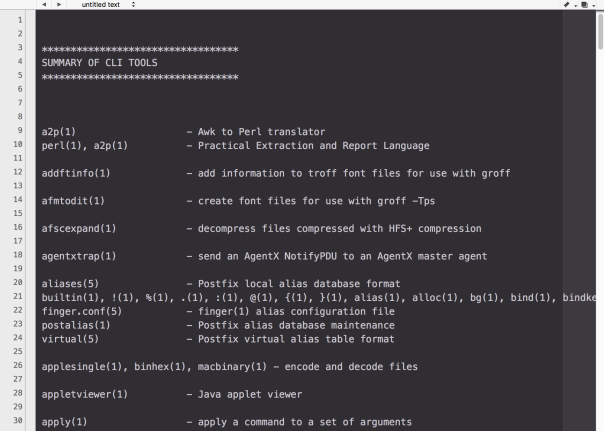
It’s been a while since we last posted about Terminal tips and tricks, but a question popped up today about how to discover what tools are available on the command line.
Most of the tools you use in Terminal are located in /usr/bin, and we can use a nifty little tool from there to find out about all its friends. The whatis tool gives you a one-liner description of what a tool does. If it looks interesting, you can find out more about the tool by typing man and the tool’s name on the command line to see its help manual.
On my current machine, there’s over 1000 tools in /usr/bin, and life is just too short to go through them all doing whatis on each and every one, so we’ll combine a bit of command line power with some AppleScript magic, and produce a nice, easy-to-scroll output of all the summaries like the one in the screenshot above.
Copy the script below (or from my pastebin here) and paste it into the Script Editor (/Applications/Utilities/Script Editor.app). Click the ▶︎ button to run it.
This script took about 1m 30 seconds to run on my machine, but you only need to run it once then save the output. Browse or search through it at your own convenience. 🙂
The script will choose TextWrangler for display if you have it installed; if not, it’ll default to TextEdit. The display is much nicer in TextWrangler, but if you’re stuck with TextEdit, turning off ‘Check Spelling’ in TextEdit will aid readability.
# start
(*
This script produces a summary of all the CLI tools
in /usr/bin and displays it in a text document
*)
set noDocsList to {}
on extractDescription(aText)
repeat with i from 1 to count of items in aText
set this_item to item i of aText
if this_item contains "NNAAMMEE" then
set r to item (i + 1) of aText
try
set o to offset of "—" in r
set short_r to text (o + 1) thru -1 of r
set r to short_r
end try
return r
end if
end repeat
end extractDescription
set theDescriptions to return & return & "**********************************" & return & "SUMMARY OF CLI TOOLS (Version 2)" & return & "**********************************" & return & return & return
tell application "System Events"
set theItems to name of every file of folder "bin" of folder "usr" of startup disk
end tell
repeat with i from 1 to count of theItems
set this_item to item i of theItems
set n_item to length of this_item
try
set what_is to do shell script "whatis " & this_item
if text 1 thru n_item of what_is is this_item and what_is does not contain "nothing appropriate" then
set theDescriptions to theDescriptions & return & what_is & return
else
try
set getMan to paragraphs of (do shell script "man " & this_item)
set desc to extractDescription(getMan)
set what_is to this_item & tab & tab & tab & tab & desc
set theDescriptions to theDescriptions & return & what_is & return
on error
set end of my noDocsList to this_item & return
end try
end if
end try
end repeat
set theApp to "TextEdit"
tell application "Finder"
if exists POSIX file "/Applications/TextWrangler.app" then
set theApp to "TextWrangler"
end if
end tell
set theDescriptions to theDescriptions & return & return & return & "The following tools do not have any documentation: " & return & return & noDocsList
tell application theApp
activate
make new document
set front document's text to my theDescriptions
end tell
# EOF
Related Posts
learning the Terminal – Part One
learning the Terminal – Part Two
learning the Terminal – Part Four



 applehelpwriter.com