Category Archives: AppleScript
OS X Messages character counter
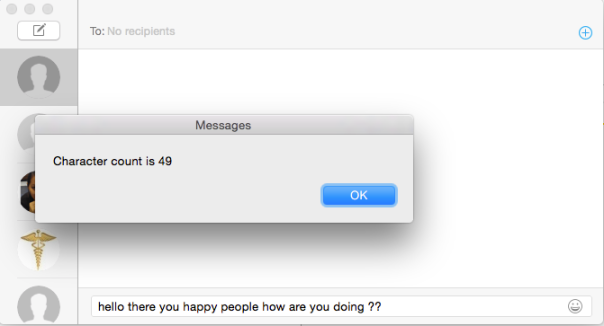
With OS X’s Messages app now able to send SMS, some might find it useful to have an idea of how many characters have been typed in the message field.
Here’s a bit of AppleScript and Automator magic that will do that for you. Assign it a hotkey to make it a Service, and you can quickly get a character count with the stroke of a key (alternatively, you can invoke it from the Services menu).
Download ⬇︎.
After downloading, click through to install (it’s code signed, so it should pass GateKeeper’s default settings). For the hotkey, you’ll need to set that up in System Preferences > Keyboard > Shortcuts > Services, like so:

When you run it for the first time, you may be asked to allow Automator and/or Messages access to System Events in Accessibility here, too:

change the Dock position

One of Yosemite’s minor irritations is the removal of the Dock position menu item from the Apple menu.
Now we’re supposed to go hunting around on the Dock for the tiny Dock item separator and control-click it to get the menu, or open up System Preferences > Dock. All too fiddly for my taste.
The following script will rotate the Dock position through left, bottom and right. Just copy the code below and paste straight into a Script Editor document. Hit the Run button to see it in action. Then, save the script to your ~/Library/Scripts folder. Use FastScripts or set up a Service with Automator (example here) to create a hotkey.
Now you can change the Dock position with ease. 🙂
tell application "System Events" tell dock preferences set x to screen edge if x is left then set properties to {screen edge:bottom} else if x is bottom then set properties to {screen edge:right} else set properties to {screen edge: left} end if end tellend tell
make your own Trash Watcher utility
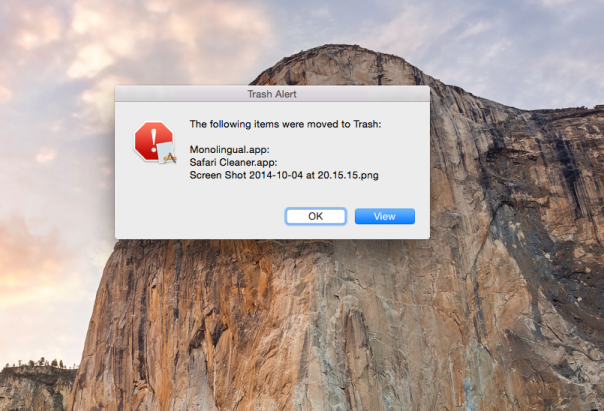
So twice in the last couple of weeks, I’ve found that something funny has been going on with Xcode, source control and Dropbox. The weird behaviour is that both times a whole load of my Xcode projects got moved to the Trash without my knowledge or permission. Fortunately, I noticed in both cases, and while I haven’t got to the bottom of the problem yet, I thought the first thing I’d better do is a bit of defensive scripting!
With that in mind, I created this little Trash Watcher utility to warn me anytime something is moved to the Trash. It’s quick and easy to make, and you can customise it to do various other things apart from give a warning if you like (for example, you could make it delete files of a certain kind, size or date automatically).
Start by opening the AppleScript editor (or Script Editor on 10.10), and paste the following lines into it:
on adding folder items to this_folder after receiving added_items
set listOfFiles to {}
repeat with i from 1 to the count of added_items
set a_file to item i of added_items as text
set stripTrashPath to offset of “Trash” in a_file
set a_file to text (stripTrashPath + 6) thru -1 of a_file
set a_file to a_file & “
“
set end of listOfFiles to a_file
end repeat
display dialog "The following items were moved to Trash: " & return & return & listOfFiles buttons {"OK", "View"} default button "View" cancel button {"OK"} with title "Trash Alert" with icon 0
set btn to button returned of the result
if (btn = "View") then
tell application "Finder" to open the trash
end if
end adding folder items to
Here’s what the code does. The first and last lines define a Folder actions handler, where the variables ‘this_folder’ and ‘added_items’ will be replaced by the name of the folder you attach this script too (we’ll do that in a minute), namely the Trash folder, and the items that have been moved to the Trash.
The next line, declares an empty list, so that we can populate it later with just the names of the items, rather than their full path adddress.
Then comes the repeat block. This first determines how many items there are to be added and then iterates over them, applying the five ‘set’ commands on each file. Those five commands are all doing one thing: stripping the path from the item name down to just the item name itself so that we can display it nicely in the display dialog command that follows.
Note that the display dialog command adds a couple of buttons, and collects the result as to which button you pressed. Notice that “OK” (typically an action button) is used to dismiss or cancel the dialog. “View” opens the Trash folder in the event that you want to check or remove the items that have been added.
With the Script editor active, make sure your script compiles by pressing ‘Command-K’, but don’t try to run it yet. We need to attach save the script in the right place first, and then attach it to the Trash folder.
With Script editor still active, press ‘Command-S’ to bring up the ‘Save’ dialog box. Give it a descriptive name like ‘TrashWatcher.scpt’ or similar. Do not click ‘Save’, but instead press, ‘Command-Shif-G’ on your keyboard and enter this location into the box that pops up:
~/Library
and click ‘Go’. In the resulting window, scroll down to the Scripts folder and look inside it. If there is already a folder called ‘Folder Action Scripts’ then save the script in there. If not, click ‘New Folder’ in the bottom left of the window, and create a ‘Folder Action Scripts’ folder (be sure to get the name exactly right).
With the script saved in ~/Library/Scripts/Folder Action Scripts/, right click on any folder in a Finder window and choose ‘Services > Folder Action Setup’ from the contextual menu.

This will open a new dialog box with a list of scripts to choose from. Choose the TrashWatcher.scpt (or whatever you happened to call it) and click “Attach”. In the remaining panel, make sure the Trash folder is selected and no other.

That’s pretty much it; your TrashWatcher folder is set up, so move something to the Trash and make sure it fires. Everything OK? Hmm, maybe, but we need a few refinements. For one thing, every now and again OS X will move the .DS_Store files to the Trash, and we don’t want to know about these. Also, it would be good if the file name actually indicated whether it was file or a folder that was being moved. In fact, it does so already (Folders are indicated by a colon), but it would perhaps be clearer and more orthodox if folders were followed by a forward slash, as they are usually indicated that way in path names. To achieve both of these, refine the script above to look as follows, remembering to compile, save and test it (by moving something to the Trash, not from running in the Script Editor).
Finally, with a bit of imagination and experimentation, you could add various other conditions to this script. For example, you could have it immediately delete files that are of a certain size or certain kind as soon as they are placed in the trash (tip: you’ll need to use Finder’s “empty the Trash” command after testing each file for whatever criterion you want to use). I’ll leave those as exercises for the reader, but feel free to post your scripts in the comments if you’re particularly pleased with some variation you’ve come up with!
Happy Scripting!
applescript: make your own battery health meter
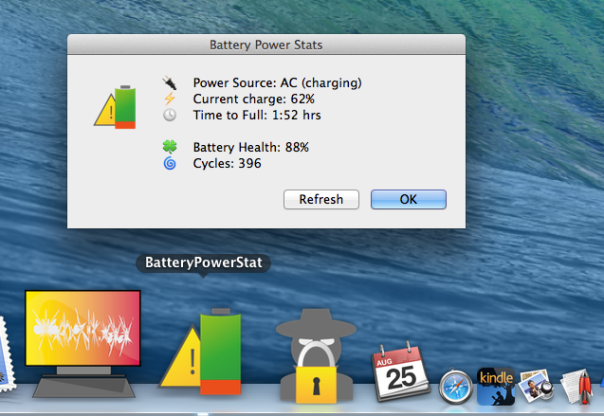
A couple of weeks ago, I posted about how to extract numbers from strings. That led one reader to wonder what use they could make of such a handler. That sounded like an invitation for a little AppleScript tutorial, so in this post we’re going to build our own, colourful and highly useful battery health meter. In the process we’ll not only use the numbersInString handler I posted last time, but learn how to make our AppleScript displays a little more colourful by adding images, and we’ll take a quick look at some very useful Bash utilities that will do some of the heavy lifting for our little app. So, open up your AppleScript editor and let’s get started!
Step 1. Grab the returnNumbersInString(inputString) handler I posted here, and paste the code into a new, blank AppleScript editor window. Hit ‘cmd-K’ to turn it into ‘pretty text’ and check that it compiles OK.
Step 2. Underneath that, hit return a couple of times to create some white space, and define a new handler like this:
on powerstats()
set iconAC to ""
display dialog iconAC & "Power Source: " with icon 1
end powerstats
Hit ‘Cmd-K’ again to compile, then underneath our new powerstats handler, hit return to make some space again and type
powerstats()
Hit ‘cmd-R’ this time, which will build and run our code at the same time, and you should get the nice if not terribly useful result as so:

Believe it or not, that’s all it takes to get the core of our app, and all that remains now is to fill out the powerstats() handler and the display dialog command with the details.
Step 3: You might have been wondering what that ‘iconAC’ variable at the beginning of the display dialog command was doing, since all we did was set it to an empty string with “”. That was a placeholder. Let’s put something in it.
First, place the cursor between the two quote marks in the line that reads
set iconAC to ""
Now, either use the keyboard shortcut control+command+spacebar, or open the Character Viewer from the Keyboard menu bar (check the System Preferences > Keyboard | Keyboard: Show Keyboard & Character Viewers in menu bar item if necessary). Pick an image you like to represent AC Power. You can find the same image as I used by typing plug in the search/filter bar, but feel free to choose any image you like.
When you find the image you want, double-click it, and you should see it inserted between the quotation marks in your AppleScript. With the cursor placed immediately after the plug character but before the final quotation mark, hit the space bar three times. That’ll position it just nicely with our ‘Power Source:’ text:

OK, we’re going to set the other images we need in the same way. So, now place the cursor after the quote marks on the ‘set iconAC ‘ line, and hit return to create a space between that line and the display dialog line.
Now add the following lines, but do not include the words in orange like #battery after each set of quote marks. I’ve included those here just as search tips to help you find appropriate characters in the Character Viewer. As before, put the cursor between each set of quote marks and use the suggested orange words to find the images. Of course, you can use any image you like, but don’t forget to add the three spaces after the ASCII image.
set iconBatt to "" #batteryset iconCharge to "" #voltageset iconTime to "" #clockset iconHealth to "" #cloverset iconCycles to "" #cycloneset iconWarning to "" #warning
Now we’re going to update our Display Dialog command so that we get the images at the beginning of a new line. We do that by adding
& return &
between each variable. Also, we don’t need all the images (iconBatt and iconAC are alternatives, and the warning sign appears elsewhere), so we’ll just add the ones we know will always be displayed. Finally, we’ll add an extra
return &
between iconTime and iconHealth to create some space. Update your Display Dialog command so that it now looks like this:
display dialog iconAC & "Power Source: " & return & iconCharge & return & iconTime & return & return & iconHealth & return & iconCycles with icon 1
When you hit ‘cmd-R’ it should now give you this:

Step 4: Ok, we’re done with the images, but not quite with the Display Dialog command. We need some more static text in there, so edit the command to look like the following:
display dialog iconAC & "Power Source: " & return & iconCharge & "Current Charge: " & return & iconTime & return & return & iconHealth & "Battery Health: " & return & iconCycles & "Cycles: " with icon 1
Be careful to ensure you close every quote and add an ampersand between every term and every return, or your code won’t compile correctly. Feel free to cut and paste it from above if necessary, but you should now have something like this:

This is all the ‘static text’ — text that will appear every time we run the script. As you can see, there’s some parts missing, as they will need to be added depending on the state of our battery.
Step 5: Coding time! We need to get our data for the battery before we can do much else, and for that we’re going to use a couple of unix utilities. Rather than messing around in Terminal, though, we’re going to let AppleScript manage them for us using the ‘do shell script’ command. First, we’ll ask pmset for a load of information about the machines power management settings, then we’ll ask grep to narrow it down to just the bits we’re interested in. To do all that, we’ll add the following short but powerful command to our powerstats() handler. Place the cursor on a new line after all the set icon commands, but before the Display Dialog command. Then type the following:
do shell script "pmset -g everything | grep Cycles"
Now run the script again and hit the “OK” button. The dialog will look the same as before, but this time we’re interested in what is in the ‘Replies’ (not ‘Result’) panel in the lower half of the AppleScript editor:

Note you won’t see this until after you hit the “OK” button on the dialog panel. What we need to do now is capture this result in a variable so that we can start extracting some of those useful numbers, so immediately underneath this line, add:
set x to the result

Step 6: In order to understand what follows, temporarily add the following two log lines:

Now run the script. Run it once with the power supply connected, then again with the machine running on battery power and compare the output in the ‘Replies’ field after you’ve hit the “OK” button.
The output of the log lines is shown in the Replies field between
(* *)
and they tell you the values of the variables. “Word 1” is the first text item in the result (exactly what delimits text items in a script depends on a built-in AppleScript variable called text item delimiters, which you can read about here).
If the AC Power is connected, word 1 should be “AC”, otherwise, it should be “No”. Similarly, word 2 should be either “charging” or “not” (sometimes the battery doesn’t charge due to a poor connection or if its more than 95% full). If AC is not connected, Word 2 should be “AC” (Word 1 and 2 together, in this case read “No AC”). However, different macs may have different power management options, so do some tests and check that you get the same results. If you don’t, you’ll need to experiment logging different words to find out which words correspond to my ‘word 1′ and word 2’. Here’s a summary again of the word numbers you need to determine for each of the values, with those on my machine given in brackets:
AC connected: word (1)? = “AC”; word (2)? = “charging” or “Not”
On battery power: word (1)? = “No”; word (2)? = “AC”
If your machine gave different results, make a note of which word number corresponds to my word 1 and word 2, and wherever I mention ‘word 1’ and ‘word 2’ in the scripting below, substitute those for the correct word numbers you found in your tests.
That these words always appear in the same position on the same machine is a very handy fact that makes it easy for us to determine whether the mac is running on battery or mains power, and in the latter case whether the battery is charging or not.
In the next step we’ll now put this information to good use in our script. First, however, remove all the log messages from the script.
Step 7: It’s time to add some more code to our powerstats() handler. Add this conditional test to your script, remembering to substitute any differences in word number you found in your logging tests:

This code assumes the AC is connected and sets the variable ‘charger’ to display whether the battery is charging or not. However, we need to set that variable to an empty string if the mac is running on battery power, so immediately underneath add another conditional:

In the Display Dialog command, replace iconAC with pwrSource as indicated in the image above. This will allow the Display to change the image accordingly. At this point, compile and test your script, both with the power supply connected and disconnected, ensuring that the icon changes accordingly.
If that’s working as expected, add the variable _t to the Display Dialog command immediately after the iconTime variable. Don’t forget to add another ampersand along with it as shown:

Again, compile and test your script, both on battery and AC Power.
Step 8: Time to do some math. You may remember we started the script by adding the returnNumbersInString(inputString) method, and now it’s time to use it. We want to extract all those numbers returned by the do shell script command, and currently stored as a text string in our variable, x. We’re going to need some of them as numbers because we’re going to perform some math on them to get the battery percentage health.
Start by adding the following line, which calls the handler and gets the numbers back as a list of integers:

Item 1 of nums should be the battery’s current charge. Test this by adding a temporary log statement immediately after the set nums line:
log "item 1 of nums is " & item 1 of nums
Run the script, hit “OK”, and examine the Replies panel. Compare the output of the do shell script statements, and it should be clear whether you’ve got back the battery percentage or not. If not, continue logging till you hit the right item number. I’m going to assume that you got item 1 (if you didn’t, replace my mention of ‘item 1’ with whatever yours was in the following lines), so let’s remove the log statement, and replace it with this:
set percentage to item 1 of nums & "%".
Now, down in the Display Dialog command, add the variable ‘percentage’ and another ampersand in the place shown:

Run the script and hopefully you should now see that your battery percentage is correctly shown:

Looking at the display reveals we haven’t added in the Power Source variables to the Display Dialog which we defined earlier, so do that now:

Step 9: The next step is to add the time, but this is tricky on several counts. First, if you examine the number returned by do shell script in the Replies panel, you’ll note the hours and minutes are colon-separated. As far as our list is concerned, that makes them two different items, so we have to get the hours and minutes separately (items 5 & 6 on my machine; use logging to check what they are on yours).
Secondly, if the minutes are between “00” and “09”, AppleScript will just return a single-digit between 1-9, cutting of the “0”. That’ll mean we’ll end up with a weird display for say “1:05” as “1:5”. To counter that, we’ll have to test whether the minutes is less than 10 and add a “0” back in to the string if so. Also, we’ll have to add “hr”, “hrs” or “mins” depending on how much time is remaining or left to fill the charge.
As if that wasn’t enough, there’s a problem with the power manager: if you use Apple’s battery/power icon in the menu bar, you’ll notice that if you click on it straight after changing the power source, you’ll get a “Calculating Time till Full” or “Calculating Time Remaining…” message. That’s because it takes a minute or so for the power manager to update. The menu bar icon will update live, but we don’t have that luxury. Instead, we’ll add a warning later to alert users to this and ask them to run the script again after a short delay.
Woah. That’s a lot of conditions, so here goes. Add the following immediately above the Display Dialog command:
if item 5 of nums = 0 then
set hrmins to " mins"
else if item 5 of nums = 1 then
set hrmins to " hr"
else
set hrmins to " hrs"
end if
if item 5 of nums is greater than 4 then
if pwr is "AC" then
set t to "Calculating...try refresh in 2 mins"
end if
else
if item 6 of nums is less than 10 then
set theMins to item 6 of nums as string
set theMins to "0" & theMins as string
else
set theMins to item 6 of nums as integer
end if
set t to item 5 of nums & ":" & theMins & hrmins
end if
And for all that code, we only need to add one variable and an ampersand to our Display Dialog:

There is one remaining problem, which is that if you run the script immediately after changing the power source, although the message “Time to Full” or “Time Remaining” will change, the time itself may not. This is for the reason stated earlier: its inherent to the way the power manager works. We’ll do our best to help the user by adding a Refresh button later, but otherwise this is a shortcoming we’ll have to live with.
Step 10: It’s now time to get down to the real point of this script, which is to tell the user something that the battery meter in the status bar does not: the battery health and the battery cycles. The number of charge cycles the battery has been through is, naturally, given by the ‘Cycles’ figure. Battery health, however, is not data outputted natively by the power manager. Rather, it is a percentage of the Battery’s design capacity and its current ‘fully charged capacity’ or FCC. As you might expect, these two figures are represented in the do shell script output by “Design” and “FCC”, and it is largely because we need to do a mathematical operation on these that we needed the numbersInString handler.
To figure out the Battery health, we’ll divide the Design capacity by 100 to obtain 1%, then divide the FCC by this number to figure out how many percent it is of the Design capacity. That bit of math is represented by the function FCC/(design/100). In order to avoid a whole load of decimal places, we’ll also use AppleScript’s built-in round() handler to return a whole number. Finally, we’ll add the “%” sign to the string and add the ‘battHealth’ variable to the ‘Display Dialog’ command.
Here’s the code to be added, again after the last line and before the Display Dialog command (reminder: don’t forget to check using the logging technique I showed earlier that your item numbers are the same as mine, and to substitute your own for mine if they are different):
set FCC to item 3 of nums as integer
set designCap to item 4 of nums as integer
set battHealth to (FCC/(designCap/100))
set battHealth to round(battHealth)
set battHealth to battHealth & "%"

Don’t forget to add the battHealth and ampersand to the Display Dialog, as shown above.
Step 11: Almost there. Let’s add the Cycles, which is fortunately a simple one liner:

Does that say minus 3? Yes indeed it does! A little trick with AppleScript lists and strings is that you can count items backwards from the end using the minus sign,where -1 is the last item, -2 the item before it and so on (I thought I’d just throw that in as an extra since this command was so straightforward!). As always, check the position by using logging in your own script.
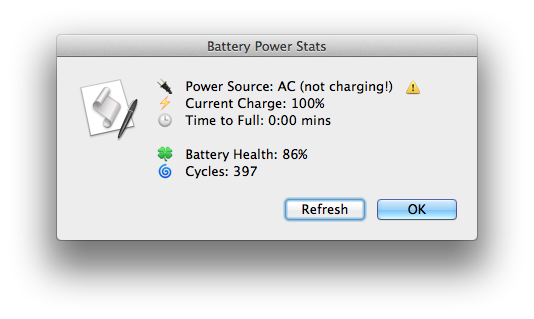
Step 12: If you run your script now you should find it’s complete. To wrap up, we want to go back to where we started, and that’s improving the look and functionality of our Display Dialog box. The first thing to do is fix the buttons. We don’t need a “Cancel” button, since the “OK” button does the job of dismissing the script, but we would like a “Refresh” button, so the user can run the script again from the dialog box. To add the the buttons, change the Display Dialog command and add a conditional statement after (not before this time) it. We’re also going to add a title for the box while we’re at it:

Step 13: Your script is done, but to really finish it off, we should turn it into an app that we can run off the Dock, and to which we can add a custom icon. To create an app, choose “File > Export” and change the File Format to App. Give your script a name like “batteryPowerStat” and save it in your Applications folder.
Step 14: All you need now is an icon. You can either make your own, or you can download mine. Once you have an icns file, change its name to ‘applet.icns’ and add it to the Application bundle. To do that, control-click on your new app in the Finder, and choose ‘Show Package Contents’. Navigate to Contents > Resources, delete the file that currently exists there called ‘applet.icns’ and replace it with your custom icon.
You may need to log out and log in again before OS X flushes the old file from its memory and displays your new one.
Step 15: Only kidding! There is no step 15. 😀 I just wanted to stay “Congratulations”. If you made it this far, I hope you picked up a few AppleScript tricks along the way to creating your own battery health meter. If you need the complete code, you can find it on my Pastebin site here.
Enjoy! 🙂
AppleScript: how to extract numbers from a string
Here’s a little handler I wrote in response to a query over on ASC, that will return all the numbers in a string of text. This could be really handy for all sorts of tasks, like extracting data from a text document in order to import the data into a spreadsheet or indexing page numbers from InDesign or Quark, for instance.
Here’s the handler:
on returnNumbersInString(inputString)
	set s to quoted form of inputString
	do shell script "sed s/[a-zA-Z\\']//g <<< " & s
	set dx to the result
	set numlist to {}
	repeat with i from 1 to count of words in dx
		set this_item to word i of dx
		try
			set this_item to this_item as number
			set the end of numlist to this_item
		end try
	end repeat
	return numlist
end returnNumbersInString
To use it , place the handler somewhere in your script (handlers usually go at the beginning or end of your script, but it’s up you; AppleScript doesn’t care where you put them!). Then call it like so:
set theNums to returnNumbersInString(“put your string with some numbers like $45.12, 20%, 12 months, and other assorted data here, or use a variable that points to your text “)
The handler does the work, and sets theNums to a list containing all the numbers in your text. In the example, you’ll see the result as {45.12, 20, 12}.
After that, you’re free to sort them or send them to another app or do whatever your script wants to do with numbers.
If you want to see this handler in action, take a look at my battery health meter script. 🙂
how to save and print email attachments
I was recently asked for a script that would automatically save and print all the pdfs from one particular client’s emails. Since this is quite a common use case (think invoices from a particular supplier, for example) and involves a fair bit of complexity, I thought I’d share the answer for any others out there that have the same need.
We’re going to need to do three things; install a script, set up a mail rule, and set up folder actions. Here we go!
Part 1: Install Script
Copy and paste the script you see below from here:
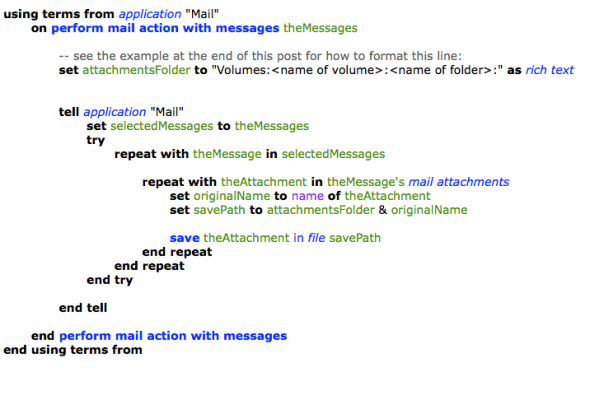
Save this script with a name like ‘CopyAttachments’ in
~/Library/Application Scripts/com.apple.mail
(note: ~/Library means your user library. You can find it by triple-clicking the path above, then control-click on the highlighted text and choose Services > Reveal in Finder)
Part 2: Set up Mail Rule
Open Mail.app. Click on your Inbox in the sidebar. Click ‘Mail > Preferences… > Rules > Add Rule’
Under ‘Description’ give the rule a name (e.g., ‘Copy attachments’)
Set ‘If ANY of the following conditions are met’:
to
‘From contains’
and the email address of the person whose attachments you want to target.
(note: You can add more than one person’s email if you wish, but you do so by hitting the ‘+’ key and adding a new condition, not by adding more than one address in the text field. Each text field must contain only one condition, i.e., email address or keyword).
Next, set ‘Perform the following actions:’
to
‘Run AppleScript’
Click the ‘No Script Selected’ button and choose ‘CopyAttachments’
Click ‘OK” and in the following dialog click ‘Apply’.
3. Create & Set up a Folder Action
Open Automator.app. From the open panel choose ‘Folder Action’.
In the large, empty panel at the top you’ll see
‘Folder Action receives files and folders added to’ Choose folder
Click the Choose folder menu, choose Other. Select the folder you want the attachments to be saved in.
In the filter/search bar on the left of the Automator window, type ‘print images’. Drag the ‘Print Images’ selection from the results list into the middle of the empty workflow and release.
You can set some options here if you like (‘scale to fit’ might be useful).
You can choose either ‘Default Printer’ or click to select your actual printer. If your actual printer is the default, it won’t make any difference.
Press ‘command-S’ on your keyboard to save. Supply a name (e.g. Print PDFs) and hit ‘OK’. You do not choose a save location.
Quit Automator.
Open a Finder window and navigate to the folder where the attachments are going to be saved.
Hold down the ‘control’ key on your keyboard and click the attachments folder. From the contextual menu, go to Services > Folder Actions Setup… and click to open the dialog box.
Navigate down the list of scripts till you see the name of the Automator action you saved above and select it. Click ‘Attach’.
In the parent dialog box, check the box at the top that says ‘Enable Folder Actions’ and ensure that in the list on the left the attachments folder is listed and checked. Check that on the right, the ‘Print PDFs.workflow’ is checked.
If all is in order, close the dialog box. The procedure is complete and the workflow is installed.
Testing
It’d be wise to test the script as soon as possible. If it fails to work, double check that you’ve entered the correct path in the AppleScript as that’s the most likely point of failure. Let’s suppose your hard disk is called ‘Macintosh HD’, your user name is “Mack” and the folder you want to save the attachments in is “Invoices From Acme”, then the set attachmentsFolder line should look like this:
set attachmentsFolder to "Volumes:Macintosh HD:Users:Mack:Invoices From Acme:" as rich text
You must ensure you’ve already created the folder ‘Invoices From Acme’ before running the script. Also, be sure you don’t forget the trailing colon at the end of the path and that you have a matching pair of opening and closing quotes around the path name.
Any problems, drop me a comment below and I’ll try to help you out. Good luck and enjoy! 🙂
Carbon Copy Cloner: see last back up date
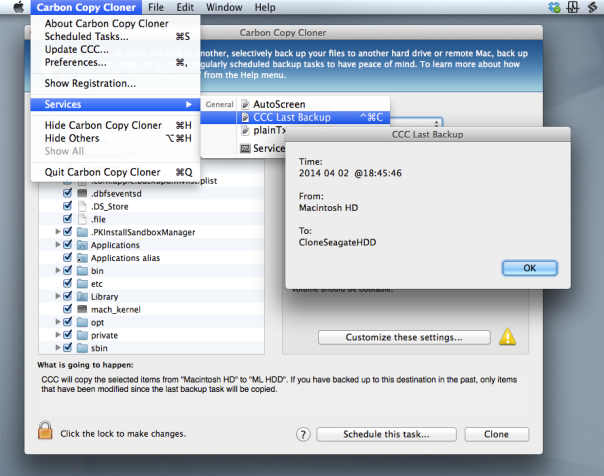
If you’re a user of Bombich Software’s excellent Carbon Copy Cloner but you’re not doing backups as scheduled tasks, you may wish there was a way to find out the last time you successfully completed a backup task.
Unfortunately, CCC doesn’t provide an easy way for users to see this information natively, but in this post we’re going to add it through a bit of AppleScript and Automator magic.
As it turns out, CCC does keep a log of all your past backup details stashed away in a CCC.log file buried in your local domain’s Library folder. You can view this file in Console, but it’s a bit of a pain. Wouldn’t it be nicer if you could just hit a hotkey like ‘Command-Control-C’, say (you know, for ‘CCC’🙂 ), and get a dialog box like this:

If you think so too, then download my Automator workflow:
For Lion, Mountain Lion and Mavericks:
Download for 10.7.5 thru 10.9.2 
For Snow Leopard:
Download for 10.6.8 
Double-click on the .zip file and double click again on the unzipped workflow file. You’ll get a warning message saying that you’ve downloaded the file from the internet (from me, actually!). After clicking ‘Open’ to dismiss the warning, for all users except 10.6, click ‘Install’ on the the following dialog box:
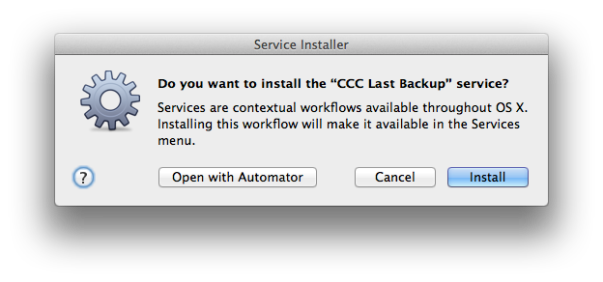
After clicking ‘Install’, click ‘Done’ to dismiss the confirmation dialog box that pops up.
For those of you running Snow Leopard (10.6.8), after clicking ‘Open’ the workflow should open in Automator. Hit ‘command-S’ to save it as a Service.
For all users, if you now click up to any application name next to the Apple near the top left of your screen (see the screenshot at the top of this post) and scroll down to ‘Services’ you should see the new Service already there. If you don’t, try logging out and logging back in to your user account.
Once you can see the workflow in the Services menu, go ahead and give it a click to test it out. 🙂
A couple of notes on usage:
Carbon Copy Cloner does not have to be open for the Service to work.
The date format display is YYYY-MM-DD.
If you want to add a shortcut key as suggested earlier, open up System Preferences > Keyboard and click the ‘Shortcuts’ tab. Down the sidebar you should see ‘Services’. Click on that and scroll way down to the bottom till you see the name of the Service. Click ‘Add Shortcut’ and hit the keys you want to use. I like ‘command-control-C’ as it’s an easy mnemonic for ‘Carbon-Copy-Cloner’.
Contacts won’t launch

Try running the following script in AppleScript editor:

If you get an error message back from the AppleScript editor mentioning error number -10661 has occurred, then you’re going to need the following procedure.
The problem stems from the launch services database being out of sync and not knowing which app to launch when it gets passed “Contacts” as input. To solve that, we’re going to do a couple of things in Terminal (roll up your sleeves!).
First up, we’re going to ensure that the locate database is loaded. We’re going to need that to find the address of the Launch Services database, so
1. Open Terminal.app (/Applications/Utilities/Terminal.app) and type
You should get one of two possible results. Either you get a message telling you that the locate database doesn’t exist, and instructions on a command to run to create it:
or you get a path back that looks something like
In the first case, use the command suggested in the reply to create the database. The Terminal prompt will probably reappear almost instantaneously after you run that, but your database may not have finished creating yet. Wait a few minutes before running the ‘locate lsregister’ command again.
In the second case or once you’ve got your locate database loaded and working, copy the address returned to the clipboard by dragging across the whole thing to highlight it and hitting ‘command-C’ on your keyboard.
Still with Terminal active, hit ‘command-V’ to paste that address at the prompt. Hit the spacebar once, and then complete the command by adding
So the whole thing should look something like this:
Finally, hit ‘return’ to enter the command. It’ll take a few seconds to return the prompt (it’s about 10 seconds on my machine, but your mileage may vary).
After the prompt returns, go test that AppleScript again. Hopefully, Contacts fires up without issue. 🙂
*Thanks go to Yvan and Deivy on the AppleScript users list for identifying and solving this problem.
the end of “tell”?

With all the excitement over Mavericks’ fancy new apps, memory compression and Finder enhancements, perhaps one of the most revolutionary changes to go largely unnoticed is to the venerable (yes, it’s 20 years old, this year!) programming language AppleScript.
Apple have quietly introduced a new command to the AppleScript language called ‘use’. In effect, ‘use’ replicates the preprocessor ‘import’ directive familiar to Objective C users or the ‘include’ directive known to C programmers. This is likely to have a radical effect on how people learn and write AppleScripts.
Although ‘use’ seems primarily intended as a means to turbo-boost AppleScript by making available Objective C methods to scripters, it can also be used to import the scripting language of any app on your system. With that power, the whole concept (and limitations) of the ‘tell’ block are done away with. To see how this works in practice, take a look at this short script for toggling Bluetooth depending on your power source that I wrote pre-Mavericks, using tell statements and blocks:

Compare that with how we will do it now in 10.9 with the ‘use’ statement*:

Not a ‘tell’ in sight! Note the three ‘use’ declarations at the beginning of the script. The first one tells the script editor to include terms from System Events scripting dictionary. The second one does something similar with terms from System Preferences, but you’ll notice the syntax is slightly different. In the second declaration, I’ve taken advantage of the optional means to define a global text substitution for the expression “application System Preferences”. If you’re familiar with the #define directive in Objective C, or with using global properties in AppleScript of old, you’ll understand how this works. If you’re not, the short version is that we’ve declared a global variable of the sort which allows us to use the expression SysPrefs wherever we would normally have used the string application "System Preferences".
Don’t overlook the third ‘use’ statement in my example script above. Using ‘use’ effectively disables scripting additions (that includes all your familiar ‘display dialog’, ‘clipboard’, ‘path to’ and other essential expressions). In short, if you include any ‘use’ statements, be sure to also add the ‘use scripting additions’ statement, too.
There’s a lot more to using ‘use’ (you can read the full documentation here), but overall I think this is a positive change. However, if you’re fond of ‘tell’ don’t despair. At least for now, there’s no sign that ‘tell’ is being deprecated and you can carry on using it just as before.
🙂
*Note that there are other changes in the Mavericks version of the Bluetooth toggle script (in the ‘if…else’ blocks) due to the fact that Mavericks has changed the Bluetooth system prefs pane.
enabling Assistive Devices in 10.9
In Mavericks, Accessibility for Assistive Devices is no longer a global setting, but has to be turned on explicitly on an app-by-app basis. That setting has now moved to the Security & Privacy pane in System Preferences.
If you’re running System Events in AppleScript, Automator or using apps like BetterTouchTool that require Assistive Devices, you’re likely to come up against an error message. For example, a simple script like this:
tell application “System Events”
tell application process “Safari”
UI elements
end tell
end tell
will return an error message like this:
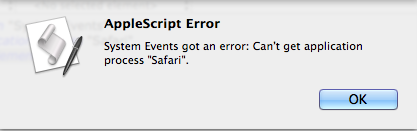
The first time this happens, you should get prompted with another dialogue box that looks like this:

Click the button ‘Open System Preferences’. If you accidentally hit ‘Deny’, just go to System Preferences in the normal way and choose the ‘Security & Privacy’ panel.

Click the padlock at the bottom left, enter your admin password, and check the boxes in the panel for the app that’s requesting access.
🙂



 applehelpwriter.com