Office not working on Lion?

If you are having trouble opening any Microsoft Office apps — Word, Excel, Powerpoint — on your new OS X Lion installation the problem is most likely that you have Office for Mac: 2004. One of the main shifts from Snow Leopard to Lion is that the latter does not support what is known as PowerPc apps, and significantly that includes the 2004 edition of MS Office.
If you want to stick with Lion you have three options:
1. Upgrade to Office 2008 or 2011
The simplest solution, but of course it adds to the cost of the Lion upgrade.
2. Download the free Office suite LibreOffice
LibreOffice is not only free, open source software, but it will both import and export to all Office formats. The interface may look a bit dated, but the functionality is just as sophisticated and arguably even more powerful in some respects than Office.
3. Buy Apple’s equivalent software from the App Store
Apple offers ‘Numbers’ (for spreadsheets), ‘Pages’ (for word processing) and ‘Keynote’ (for powerpoint) as their own alternatives to Microsoft’s signature software package. These will all import your old 2004 Office files and export to MS format. Currently these are retailing at $19.99 each in the App store, so if you only use one of the MS programs this could be significantly cheaper than upgrading to the latest version of Office. You’ll also get Autosave, Versions and full screen functionality built in.
If you are loathe to part with your Office for Mac: 2004 for some reason, then the fourth option is to revert to Snow Leopard. This should be possible so long as you didn’t buy a new Mac that came pre-installed with Lion.
Related articles:
running PowerPc apps on Lion
will my old apps work with Lion?
how to turn a Lion into a (Snow) Leopard
featured picture: Office for Mac alternative icons by deleket
Mail won’t remember passwords

Sometimes, Mail keeps asking you for a password that you know it already has. It asks if you want it to remember the password in the keychain, and you say Yes! And still, you keep getting those password requests…
If you look in Mail > Preferences… > Account Information, you may be surprised to find the password field blank. You may be even more surprised that when you enter it, click out of the tab and hit ‘Save’, the field is blank again the next time you look!
There are a couple of different solutions to this problem, and both revolve around the keychain. One solution is to try a keychain repair. If the repair indicates nothing is wrong, then you have a problem with the access controls. Let’s deal with each in the order you should do them.
Verify and Repair Keychain
1. Go to Applications > Utilities > Keychain.app and double-click to open it.
2. From the menubar, choose Keychain Access > Keychain First Aid
3. Type in your admin password in the field, and click Start to verify the keychain. If the keychain needs repairing, click the radio button for repair and click Start again. Run the ‘Verify’ task one more time.
Repair Access controls
If the above didn’t solve your problem, or the keychain verify/repair task indicated no problems, then you’re going to need to look at the access controls on each Mail keychain.
4. In the left-hand pane, click login in the top panel, and Passwords in the bottom panel.
5. Look for your Mail/imap keychains. Click on one of them, and then press command-i on your keyboard, or click the little ‘i‘ at the bottom of the Keychain window.
6. Click the Access Control tab in the window that pops up. Click ‘Confirm before allowing access’, and make sure Mail is in the list of apps in the window underneath that is always allowed access. Go and do the same for any other Mail/imap keychains in the window, and your problem should be fixed.
7. If the settings above were already configured correctly or they do not resolve the problem, click on the Attributes tab (next to the Access Control tab).
8. Click on the ‘Show password’ box. If everything is OK, you should get a request to put in your admin password. Chances are, though, if you’ve got to this stage you will instead get a message saying ‘Access is restricted’ and no option to do anything about it.
9. If you don’t get asked for the password, close the information box (red radio button, top-left), and control-click on your mail/imap keychain in the Keychain window. Choose ‘Delete <name of keychain)’. Do the same for any other keychain’s exhibiting the same problem.
10. You can now go back to Mail, and enter your password in the Account preferences box.
Problem solved!🙂
frozen menubar, disappearing icons

An out-of-control mds process can show itself with a number of symptoms across the menubar:
— disappearing or frozen Spotlight icon in the right-hand corner
— the menubar clock stopping
— other menubar icons like TM frozen or failing to appear
Try this quick-fix solution with the Activity Monitor:
1. Open Activity Monitor.app (Applications > Utilities > Activity Monitor.app)
2. Select ‘All Processes’ from the drop down menu next to the search bar (called ‘Filter:’) and type in ‘mds’.
3. Select the process name ‘mds‘ with user ‘root‘. Click the ‘Quit Process’ button at the top. You will be asked to supply your password.
write the way you think with Scrivener
Since first writing with a computer nearly 25 years ago, I have used a variety of tools to craft thoughts into text: Impression Publisher, WordPerfect 5.1, Microsoft Word, QuarkXPress, Scribus, LibreOffice, Nexus Writer; I’ve even tried out LaTeX and FrameMaker. What all these programs have in common, however, is far greater than anything that sets them apart. Despite all the bells, whistles, ribbons and menus, the essential method of writing on a computer has barely changed from the first WYSIWYG programs of the 80s.
That is until Scrivener came along. Scrivener is one of the very few text creation tools that approaches writing in a completely different way from those mentioned above. More important than merely being different, what makes Scrivener noteworthy is that it is designed around the way writers think, rather than the way computers work.

how to secure your mac (OS X Lion)

Security in OS X Lion is a big problem that not many people are aware of, and here’s why: your Lion computer contains the install/recovery disk on the internal drive. That means anyone with a basic knowledge of Mac and Lion can start up your mac and reset your passwords, thereby accessing your user accounts and all your personal data. The same trick can help kids easily get round restrictions applied through OS X’s ‘Parental Controls’ feature.
How is this possible, you may ask? First, a little history. Among the 250 changes vaunted about Lion over its predecessor, Snow Leopard, there is one that is widely known but whose implications are rarely pointed out: you download the OS rather than install it from a disc. In the past, if your OS went bad and needed to be recovered, or you forgot your admin passwords, the simplest answer was to insert your install disk. From that, you could restore the OS and reset your passwords. That made your Mac a little safer (though not entirely safe) so long as your disc was kept somewhere physically different from your computer.
With Lion having no install disc, Apple had to find an answer as to how to provide the recovery option. The solution was to install a Recovery partition on the same disk as the operating system itself. In the event that the OS goes bottoms up and needs to be recovered or re-installed, you just restart your computer holding down the ‘command’ and ‘r’ keys to access the Recovery partition.
So far so good, but likewise, just as with the old DVD install discs, you — or anyone else — can also reset the user account passwords from the Recovery partition. That means your passwords are effectively useless. Anyone who wants to hack your user account just has to restart your Mac holding down ‘command’ and ‘r’ and then use the built-in Password Utility to make new passwords for your accounts. Now I’m not going to tell you quite how to do it (you do need a little knowledge to get the user account names and know how to do the reset) but it is widely publicized elsewhere, and indeed even in Apple’s own online documentation (so if you really want to know, google is your friend or follow some of the links in this post…).
What’s the answer to this security nightmare? Here’s one thing that’s NOT the answer but which I have seen widely touted: setting a firmware password. If you’re not familiar with the concept of the firmware password, don’t worry. It is practically useless, since anyone can reset that simply by taking off the back of your computer, and then pulling out and then putting back in one of the memory chips.
Apple, of course, thought about this problem. Their own solution is to encourage you to use FileVault 2 (FV2) to encrypt all your data. Indeed, this is the BEST solution. Without your password, no one can access the disk on your computer no matter what they do (and that includes YOU if you forget it…). However, there are a couple of drawbacks to FV2. One is that it requires extra disk space, and if you have more than one partition on your hard drive, or a lot of data, and little space you may not be able to encrypt and decrypt your data. The other drawback is that FV2 places a little extra wear-and-tear on your hard disk (though that may be negligible given the security pay off).
Using FileVault 2 is really the only security option if you’re using Lion. However, if you don’t have the space for it, there is a ‘second-best’ strategy (see below why it’s only ‘second best’), and that is to remove the recovery disk and use a clone as your recovery option instead (WARNING: the Recovery disk is required for FileVault 2, so by removing it you will also remove the ability to use FV2).
There’s a couple of ways to remove the recovery partition on your internal disk, but this is probably the best:
1. Clone your current system to an external disk using Carbon Copy Cloner. This will clone your entire system exactly as it is now, but it will not copy the Recovery disk.
2. Still booted into your internal OS (the one on your machine), open Terminal.app and paste the following command:
defaults write com.apple.DiskUtility DUDebugMenuEnabled 1
Press ‘Return’.
3. Open Disk Utility.app (Applications/Utilities/Disk Utility.app). In the menu bar of Disk Utility, choose Debug > Show Every Partition.
4. In the left-hand pane of Disk Utility, you can now see the Recovery HD. Click on it. Then click on the Erase tab on the (larger) right-hand pane. Click the Erase button down there on the bottom right.
5. Quit Disk Utility.
Now you can use your bootable clone as your recovery disk if your OS becomes corrupt and no one can boot up your computer with ‘command-r’. If you keep the clone backed up on a regular incremental schedule (you can choose anything from once an hour, once a day, week, or month), you can simply restore a corrupted internal disk to exactly the same state as your last backup.
Why only ‘second best’?
As alluded to earlier, it is still possible for advanced users to start up your mac and reset the password without the Recovery partition (this was also true in Snow Leopard even without the install disc). In fact, what this procedure does is give your OS X Lion installation the same security level as an OS X Snow Leopard installation, which is not actually that great, but better than Lion with a Recovery disk! Also, if you are storing highly sensitive data, don’t neglect the fact that someone who has complete unfettered access to your hard drive could even remove the disk and recover the data using special software.
The short story is if you want to be absolutely certain that your data is secure, FileVault 2 is really your only option.
featured picture Security Workstation by digitalhadz
easiest way to find your serial number
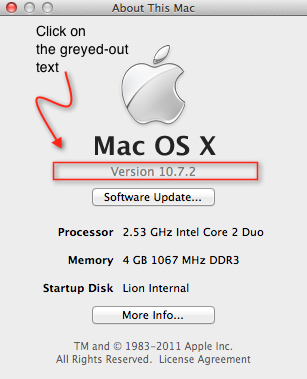
Click > About This Mac… then click on the greyed out text underneath the black ‘Mac OS X‘.
It probably says ‘Version 10.7.2’. When you click on it, it will change to the OS build number. Click on it again and you’ll see your serial number. Easy 🙂

need a manual for Lion?
Got a new Mac and feeling like you’re on a whole different planet? Providing user manuals with computers isn’t really very Apple somehow 😉 …after all, the OS is supposed to be so intuitive and easy to use we shouldn’t need one…
However, clearly more than a few have been having problems getting used to their new Lion installation as Apple are now prominently displaying two beginners help guides on the ASC support forum.
Have a look at Mac 101 if you’re new to computers in general or haven’t really used one for a while.
If you’re pretty computer savvy but have just switched over from a lifetime of Windows to your first Mac, then Switch 101 will clue you into both some of the major differences and how to accomplish familiar Windows tasks in your new Mac OS X environment.
To keep up to date, troubleshoot, or find answers to specific questions not covered in the above materials, be sure to visit http://www.apple.com/support/lion/. You can also find this page from the menu at the top left of your screen. Click
> About This Mac and then ‘More Info…’:

Over on the right of the next panel, click the ‘Support’ button:

You can access both the online Lion manual (indicated in blue), and also a pdf manual (indicated in purple) for your computer from here.
Enjoy exploring! 🙂
Struggling with the basics? Don’t be shy, let us know in the Comments below! 🙂
featured picture The Close Light by *qaz2008
why is my mac running so hot?
’ve previously covered one issue here about overheating macs, but kernel_task is not the only process that can get out of hand. For example, there’s a known issue with some releases of Parallels that can cause a process called prl_disp_service to run up to 99% too, leaving your mac sweating on the desktop even on a cold Winter’s eve!
In general, ‘hot’ issues can be found by looking at what’s going on in your Activity monitor, and solved by quitting (or force quitting) the process. Also, don’t wait to discover these by how hot your mac feels to the touch. Download and install a free copy of smcFanControl and have it running in the menubar. Now you’ll have a reliable means of seeing exactly how hot your mac is. 🙂
However, some processes may not re-start correctly after being quit in Activity monitor unless you reboot the machine or work a bit of Terminal magic. In the case of Parallels, for example, if you’ve identified prl-disp_service as the culprit, the correct solution is to first stop your VM and quit Parallels. Then, open Terminal.app and follow this procedure:
1. Paste this command into Terminal
sudo launchctl stop com.parallels.desktop.launchdaemon
Press ‘Return’. You will be prompted for your password. Note that when you type it in, your typing will be invisible. Press ‘Return’ again.
2. Now paste this command:
sudo launchctl start com.parallels.desktop.launchdaemon
and press ‘Return’.
3. You need to check that the process has correctly restarted before trying to start up Parallels, so one last command:
sudo launchctl list | grep com.parallels.desktop.launchdaemon
The output should look something like this:
36468 – com.parallels.desktop.launchdaemon
The number on the left will be different, but so long as it is anything except 0, you are good to go!
4. Finally, in Terminal, hold down the ‘control‘ key and press the ‘c‘ key at the same time. Now you can quit Terminal and get back to a cool Mac and your Parallels VM. 🙂
You can use these same ‘stop’, ‘start’, and ‘grep’ commands for other errant processes, but you need to find the correct name of the process. You can do this by first noting its name in Activity monitor, then in Terminal, paste:
sudo launchctl list
Look for a launchdaemon that corresponds with the name you found in Activity monitor. Then use the commands above but replace ‘com.parallels.destkop.launchdaemon’ with the name of the process you want to kill.**
🙂
**Warning: The sudo command gives you root privileges to the computer and can cause irreparable harm to your OS if used incorrectly. Never mess around with the sudo command unless you have a recent bootable clone of your system.
Related posts:
Why is my mac running so slow?
kernel_task at 103%!!
java not working on Lion

Unlike previous OS X iterations, Java does not come installed by default on Lion OS X. Instead, you need to download it and enable it.
First, check to see whether Java is installed by running this command in Terminal.app
java -version
If you don’t get a version number back, then you need to go here first and download the Java update from Apple: http://support.apple.com/kb/DL1515
Once Java is installed, then you need to enable it. In your Applications > Utilities folder, you should find the Java Preferences.app. Double click on that, and in the ‘General’ tab, click the enable checkbox at the top (see screenshot above).
Java working!🙂
how to take a screenshot

We all like to take happy snaps at Christmas 🙂 , but there’s no need to buy expensive software to snap the wonders you or your family produce on your Mac computer screen. Mac OS X has a number of built-in ways to take screenshots. The simplest is to use the universal hotkey combination:
Command-Shift-3
This will immediately take a snapshot of your entire screen and dump it on your desktop as .png file. Try it now and have a look!
If you want to select only a specific region, try this
Command-Shift-4
Move your cursor, and you’ll see it’s turned into a cross-hairs by which you can select any part of the screen you want. You can also press the spacebar after you invoke this command, and the cursor will turn into a camera icon. This lets you accurately select individual windows for the shot, instead of drawing round them.
If you are taking the screenshot to immediately paste it into a post, email or document and you don’t particularly want to keep a saved copy of it, then add the control key to either of the previous commands (e.g., command-control-shift-3). This will dump the screenshot into the clipboard rather than save it as a file. All you do next is go to the window you want to paste it in, and hit Command-V.
Finally, if all these hotkeys are too much to remember for the occasional screenshot, remember you can always access screenshots through the Preview.app menu (see main image above).
Happy snapping folks! 🙂

Here’s the summary of the main commands:



 applehelpwriter.com