FastTasks 2 update available 💥
I’ve just released an incremental update for FastTasks 2. Update 1.3 adds the ability to quickly see whether TRIM is currently on or off for your SSD disks. Since TRIM support for non-Apple SSDs requires editing a kernel extension, TRIM is regularly disabled on non-Apple SSDs every time users update or upgrade OS X. FastTasks 2 v1.3 now lets you see TRIM status in the information section of the menu.

Get the latest release of FastTasks 2 by going directly to the FastTasks support page, or if you already have FastTasks 2 running, you can use the Preferences > Check for Update > Check now menu item.
🙂
UITableView doesn’t immediately reload data

Here’s a little problem and solution I ran into the other day while using UITableView. I wanted to have a master-detail set up in which the UITableView was segued to after an initial home screen.
The problem occurred whenever I added or deleted something in the UITableView, segued back to the home page and then returned to the table view. Sometimes the table would not update. Going out and back into the view a second time, however, would finally reload my data and show me the changes. Why was my app needing to load the view twice before the table would show any changes?
Logging showed me that something even weirder was going on: Every time I segued into the table view, the viewDidLoad method was being called not once, but twice. So basically, to get my updated data to show, I was actually calling viewDidLoad four times!
I worked through a whole bunch of stackexchange posts related to various problems and solutions with the reloadData method — adding delays, removing it from any edit- or insert- methods and so on, calling it on the main thread — but the problem stubbornly remained.
Then I noticed something else. In my awakeFromNib method, the call to super had somehow got pushed to the end of the method, after a bunch of other set up calls. I’m not sure how it got there, but I did remember seeing a WWDC 2014 Swift video pointing out that one difference between Objective-C and Swift was that calls to super need to be made after doing any initial set up in Swift’s case, but before for Objective-C. Since this was an Obj-C project, what was my call to super doing at the end of the method?
And as if by magic, moving [super awakeFromNib] to the beginning of my awakeFromNib method resulted in viewDidLoad only being called once, and my table view updating correctly.
Though I found quite a few threads with people having a similar problem with UITableView’s needing two calls before updating, I haven’t come across this particular solution to (or cause of) the problem. Hopefully, this post will save someone else a few hours of head scratching!
AppleScript: how to extract numbers from a string
Here’s a little handler I wrote in response to a query over on ASC, that will return all the numbers in a string of text. This could be really handy for all sorts of tasks, like extracting data from a text document in order to import the data into a spreadsheet or indexing page numbers from InDesign or Quark, for instance.
Here’s the handler:
on returnNumbersInString(inputString)
	set s to quoted form of inputString
	do shell script "sed s/[a-zA-Z\\']//g <<< " & s
	set dx to the result
	set numlist to {}
	repeat with i from 1 to count of words in dx
		set this_item to word i of dx
		try
			set this_item to this_item as number
			set the end of numlist to this_item
		end try
	end repeat
	return numlist
end returnNumbersInString
To use it , place the handler somewhere in your script (handlers usually go at the beginning or end of your script, but it’s up you; AppleScript doesn’t care where you put them!). Then call it like so:
set theNums to returnNumbersInString(“put your string with some numbers like $45.12, 20%, 12 months, and other assorted data here, or use a variable that points to your text “)
The handler does the work, and sets theNums to a list containing all the numbers in your text. In the example, you’ll see the result as {45.12, 20, 12}.
After that, you’re free to sort them or send them to another app or do whatever your script wants to do with numbers.
If you want to see this handler in action, take a look at my battery health meter script. 🙂
how to easily encrypt your files

Keep the spooks and data thieves out of your personal data with this easy-to-use, drag-and-drop 128-bit AES encryption applet. It’s a simple 1-2-3 process:
1. Download EncryptMe, copy to your Applications folder and drag the icon to your Dock.


2. Select the files you want to encrypt and drop them onto EncryptMe’s Dock icon.

3. Choose a password and you’re done!

That’s really all there is to it, but let’s take a moment to go over the details of Step 2 and 3.
How does it all work?
First of all, note that EncryptMe is an Automator “droplet” app. That means you use it by dropping files on it, not by clicking or double-clicking the icon (which will just produce an error message). If you want to know how EncryptMe works (or make your own), just open up Automator.app and take a look a the ‘New Disk Image’ action. EncryptMe sizes the disk image to fit the files you drop on its icon as long as you have enough free space on your drive.

Secondly, take a moment to pause and think about the password options. You can use OS X’s built-in password generator or make one up of your own. However, be careful. This encryption won’t just keep the bad guys out; it’ll keep you out too if you forget the password!
For that reason, you’ll need to think carefully about whether you’re going to tick the ‘Remember password in my Keychain‘ checkbox or not. Doing so gives you far more insurance against losing the password. The flipside is that anyone will be able to access your encrypted files if they gain access to your computer while you’re logged in. Leaving the box unchecked is more secure: the password you set here will have to be supplied every time an attempt to open the files is made even when you’re logged in. The bad news? Forget the password, and you’ll be in the same boat as the spooks and the data thieves, locked out of your data forever. So choose carefully here.

Xcode: adding source control

If you’re not yet using source control with your Xcode projects, it’s something you want to seriously consider before a project you’re working on hits serious trouble. Setting up source control is easy when you create a new project (just tick the box in the project set up window), but figuring out how to add it to projects you’ve already created is a bit more challenging. In this post we’ll look at the ‘why’ and the ‘how’ of adding source control to an existing project.
Why?
In most normal applications, ‘Command-S’, Versions, Time Machine or other back up will save your hide when you either lose a document or realise a whole bunch of recent changes are something of a disaster. Recovering or reverting a document are mechanisms Apple has put a lot of time and effort into since Lion first appeared (changes I haven’t always been a fan of…).
However, these mechanisms do not work well with Xcode due to the complex and deep links between files in an Xcode build. If you’ve ever tried to go back to an earlier version of an Xcode project or undo some change from last week, and ended up with a headache, you’ll know what I’m talking about.
That’s what snapshots are for, you say? Yes, maybe. When they work. But in my experience snapshots themselves get lost, corrupted, or simply fail to restore.
Moreover, source control has other benefits aside from recovery and reversion that neither snapshots or any other mechanism provide. It’s primary purpose is to allow you to develop parallel but different versions of your project at the same time (a process known as ‘forking’). What if you want to experiment with adding some new feature, but don’t want to risk making changes right across your code that would be needed to try it out? What if you want to create one version of your project for one set of users and another one for others, or one version for an earlier OS X iteration and another for the current release?
How?
Let’s get down to the nitty gritty. Let’s assume you’re convinced you want to add source control to your current project. The first thing you’ll need to do is install git if you haven’t already. If you’re not sure, open Terminal and enter
git --version
If you get back a version number, continue on to the next step. If not, you’ll need to install git first. Follow the instructions for doing that here and then return to this post.
Once git is installed, here’s the steps for adding source control to your existing repository:
1. Locate the project folder
Select the project in the sidebar on the right, and click the little ‘Open in Finder’ arrow on the right.

Once you’ve got the parent folder open in ‘Finder’, quit Xcode.
2. Open Terminal and switch to the project’s parent folder
Click on the project’s parent folder icon in Finder and drag it to a Terminal.app window. Hit ‘control-A’ on your keyboard to move the cursor to the beginning of the line and type ‘cd’. Press ‘return’ to complete the command.
I always like to do a quick ‘ls’ to double check I’m in the folder I think I am, and that it contains what I think it does.

3. Initialize, Add, & Commit
Next, we’re going to hit a series of Terminal commands, one after the other. Press ‘return’ on your keyboard after each one:
git initgit add .git commit -m "Initial commit"
Notice that there’s a period after a space on the end of the second command. Don’t forget to include it.
4. Confirm your local repository
Reopen Xcode, and hit the ‘Source Control’ menu. You should now see the options are active.

Congratulations! You just added a local repository to your project. You can now go ahead and start creating branches (‘forking’) by choosing the Source Control > master > menu item.
You’ll notice that when you make changes in your Xcode project, an ‘M’ (‘modified) will appear next to the files that have been changed. When you’re happy that these are changes that you’re going to keep, use Source Control > Commit. Full documentation on how to use the various features of source control are available in Xcode’s documentation.
5. Add a remote repository
Local repositories are great, and may be enough for your needs, but for ultimate protection (such as against disk loss or failure), you might want to add remote back up. To do that, you’ll need an account with a service like GitHub or Bitbucket. My own personal preference is Bitbucket, largely because they allow you to have private repositories on a free account. Steps for adding your existing project to a remote repository can be found on your chosen service’s website. If you’re using Bitbucket, the general method is first create a new repository on the Bitbucket site and copy the link. Then, enter each of the following in Terminal, replacing the dummy text in square brackets with your actual values (remove the square brackets, too).
cd [path to your repo]git remote add origin [url to your repository]git push -u origin --allgit push -u origin --tags
After that, re-open your project in Xcode and you should be all set up. Check by ensuring the remote path is shown in Source Control > –> master > Configure…
how to remove Google’s secret update software from your mac

If you’ve ever downloaded Chrome, even for just a trial (guilty!), you might not be aware that Google have slipped a little bit of hidden software into your Library.
This software is called Google Updater, and it secretly “calls home” on a regular basis and downloads updates to your Google software without either asking before, or notifying you after, doing so. In Developer circles, this is considered very shady practice. Users should be asked for consent and informed when software makes changes to either itself or the user’s computer, and ideally those notifications should tell the user what has been changed and how the changes could impact them.
Before I beat this drum any harder, however, I owe you at least the other side of the story. If I worked for Google, I’d probably come up with this response: “Hey look, a major source of computer virus and malware infections is that users are often using out-of-date software that hasn’t been patched to combat newly-discovered exploits. No matter how much we tell users to keep ther software up-to-date, the truth is the majority don’t. We provide an automatic updater so that users don’t have to worry about it, and can be assured they’re always using the latest and safest version of our software”.
I’ve heard this argument so many times, I don’t doubt it’s something close to what Google would actually argue. My problem with this is that while automatic updates can be a good thing if they’re security related, it’s not at all clear why an app should be updating itself automatically for any other reason, or why it’s updating itself without providing notifications about when and what updates were made.
If an independent developer did that, they’d almost certainly find their software labelled as “suspicious” at best, and “dangerous” at worst. The fact that Google is a multinational, global enterprise with a stranglehold on the internet, and which is often tangling with the law in countries throughout the world, may make you feel more or less confident that they can be trusted more than independent developers, whose income depends very much on their reputation. I’ll leave that one for the reader to decide. 😉
Do I have Google Updater?
To see if you’ve got Google Updater hiding on your system, try this quick test in Terminal. Triple click the line of code below to highlight it.
defaults read com.google.Keystone.Agent
If you’ve previously installed my Terminal workflow, just hit control-opt-cmd-T or right/control click and choose “Services > Run in Terminal” from the contextual menu. Alternatively, if you have my free utility app FastTasks 2, the Analyser’s Profile view will show you if Google Updater is installed (see ‘Locate Google Updater’ below for the locations to check in the profile view). Elsewise, manually copy and paste it into a Terminal window.
If the result comes back as
Domain com.google.Keystone.Agent does not exist
you’re fine. Google Updater has not found its way into your system. Anything else and you’re going to need to decide whether you want to remove it or not. If you’re a regular Chrome user, keeping Updater might prove convenient, though you’ll have to live with the idea that the app is updating itself in ways over which you have no control. If you rarely or never use Chrome, there’s no reason to have this hidden process regularly calling home to Google every time you’re connected to the net.
How do I remove it?
You have two options. You can either disarm it or you can nuke it. Disarming it is simplest, it’s a one-line Terminal command:
defaults write com.google.Keystone.Agent checkInterval 0
This command tells the Updater how often to “call home”. A value of 0 basically means ‘never’. Disarming it is probably better than nuking it if you still keep Chrome on your system and use it occasionally. You can temporarily set it back to something like ‘once a week’ from time to time to check for security updates with
defaults write com.google.Keystone.Agent checkInterval 604800
Nuking the Google Updater is a bit more complex. You’ll want to run some uninstaller commands, and then you’ll want to go and clear up the crud that is still left behind. And before you can do either of those, you need to find out where it’s hiding. So, we have a three-step process.
1. Locate Google Updater
Triple click the first of these two lines, and choose ‘Services > Reveal in Finder’ from the contextual menu (that’s another right-click or control-click on the selected line), and then repeat for the second line:
~/Library/Google
/Library/Google
You will likely get the error message “The operation can’t be completed because the item can’t be found” from one of these lines, but not the other. Note that the difference is all in the presence or absence of the tilde ~. Make a note of which one worked, and run the appropriate commands in step 2.
2. Run the uninstaller commands
Run these in Terminal (again, triple clicking to highlight and doing the usual trick afterwards with shortcut key or Services menu if you have my workflow installed), one at a time:
Updated, Jun 2018:
If the Updater was in your user library (with the tilde ~), then first triple-click this (it’s all one line) and run it in the Terminal:
~/Library/Google/GoogleSoftwareUpdate/GoogleSoftwareUpdate.bundle/Contents/Resources/ksinstall --uninstall
then this:
touch ~/Library/Google/GoogleSoftwareUpdate
If the Updater was in your domain library (no tilde ~), then first do this (it’s all one line):
sudo /Library/Google/GoogleSoftwareUpdate/GoogleSoftwareUpdate.bundle/Contents/Resources/ksinstall --uninstall
and enter your Admin password (note that you won’t see any indication of your password being typed in the Terminal window). Then do this:
sudo touch /Library/Google/GoogleSoftwareUpdate
3. Clear up the crud
If the updater was in your user library, open that now and go to
~/Library/Google/
and delete the folder called ‘GoogleSoftwareUpdate’. If you don’t use any other Google software (I don’t), you can just delete the entire ‘Google’ parent folder.
If the updater was in your domain library, search for the same folder and send it to the trash. You will need to give Finder your admin password to authorise the move.
Next, let’s just check the uninstaller was successful. Look for the following. If you don’t find them, good (the installer did its job). If you do, help them on their way to oblivion by sending them to the trash:
~/Library/Caches/com.google.Keystone.Agent
~/Library/LaunchAgents/com.google.Keystone.agent.plist
~/Library/Preferences/com.google.Keystone.Agent.plist
If you’ve deleted Chrome from your Applications folder too, then you might as well hunt down and exterminate its prefs list while you’re at it:
~/Library/Preferences/com.google.Chrome.plist
The following sources were used in researching this post:
http://wireload.net/products/guu-google-update-uninstaller/
http://raamdev.com/2008/howto-remove-google-software-update-on-mac-os-x/
http://blog.slaunchaman.com/2010/06/30/google-earth-now-available-without-automatic-updates/
https://support.google.com/installer/answer/147176?hl=en
‘Don’t be evil’ picture was remediated from here.
Related Posts
Terminal tricks for defeating adware
how to save and print email attachments
I was recently asked for a script that would automatically save and print all the pdfs from one particular client’s emails. Since this is quite a common use case (think invoices from a particular supplier, for example) and involves a fair bit of complexity, I thought I’d share the answer for any others out there that have the same need.
We’re going to need to do three things; install a script, set up a mail rule, and set up folder actions. Here we go!
Part 1: Install Script
Copy and paste the script you see below from here:
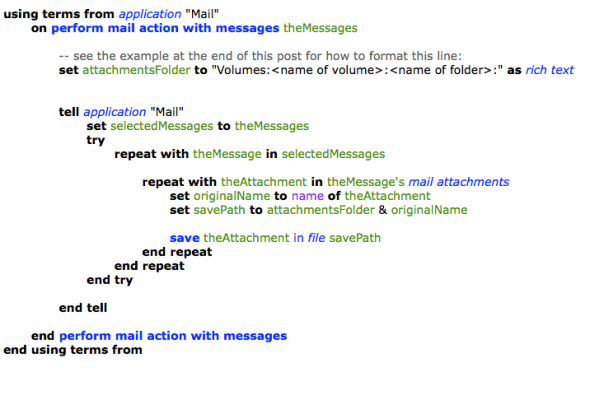
Save this script with a name like ‘CopyAttachments’ in
~/Library/Application Scripts/com.apple.mail
(note: ~/Library means your user library. You can find it by triple-clicking the path above, then control-click on the highlighted text and choose Services > Reveal in Finder)
Part 2: Set up Mail Rule
Open Mail.app. Click on your Inbox in the sidebar. Click ‘Mail > Preferences… > Rules > Add Rule’
Under ‘Description’ give the rule a name (e.g., ‘Copy attachments’)
Set ‘If ANY of the following conditions are met’:
to
‘From contains’
and the email address of the person whose attachments you want to target.
(note: You can add more than one person’s email if you wish, but you do so by hitting the ‘+’ key and adding a new condition, not by adding more than one address in the text field. Each text field must contain only one condition, i.e., email address or keyword).
Next, set ‘Perform the following actions:’
to
‘Run AppleScript’
Click the ‘No Script Selected’ button and choose ‘CopyAttachments’
Click ‘OK” and in the following dialog click ‘Apply’.
3. Create & Set up a Folder Action
Open Automator.app. From the open panel choose ‘Folder Action’.
In the large, empty panel at the top you’ll see
‘Folder Action receives files and folders added to’ Choose folder
Click the Choose folder menu, choose Other. Select the folder you want the attachments to be saved in.
In the filter/search bar on the left of the Automator window, type ‘print images’. Drag the ‘Print Images’ selection from the results list into the middle of the empty workflow and release.
You can set some options here if you like (‘scale to fit’ might be useful).
You can choose either ‘Default Printer’ or click to select your actual printer. If your actual printer is the default, it won’t make any difference.
Press ‘command-S’ on your keyboard to save. Supply a name (e.g. Print PDFs) and hit ‘OK’. You do not choose a save location.
Quit Automator.
Open a Finder window and navigate to the folder where the attachments are going to be saved.
Hold down the ‘control’ key on your keyboard and click the attachments folder. From the contextual menu, go to Services > Folder Actions Setup… and click to open the dialog box.
Navigate down the list of scripts till you see the name of the Automator action you saved above and select it. Click ‘Attach’.
In the parent dialog box, check the box at the top that says ‘Enable Folder Actions’ and ensure that in the list on the left the attachments folder is listed and checked. Check that on the right, the ‘Print PDFs.workflow’ is checked.
If all is in order, close the dialog box. The procedure is complete and the workflow is installed.
Testing
It’d be wise to test the script as soon as possible. If it fails to work, double check that you’ve entered the correct path in the AppleScript as that’s the most likely point of failure. Let’s suppose your hard disk is called ‘Macintosh HD’, your user name is “Mack” and the folder you want to save the attachments in is “Invoices From Acme”, then the set attachmentsFolder line should look like this:
set attachmentsFolder to "Volumes:Macintosh HD:Users:Mack:Invoices From Acme:" as rich text
You must ensure you’ve already created the folder ‘Invoices From Acme’ before running the script. Also, be sure you don’t forget the trailing colon at the end of the path and that you have a matching pair of opening and closing quotes around the path name.
Any problems, drop me a comment below and I’ll try to help you out. Good luck and enjoy! 🙂
FastTasks version 1.18 released! 💥

I’ve just posted an incremental update to my free system utility, FastTasks. The update fixes a bottleneck in the launch code that caused FastTasks to take excessively long to load. I’ve also added the System Uptime, which you can also refresh with the new keyboard shortcut, ‘command-U’.
FastTasks saves you having to role up your sleeves and get mired in the exotic world of Terminal’s command line for a number of common tasks. FastTasks v1.18 offers you system info down the left side of the panel, all of which can be updated by the shortcuts displayed on the panel, and access to some common Terminal commands on the right.
If you haven’t tried FastTasks yet (or got tired of the slow launch times with the old version), this is a great time to grab a free copy of v1.18 as I’ll soon be replacing the app by FastTasks 2.0, a paid-for app with a whole new interface and extra functions. Nevertheless, support for FastTasks 1 will continue and bug fixes will still be forthcoming as necessary. Grab it while you can, folks!🙂
Download FastTasks v1.18 from here…
Note: FastTasks requires OS X 10.6.8 or higher
run Terminal commands from any app
In this post I’m going to show you how you can select a piece of text in any app and have it run in Terminal simply by hitting a hotkey. The trick is especially useful for running commands you find on websites (like this one!) in a browser like Safari or Firefox.
This 20-second clip demonstrates running a command from a Firefox browser and another one from TextEdit, but you can also do it from an AppleScript editor window (and indeed any app that has selectable text), which can be useful for testing the formatting of your ‘do shell script’ commands and the like:
The first thing you’re going to need is to create an Automator workflow, add an AppleScript action and insert some code. Really? Nah, just kidding. I did it for you. 🙂 Just download, unzip and double-click the .workflow file to install the completed Service:
Download Run in Terminal.workflow.zip
Click through the various dialog boxes and choose ‘Install’ on the last one* (note for Snow Leopard users: the service will open directly in Automator; just do ‘command-shift-S’ to name it and save it).

All you need to do now is set the hotkey. Open > System Preferences.. > Keyboard | Shortcuts and click ‘Services’ in the sidebar. Scroll down the window till you see the ‘Run in Terminal’ command. Click on the far right to add a shortcut of your choice. The one I used in the video is ‘command-option-control-T’ (‘T’ for ‘Terminal’ helps me remember the shortcut).
To use the Service, just highlight any Terminal command by triple clicking it and pressing your hotkey. Try this one,
cd ~/Desktop; ls -alF
which lists all the visible and invisible files on your Desktop, as a test.
You can also get to the Service from both the contextual menu (right-click > Services) and the application menu bar at the top (e.g., Safari > Services).
As a bonus, try out your new Service on the Terminal command in this post, and now you’ll be able to run Terminal commands even from Quick Look previews in Finder!
Enjoy! 🙂
enable trackpad zoom in Firefox

With Firefox 29 just out, I’ve been testing it out as an alternative to Safari. However, if you’re new to Firefox you’ll probably find that the trackpad pinch and zoom gestures are not set by default. To turn them on, you’re going to need to do a bit of tinkering.
Open Firefox and type
about:config
in the address bar. Then type ‘browser.gesture’ in the search field and make the following changes to the ‘Value’ field for each of these preferences:
browser.gesture.pinch.in -> cmd_fullZoomReduce
browser.gesture.pinch.in.shift -> cmd_fullZoomReset
browser.gesture.pinch.out -> cmd_fullZoomEnlarge
browser.gesture.pinch.out.shift -> cmd_fullZoomReset
browser.gesture.pinch.latched -> false
Optionally you might want to also reduce the browser.gesture.pinch.threshold (I’ve got mine on 60).



 applehelpwriter.com