Blog Archives
how to get Spaces and Expose on Lion

(Note: If you’ve just installed Mountain Lion, be sure to run ‘Check for Updates’ by clicking on the Total Spaces icon in the menubar)
Yes, it’s possible to bring back most of those beloved Snow Leopard features that Apple unwisely did away with in Lion, and – if you get them now – for free with 3rd-party apps. I’ve been hunting down a way to get rid of all the Mission Control behaviour on my trackpad, to return the app-switcher trackpad gesture, the 2-dimensional Spaces grid and, of course, Expose.
OK, so here’s how I finally got all those lovely Snow features back to Lion. You’re going to need two free tools (free for now, so don’t hang around…), namely:
Total Spaces from http://totalspaces.binaryage.com
Better Touch Tool from http://blog.boastr.net
Once you’ve downloaded these you’re half way there, but you’ve got to complete the job by setting them up properly. In the remainder of this post, I’ll walk you through how I’ve got them set up. Try it this way first, then once you’ve got the hang of it, you can tweak it to your own style. 🙂
1. Total Spaces > Preferences:

</p?


In BetterTouchTool Preferences:

In > System Preferences > Trackpad:


Finally, disable the Mission Control hotkeys in > System Preferences > Keyboard | Keyboard Shortcuts:

With this configuration, you change spaces by holding down ‘option’ and any of the arrow keys to move round a grid of 9 spaces (you can have more or less if you want in TotalSpaces prefs).
You see all spaces (like the screenshot at the top of the page) by holding down ‘command-option-left_arrow’.
You bring up Expose with a 4-finger downward swipe on the trackpad (note: Expose is unavailable while an app is in Full Screen mode), and the App Switcher with a 3-finger tap.
Oh, and Mission Control? Drag it off the Dock to about centre screen and release. Should you ever need it you can always go and double-click on it in your Applications folder, but otherwise you’ll soon forget it ever existed.
And that’s it — proper Spaces, Expose, and Trackpad functionality restored! 🙂
QuickTime won’t play my video

With the announcement that the developers of Perian are to discontinue their QuickTime plug in, it’s probably time you switched to using the open-source video player VLC.
Not only does VLC play video files that QuickTime can’t play even with Perian, it will also attempt (and often succeed) to play files that suffer from minor corruptions.
If you’re having problems playing a video file in QuickTime, chances are VLC is the answer.
🙂
Direct Download: http://sourceforge.net/projects/vlc/files/2.0.1/macosx/vlc-2.0.1.dmg/download
Project Site: http://www.videolan.org/vlc/index.html
easiest way to find your serial number
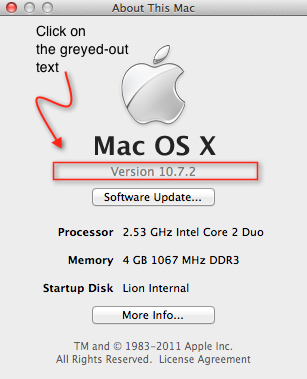
Click > About This Mac… then click on the greyed out text underneath the black ‘Mac OS X‘.
It probably says ‘Version 10.7.2’. When you click on it, it will change to the OS build number. Click on it again and you’ll see your serial number. Easy 🙂

OS X Lion 10.7 — the jury’s verdict

It’s been over 10 days since the jury went out to weigh up the evidence for and against Mac’s new operating system, 10.7 (OS X Lion). With Apple announcing a million downloads in the first 24 hours, there’s been no shortage of heated debate across the blogosphere and discussion boards (this thread runs to 60 pages and counting! Also see this witty and perceptive post about one user’s frustrations with the upgrade).
So it appears that some love it, others hate it, many are merely sanguine about the whole experience. A number of people are reporting trying it and reverting back to Snow Leopard with brow-mopping relief. My guess, though, is that the vast majority of Snow Leopard users are patiently waiting till a few updates have been released and all the early bugs ironed out.
It’s worth remembering the options: even if you buy Lion now to take advantage of the $30 opening price, you don’t have to install it now. You could buy it and leave the installer app in your Apps folder till the updates get released. Nor do you have to install it over the top of your existing installation. You could install Lion on an external disc instead, or move your Snow Leopard to an external disc and have Lion on your internal disc. Either of those options will allow you to play around with it and switch over fully when you’re truly ready. Don’t forget you can check out whether your existing software will work with Lion.
I have to say though, after ten days, 10.7 is starting to grow on me, and I think the external drive with Snow Leopard sitting on it is going to be gathering dust in a cupboard from now on. That’s not to say I’m thrilled with all that Lion has to offer. It’s a mixed bag, so sit back and let me read the court’s judgement in full. 🙂
The Good, …
— yes, I have unwillingly been converted. The four-finger screen swipe (left/right to change screen, up/down for Spaces and Expose, respectively) is addictive, and now I don’t think I could live without it. The truth is I could never get along with Spaces or Expose in Snow Leopard anyway, but Mission Control really does sort of force itself upon you. I do miss the App Switcher that is no longer available via the trackpad (Cmd-Tab still invokes it). There are free 3rd Party programs that you can get to add it back into the trackpad, but my experience is they are awkward at best.
— this is an app I use a lot and I love what they’ve done to it. Preview’s enhancements are one of the most undersold changes in all the talk about Lion. It’s always been ahead of Adobe Reader to my mind, but it did have shortcomings, particularly with adding and placing comments neatly and readably. The new Preview has tidied that up nicely, with the comment markers placeable with much finer precision and clear, neat lines indicating which comment each belongs to. The full screen feature also looks great and makes reading a pleasure.
— is growing on me. Switch it back to Classic view for a tidier interface, but there’s still lots of nice things about it. The animated display when you double-click to open a message is very neat (note: you won’t see the animation if you’ve got your IMAP account settings set to ‘Don’t keep copies of any messages’ in Mail Preferences | Advanced).
the Bad, …
Well, overall, the worst thing about Lion is that most of the good things are really cosmetic. There’s not a lot of new things you can do with Lion, and what there are, I don’t like much, particularly the triumvirate of data guardians otherwise known as
— Apple has gone to extraordinary lengths to ensure every keystroke, every page, every file you ever open is remembered somewhere (and often in multiple somewheres) on your internal drive and your backup drives. It’s worth noting that not all of these are places the average user can either find or remove. This is something that not everyone is thrilled about, and certainly it’s raised a few eyebrows among the security-conscious. If I were a Chinese blogger, I’m not sure I’d want to update to Lion (you think the Chinese don’t buy Macs? Oh,please!). Another thing worth noting about the Evil Trinity is that Apple has also made them extremely difficult to turn off. Resume, despite what you might be reading elsewhere, cannot be turned off by default (or at least no one’s found a way to do it yet).
However, with all these things, it’s not so much that you can’t beat them, but that you have to work around them. Adjusting your workflow to avoid Resume, Autosave and Versions is certainly possible, but something some may rightly begrudge paying $30 to have to do (in which case, that external backup of Snow Leopard I mentioned above is your friend!). I’ve already written about Resume, and I hope to post workarounds for Versions and Autosave in the near future (sign up for the RSS feed).
The only other ‘bad’ thing I have to say about 10.7 is LaunchPad. This is the iPad look-alike-finger-swiping app display (known as ‘springboard’ on the iPad). A complete waste of time: literally, it’ll take you forever to organise it, and even then it’s a very slow way to find anything but your most familiar apps. There have always been much faster and more efficient ways to get to both your most-oft used apps (the Dock) and those you only occasionally fire up (Finder).
…and the Ugly.
It’s not often that Apple do ugly, but its been universally acknowledged that the designs for iCal, Address Book and Photo Booth are a real eyesore. Fortunately, it’s easy to get rid of them with a bit of mucking about.
Conclusion
So should you upgrade or not? Well, why make it a black-and-white decision when you could have the best of both worlds? If you have a spare drive hanging around, whip it out, pay your $30 and take Lion for a test-drive. If it’s not for you right now, just put it away till the updates smooth it out and the time is right regarding compatibility. After all, if you’ve invested heavily in Apple products or have a lot of legacy material, then it’s probably only a matter of time before you give in and let the Lion tame you, too!



 applehelpwriter.com