Blog Archives
Deciphering the searchpartyd macOS process and its impacts
The searchpartyd process in macOS is an integral part of Apple’s innovative location tracking system, introduced with macOS 10.15 Catalina, iOS 13, and iPadOS 13.1. This daemon is a cornerstone of the Find My service, enabling users to locate their devices, even when offline. Understanding searchpartyd, its functionality, and addressing common issues like high CPU usage is crucial for macOS users.
The Integral role and functionality of searchpartyd
At its core, searchpartyd serves as a major daemon within the Offline Finding (OF) system of the Find My app. Its primary function is to generate the necessary cryptographic keys and perform all related cryptographic operations. This process is vital for synchronizing keys, sending location reports as a finder device, and obtaining location reports for devices owned by the user.
When a device equipped with the Find My feature is lost, it emits Bluetooth Low Energy (BLE) signals containing a public key. These signals are picked up by finder devices, which then use the key to encrypt the location of the lost device and send this information back to Apple’s servers. The Find My app accesses these reports to help users locate their missing devices.
The dual nature of searchpartyd process
Although the authentic searchpartyd process is an integral component of macOS’s security and geolocation functionalities, it is crucial for users to remain vigilant against potentially intrusive programs (PIPs) that could disguise themselves with analogous nomenclature. Such deceptive applications have the capability to alter web browser configurations, leading to unwarranted redirects and the proliferation of diverse forms of online advertisements. This activity not only disrupts user experience but also contributes to a noticeable reduction in the Mac’s operational efficiency.
Addressing high CPU usage and management concerns
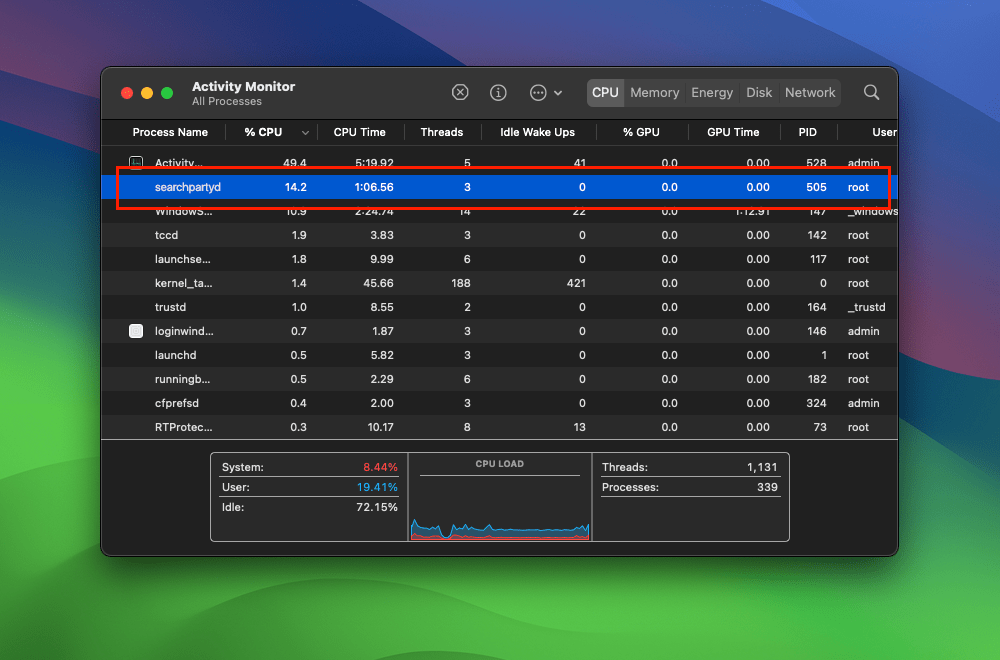
A frequently reported issue among macOS users is the high CPU usage associated with searchpartyd. This can lead to problems like overheating and rapid battery depletion. Despite some misconceptions, searchpartyd is not a form of malware or virus but an authentic and essential part of macOS. However, users have limited control over this process due to its protected status within the operating system. Tools like EtreCheck are invaluable in identifying applications that may be causing excessive CPU usage by searchpartyd.
QuickTime won’t play my video

With the announcement that the developers of Perian are to discontinue their QuickTime plug in, it’s probably time you switched to using the open-source video player VLC.
Not only does VLC play video files that QuickTime can’t play even with Perian, it will also attempt (and often succeed) to play files that suffer from minor corruptions.
If you’re having problems playing a video file in QuickTime, chances are VLC is the answer.
🙂
Direct Download: http://sourceforge.net/projects/vlc/files/2.0.1/macosx/vlc-2.0.1.dmg/download
Project Site: http://www.videolan.org/vlc/index.html
how to fix permissions (Permissions Pt 2)

(This post continues from here on file permission problems.)
Did you know there are two levels of permissions on your mac? User level and system level. Most discussions of fixing permissions only discuss the latter, but you may also need to fix the former (also sometimes called ‘ACLs’) for some problems caused by upgrading Lion on top of Snow Leopard.
4. System Level Permissions
You can safely repair your system level permissions at any time, and doing it once in a while is a good maintenance activity even if you’re not experiencing any problems. It’s also the first thing to do as soon as you notice any problems with apps launching, file access problems, or your computer seems to be running unusually slow.
How to do it:
— 1. Go to Applications > Utilities > Disk Utility.app and double click the app to open it.
— 2. Click your HDD icon in the left column (if you have more than one, click the one that contains your startup disk).
— 3. If it is not already selected, click on the ‘First Aid’ tab. Choose the ‘Repair Disk Permissions’ button near the bottom of the window (see the larger of the two windows in the screenshot above).
— 4. Wait for the process to finish (it could take ten minutes or more), then quit Disk Utility. You can ignore most of the error messages that appear unless they’re in red.
5. User Level Permissions (ACLs)
These permissions apply only to your ‘Home’ folder and its contents, and if you have more than one user you will need to do this procedure for any user experiencing a problem. However, unlike system level permissions, repairing ACLs isn’t something you should do unless there is a specific issue to be solved. Problems that this repair might help with include permission conflicts inherited from an earlier Snow Leopard or Leopard installation, such as Finder always asking for your password when you try to delete, move or copy a file.
To reset the ACLs in Lion: (To reset the ACLs in Leopard/Snow Leopard have a look here.)
— 1. Remove the current ACLs by opening Terminal.app (Applications > Utilities > Terminal.app) and copy and pasting this command:
sudo chmod -RN ~
Press return. You’ll be asked for your password. Notice that when you type it in you won’t see anything on the screen. Press return again. If you get an error message, you probably didn’t type in your password correctly. Repeat this step till its accepted. It will take some time to complete. Then paste this command into Terminal also:
sudo chown -R `id -un` ~
and press return. Enter your password again if necessary.
— 2. Press the Power button on the computer and choose ‘Restart’. When the screen goes blank, hold down the ‘command’ and ‘R’ keys on the keyboard until you hear the start up chime. In the menu bar at the top, choose Utilities > Terminal
— 3. At the Terminal prompt type
resetpassword
Then hit ‘Return’
— 4. Forget about resetting your password; what you’re looking for is your hard disk icon at the top. Hit that, and then from the drop-down menu select your user account.
— 5. Go to the bottom of the dialogue window – leaving all password fields blank – and choose ‘Reset’ under ‘Reset Home Folder Permissions and ACLs’ (see the smaller of the two windows in the screenshot above, inside the red dotted line).
— 6. When the process finishes, quit everything and restart your Mac. 🙂
Related Posts
How to Troubleshoot Your Mac with FT2
can’t create kext cache error
FastTasks – download the free OS X utility app from Applehelpwriter



 applehelpwriter.com