Category Archives: OS X Lion
why does Trash ask for a password? (Permissions Pt 1)

There are several reasons why Trash may ask for your password. Let’s deal with the obvious ones first:
1. FileVault is turned on
Solution: either turn FileVault off, or put up with the behaviour.
2. If you are using an account with ‘Parental Controls’ enabled, the person who set up your account may have denied you permission to delete, modify or move some or all files.
Solution: Speak to mom!
If 1 and 2, aren’t your problem, then you may have some permissions errors.
3. Check Permissions on .Trash
— 1. Open a Terminal window (Applications >Utilities > Terminal.app) and check the permissions by typing/pasting in the following:
ls -al
You should end up with a long list, among which will be the permissions for your .Trash folder. Mine looks like this:
drwx—— 2 SnowLpd staff 68 29 Nov 15:33 .Trash
— 2. What’s important here that the name after the series of ‘drwx’ letters is the same as your user name (my user name, as you can see, is ‘SnowLpd’). If it is, then ignore the rest of this post and go to the post Permissions Pt2.
If the name is not the same, then you need to type this command into Terminal:
sudo chown -R your_username .Trash
Where you replace your_username with (surprise…) your user name, which is also the name of your home folder (note there’s a space both before and after your_username). Thus, for example, if in the previous step it said ‘root’ instead of my username, then I’d type in ‘sudo chown -R SnowLpd .Trash’.
—3. Now press ‘Return’. You will be prompted for your admin password. Type it in, but notice that you won’t see anything as you type, so type carefully. Hit ‘Return’ again. You should be returned to the Terminal prompt pretty quickly. Quit Terminal.app and see if your problems are solved.
4. If your .Trash permissions were OK, then you may need to fix either system permissions or ACL permissions. To do that, go to the next post.
Related Posts
how to fix permissions (Permissions Pt 2)
‘delete’ doesn’t send files to Trash
avoiding autosave applications

If autosave is slowing you down, there may be nothing else for it than to switch from your favourite Apple app to an alternative that doesn’t use the feature. Here’s a rundown of some of the main autosave-enabled apps and some possible non-autosave replacements.
Preview –> Skim (for pdfs)
Skim is a great little free program that is based on Preview but adds some extra functionality, especially useful if you do a lot of annotations and note-taking. All the basic controls are familiar from Preview, including trackpad zooms and rotations. There’s two limitations: it’s pdf only, and it doesn’t have the ability to create hyperlinks.
Preview –> Graphic Converter (for images)
Old standard beloved by many Mac users. Note that the latest version does support autosave, but unlike native Apple apps, gives you the option to turn it off. Available on the app store. Main drawback: it’s not free (current price about $40).
TextEdit –> Tincta
Love this free program, and you can find it in the app store. Does everything TextEdit does and more. If you do any sort of coding, you’ll love Tincta. Everyone should have this!
Terminal –> iTerm2
You’re not really going to notice autosave in Terminal if you only use it for the odd command. If you’re doing anything more than that, well, you should be using iTerm2 anyway. Free, powerful, essential.
Pages & Numbers –> Office/Libreoffice
The only real answer to these outside of the MSOffice suite is the free Libreoffice.
Keynote –> Powerpoint/OpenSong
Well, sometimes it’s just the devil you know. Yes, you can’t really beat MSPowerpoint, but of course that’s a heavy investment. A free option that might be worth giving a try is OpenSong.
Tried any of these, or found your own alternative to autosave-apps? Let us know in the Comments below!
upgrading to Lion – the golden rules!
Nearly three months since the initial public release of OS X Lion 10.7 and a couple of updates later (we’re currently at Release 10.7.2) a lot of upgraders are reporting problems to Apple Support Communities. These problems could be avoided or their severity reduced if people upgraded in the right way.
There’s a wrong way? Oh yes…the Apple way is to encourage you to click on the App Store, click on Lion, pay your money, sit back and watch as everything falls into place without barely a finger lifted from the user. That’s great — when it works, but as noted, a lot of people are finding that all sorts of things are going wrong from software incompatibility to hardware incompatibility and sometimes (like in my own case) just plain user incompatibility (yes, some of us — and it could be you too! — are just not that thrilled with the reduced configurability and usability of Lion compared to Snow Leopard, even when it works as intended). There’s also some reported problems even with Apple’s own products: Time Machine, Time Capsule and Spotlight are all being reported as having problems for some users.
But much of this need not give you a headache, put your computer out of action or require a call to Apple Support if you follow the golden rules to doing any major OS upgrade.
Golden Rule No. 1: Check the compatibility of your key software tools.
Why do I need to do this?
Lion does not support a lot of older technologies such as Rosetta and PowerPC apps. If you make heavy use of these programs in your daily use, you’re going to need to upgrade those too or continue to run Snow Leopard on an external disk.
Golden Rule No. 2: Buy an external disk and clone your current system to it.
Why do I need to do this?
Without a doubt, this is the most important thing you should do before upgrading. What cloning means is that if anything goes wrong with the install, if it doesn’t work, or it isn’t to your taste, you can simply boot back into your old system within minutes (no longer than it takes to restart the computer, in fact). Your clone is your insurance, a fail-safe against the unexpected. Don’t even think about hitting that App store upgrade till you have your clone in the bag.
Or what? Simply put, if you don’t make a clone of your system, you’re going to have to live with any problems until you can work out a way to either solve them (and some issues haven’t even been resolved yet) or revert back to your previous OS the hard way, with the potential of data loss.
Although cloning your system will cost you the price of an external USB or Firewire hard disk, it’s an investment you should not overlook. Even if your upgrade goes well, keep the clone for a month or so till you’re sure everything works fine. Once you’re happy, you can use that disk to clone your Lion OS regularly as an incremental backup (like Time Machine only more configurable and less erratic!).
Golden Rule No.3: Make sure you have a bootable DVD or USB recovery disk.
Why do I need to do this?
Unlike every other proprietary OS upgrade ever, Lion is downloaded from the internet and does not come with an install disk. Does it matter? Well, yes. Sometimes Lion doesn’t install properly for a number of different reasons and sometimes your system just goes belly-up. Now you may have heard that Lion comes with its own recovery partition, but that assumes that the recovery partition installs properly, and it relies on having an internet connection. Re-downloading the installer takes a lot longer than simply copying it the first time and making a bootable Lion recovery disk in case of emergency.
Golden Rule No.4: Do a clean install to your internal disk.
Why do I need to do this?
A clean install basically means two things: you wipe the history of the disk you’re going to use for your new OS, and you don’t import any settings from your previous OS. This should ensure that the OS installs exactly as it was designed, without being infected with any hidden or unknown problems from your previous OS install.
Golden Rule No. 5: Use the clone to add manually the stuff you use everyday, and as-and-when you need it for other stuff.
Why do I need to do this?
Using the auto-upgrade, Time Machine or Disk Migration features have been known to introduce problems such as corrupted files and permissions that Snow Leopard ignored for some reason or other but which Lion won’t tolerate, and/or files and settings which are just plain incompatible with Lion. Trying to find out what is causing your system problems is a gruelling process if you just import everything en masse. On the other hand, if you import things manually over time, it’ll be both a lot easier to figure out which change caused the problem but also — using your clone — to roll your system back if needs be.
Let us know your upgrade stories in the Comments below. Was it just one-click to happiness or a whole world of pain?😉
how to back up your Mac – the best way!

iCloud? Time Machine? Noooo……! We’re talking about the best way to backup your precious data, not the most convenient way…
What’s wrong with using the cloud? The fact that you need an internet connection, a password to be accepted, to act in accordance with the T&C of your cloud provider, the fact that someone – government, corporation, hacker – could interfere with your data, lose it or just add unwanted stuff to it. Also, if you want to backup your whole system then the various free storage offers are not going to be big enough to do the job, and you’re going to end up paying a lot more than if you backup your system properly.
How about Time Machine? Yes, it’s simple and convenient and pretty much automatic, but its not secure. TM has three major problems. First, it doesn’t allow proper archiving so anything you delete from your HDD will eventually get deleted from TM. Second, it doesn’t tell you what it’s doing before it does it, meaning you are at the mercy of its automated decisions. Third, it’s not bootable. If your whole system crashes or your HDD just fails, Time Machine won’t help you. You’ll have to restore the system or replace the HDD before you can use your machine again.
But there is a much better way, and aside from you providing the hardware (a couple of external hard disks), one that’s also free. The most secure system is to run an hourly or daily scheduled cloner on one disk, and a weekly cloner on the other. You can use SuperDuper or, my own favourite, Carbon Copy Cloner.
If you want to read up on and understand the various backup options and what they entail, you can’t do better than to read this superb post by Apple Discussions member ds store.
how to uninstall MacKeeper – updated
Lees dan dit artikel in het Nederlands 
Lire cet article en français 
Last updated: June 16, 2018
If you’re unfamiliar with the reputation of MacKeeper but have come here because you downloaded it – or it downloaded itself after you were inadvertantly redirected to some unwanted website – and are now wondering whether you made a mistake, let me present you with a few facts.
MacKeeper is one of the most infamous pieces of software on the macOS platform. This post itself was first published in September 2011, and has since received over 2 million hits from people wishing to uninstall MacKeeper from their computers.
When I ran MacKeeper’s free trial version on a brand new clean install of macOS, it told me that my system was in ‘serious’ condition and that I needed to buy MacKeeper in order to solve all my problems.

It seems, then, that MacKeeper thinks macOS, freshly installed, is a poor piece of software engineering, but the feeling is mutual. macOS doesn’t like MacKeeper much either. macOS provides the following warning about MacKeeper:
MESSAGE FROM CONSOLE
12/05/2015 17:48:00.946 com.apple.xpc.launchd[1]: (com.mackeeper.MacKeeper.Helper) This service is defined to be constantly running and is inherently inefficient.
If you have installed MacKeeper and wish to remove it, read on.
Preparation:
i. If you have used MacKeeper’s encryption feature, be sure to unencrypt before you uninstall MacKeeper. You should also check whether any of your personal files are stored in /Documents/MacKeeper Backups.
Backups & other disks
ii. If you have any disks connected to your mac, including Time Machine, eject them before you start the uninstall procedure.
Trash
iii. If you have anything in the Trash, empty it now before you start.
You are now ready to uninstall MacKeeper.
The Easy Way
As I’ve been involved in helping people uninstall MacKeeper for over 5 years, I eventually got round to the task of automating the process so that folks who were not that technically proficient with computers could take advantage of the information on this page.
If that sounds like you, then the easiest way to uninstall MacKeeper is to use my app DetectX. This is a shareware that can be used for free 😀. You do not need to sign up to anything, subscribe to anything or give anyone your email address. Just download the app, run it, remove MacKeeper and be on your way.
After several years of testing and refining my app’s removal procedure, I now recommend using it even for proficient users as it is simply faster, more reliable and less prone to error than doing it any other way. The only people who should really consider the manual option are those that are running versions of macOS that are too old to run DetectX.
Please note also that the list of filepaths below is somewhat out of date. Follow the instructions, but consult my post here for the most recent update to the list of MacKeeper filepaths.
The Manual Way
If you need to remove MacKeeper manually then follow these instrutions carefully. They’ve been refined over the years by many people who contributed in the hundreds of comments that follow this post and have been proven to work without exception. However, bear in mind that the onus is on you to follow the instructions to the letter. For that reason, go slow, read carefully and don’t do anything if you’re not sure what you’re doing. If you have any doubts, post a question in the comments.
Here we go!
1. If MacKeeper is running, quit it. From the sidebar in any Finder window, choose your hard disk icon and go to your Library folder. Look in the Application Support folder for the folder inside it called ‘MacKeeper’:
/Library/Application Support/MacKeeper
Drag this folder to the Trash.
2. Still in Library, look for and trash any of these you find in the same way:
/Library/LaunchDaemons/com.zeobit.MacKeeper.AntiVirus
/Library/LaunchDaemons/com.zeobit.MacKeeper.plugin.AntiTheft.daemon
3. If you are using OS X Lion 10.7 or later, use the ‘Go’ menu in Finder’s menubar and hold down the ‘option’ key. Choose ‘Library’ from the menu (yes, this is a different Library folder from the one you were just in). If you are using Snow Leopard or Leopard, just click on the little ‘Home‘ icon in the Finder sidebar and navigate to the Library. Then trash any and all of these that you find:
~/Library/Caches/com.zeobit.MacKeeper
~/Library/Caches/com.zeobit.MacKeeper.Helper
~/Library/LaunchAgents/com.zeobit.MacKeeper.Helper
~/Library/LaunchAgents/com.zeobit.MacKeeper.plugin.Backup.agent
~/Library/Preferences/com.zeobit.MacKeeper.plist
~/Library/Preferences/com.zeobit.MacKeeper.Helper.plist
Be careful not to delete the wrong files: only those that have got the words ‘zeobit’, ‘MacKeeper’, ‘911’ or ‘911bundle’ should be trashed.
Update May 2015:
Due to recent changes in MacKeeper, the following files should also be searched for and removed:
~/Library/Application Support/MacKeeper Helper
~/Library/Caches/com.mackeeper.MacKeeper
~/Library/Caches/com.mackeeper.MacKeeper.Helper
~/Library/LaunchAgents/com.mackeeper.MacKeeper.Helper.plist
~/Library/Preferences/com.mackeeper.MacKeeper.Helper.plist
~/Library/Preferences/com.mackeeper.MacKeeper.plist
~/Documents/MacKeeper Backups
~/Library/Logs/MacKeeper.log
~/Library/Logs/MacKeeper.log.signed
/private/tmp/com.mackeeper.MacKeeper.Installer.config
/Library/Preferences/.3FAD0F65-FC6E-4889-B975-B96CBF807B78
The last item above will require removal in Terminal or turning on of invisible files in the GUI (various 3rd party apps can do this, including my own DetectX and FastTasks 2).
4. Go to Applications > Utilities > Keychain Access.app and double click on it. Notice the padlock in the window is up there on the left, rather than down the bottom. Click on it and enter your admin password. Now go through all the items in the ‘Keychains‘ list (such as Login, System, Root) with ‘All items’ selected in the ‘Category’ list. Anything you find related to ‘MacKeeper’ or ‘zeobit’, click on it, then choose Edit > Delete from the menu.
(Thanks to Al for also mentioning this point in the Comments below! 🙂 ).
5. Open the Activity Monitor utility (Applications>Utilities>Activity Monitor.app). In 10.10 Yosemite or later, select the View menu and choose ‘All Processes’. For earlier versions of macOS, select ‘All Processes from the drop down menu just over on the right of the dialogue box. Next, scroll down the list of items shown and see if any processes called ‘MacKeeper’, ‘zeobit’ or ‘911 bundle’ are still running. Older versions of MacKeeper may have a ‘WINE’ process running, so also look for ‘wine’. Anything you find, click on it and hit the ‘Quit Process’ or ‘X’ button (Yosemite) in the top left corner.
6. Go to your Applications folder from a Finder window and select MacKeeper. Then, hold down ‘command’ and press ‘delete’ once. If you assigned MacKeeper to be pinned in the Dock, be sure to also drag the icon off the Dock and release it anywhere over the desktop. It will, satisfyingly, disappear in the ‘poof’ of a cloud. 😀
7. When you’re done filling up your trash can with all this junk, click on the Finder> Empty Trash.
8. Go to
> System Preferences > Users & Groups (or ‘Accounts’ for Snow Leopard) | Login Items
If you see anything to do with MacKeeper in the list of items there, highlight it, then click the little minus ‘-‘ button near the bottom of the list.
9. Restart your Mac. Everything should be back to normal, but check the Activity Monitor one last time to be sure.
Supplementary: If you have a problem with MacKeeper pop-ups while using your browser, try clearing out the caches, like this:
In Safari menubar, choose ‘Safari > Reset Safari’. Make sure all the options are checked.
This will not only clear out your caches, but everything else stored by the browser. Don’t worry, it won’t affect your bookmarks, but it will reset your ‘top sites’ and history.
In Firefox menubar, choose ‘Tools > Clear Recent History…’ and choose ‘Everything’. Again, it’ll clear everything out but won’t delete your bookmarks.
Obviously, if you use any other browsers like Opera or something you’ll have to find the same options for those too.
Related Posts
Terminal tricks for defeating adware
block MacKeeper and other browser ads
protect your mac from malware viruses and other threats
FastTasks 2 – get Applehelpwriter’s free utility app from Sqwarq.com
NOTES
1. If you have any problems carrying out the steps, try starting your Mac up in Safe mode, and then running the procedure.
2. You can safely ignore any MacKeeper files that are in the BOM or Receipts folders.
3. If you have only downloaded the MacKeeper package but not ran the installer, you only need to send the .pkg file in your Downloads folder to the Trash. That’s it!
4. If you are seeing ads on this site, we recommend that you use an adblocker!
Acknowledgements
This post has been refined and improved over time thanks to suggestions and replies made in the Comments and on Apple Support Communities. Thanks especially to Al, Lyndon and Jack.
comment désinstaller MacKeeper

Volunteers Wanted: Since MacKeeper has become something of an international (ahem…what’s the right word here?) “phenomenon”, we need volunteers to help translate the instructions on this page into other languages. German, Spanish, Japanese, Italian, Korean, Thai, Russian, Chinese, etc…any other language you are fluent in aside from English.
Please contact us if you’re able to contribute a full and accurate translation (spam from commercial translation services will be ignored).
Thanks!
Read this page in English 
Lees dan dit artikel in het Nederlands
MacKeeper – également connu comme 911 fois Bundle sur l’App Store (maintenant discontinué). Oui, vous avez vu les annonces partout sur l’internet, des pop-up sur vos pages Web préférées, il semble être partout. Malheureusement, beaucoup de gens qui l’on téléchargés et utilisés, on vécut par MacKeeper de graves problèmes, comme en témoignent plusieurs des centaines de commentaires à la fin de cet article.
Après avoir lancé une version d’essai gratuite de MacKeeper sur une nouvelle installation de Yosemite, MacKeeper m’a prévenu que mon système était dans un état “grave” avec plus de 1500 “éléments” dont je devrais me soucier. Pour résoudre ceux-ci, il m’a invité à m’inscrire à un compte payant. Quand j’ai également installé une nouvelle copie de Mac OS X Mavericks, obtenu directement à partir de l’App Store d’Apple, MacKeeper m’a averti de la même chose :
Je suppose MacKeepern’ est pas trop impressionné par l’installation standard d’Apple, et il semble que l’incompatibilité est mutuelle. En regardant la console, OS X fournit l’avertissement suivant à propos de MacKeeper :
MESSAGE DE LA CONSOLE
105/12/2015 17: 48: 00,946 com.apple.xpc.launchd [1]: (com.mackeeper.MacKeeper.Helper) .Ce service est défini pour être constamment en cours d’exécution et est intrinsèquement inefficace.
Si vous avez installé MacKeeper et que vous souhaitez le supprimer, lisez la suite.
Désinstallation de MacKeeper 2 et 3
Si vous avez utilisé MacKeeper pour crypter toutes les données, décryptez-les maintenant en réutilisant l’utilitaire. Si vous supprimez MacKeeper sans d’abord décrypter vos données, vous ne serez pas en mesure d’y accéder plus tard. Ceci ne concerne que les données chiffrées avec MacKeeper, et non des données cryptées en utilisant les services de chiffrement intégré dans Mac OS ou en utilisant tout autre programme.
Une fois cela fait, vous pouvez suivre les instructions de désinstallation de MacKeeper ici :
http://help.mackeeper.zeobit.com/Manual/GettingStarted/UninstallingMacKeeper.html
Ces instructions promettent que tous de composants supplémentaires et des processus de MacKeeper connexes seront également supprimés. Dans mes tests sur la version de démonstration de l’application, qui est avéré être pas entièrement vrai. Voici ce qui a été laissé plus après avoir utilisé le programme de désinstallation de la version de démonstration :

Je ne sais pas quoi d’autre pourrait être laissé si vous avez réellement la version payante de ‘MacKeeper. Tous mes tests sont sur l’essai gratuit. Même si vous utilisez le programme de désinstallation fourni, je vous recommande de lancer un ou l’autre de mes applications gratuites — DetectX (pour OS X 10.6 ou ultérieur) ou FastTasks 2 (pour Mac OS X 10.9 ou ultérieur), les deux désinstallations sont illustrées ci-dessus — pour voir ce qui est restes. Vous pouvez également faire l’étape 4 de la procédure ci-dessous pour vous assurer que MacKeeper n’a pas accès à votre trousseau.
Désinstallation de versions antérieures de MacKeeper
Si vous avez une version de MacKeeper plus tôt que MacKeeper 2012 ou vous souhaitez faire une désinstallation manuelle, suivez la procédure ci-dessous. Vous ne trouverez probablement pas tous les fichiers mentionnés ci-dessous, mais tout ce que vous trouvez doit être supprimé.
Préparation:
i. Encore une fois, un avertissement : si vous avez utilisé la fonction de cryptage de MacKeeper, assurez-vous de déchiffrer avant de désinstaller MacKeeper. Vous devriez également vérifier si l’un de vos fichiers personnels sont stockés dans / Documents/MacKeeper Backups.
Time Machine
ii. Si vous utilisez Time Machine, laissez-le connecter et faites l’étape Time Machine (étape TM) aux endroits indiqués. Instructions pour l’étape de TM sont donnés dans l’encadré à l’étape 1 ci-dessous.
Clones
iii. Si vous utilisez un clone sans archivage, débranchez le clone et exécutez la procédure ci-dessous sur votre disque dur interne. Quand celui-ci est terminé et que vous avez vérifié que tout est OK, connectez votre clone et effacez la partition en utilisant Utilitaire de disque. Ensuite, faire un nouveau clone.
iv. Si vous utilisez un clone avec l’archivage, redémarrez en maintenant votre clone et exécutez la procédure ci-dessous sur le clone d’abord. Ensuite, éteignez votre ordinateur, débranchez le clone du système et redémarrez dans votre lecteur interne. Exécutez de nouveau l’ensemble de la procédure sur votre disque dur interne.
Corbeille
v. Si vous avez quelque chose dans la Corbeille, videz-la maintenant avant de commencer.
La procédure de désinstallation:
Dans les étapes 1 – 3 ci-dessous, vous allez chercher des fichiers liés à MacKeeper et les supprimer. Certains d’entre eux peuvent exister, d’autres non.
Vous pouvez trouver tous ces fichiers MacKeeper automatiquement en utilisant FastTasks 2 (pour Mac OS X 10.9 ou ultérieur) ou DetectX (pour les versions antérieures de Mac OS X), disponibles sur mon site de distribution de logiciels, sqwarq.com. Si vous ne souhaitez pas utiliser FastTasks 2 ou DetectX pour une raison quelconque, vous pouvez localiser chacun des fichiers manuellement en suivant les instructions ci-dessous. Dans les deux cas, assurez-vous de lire et de suivre attentivement les instructions.
Une fois que vous avez tout préparé comme ci-dessus, vous êtes prêt à commencer la procédure de désinstallation.
1. Si MacKeeper est en cours d’exécution, quittez-le. Dans la barre latérale dans une fenêtre du Finder, sélectionnez l’icône de votre disque dur et accédez à votre dossier Bibliothèque. Regardez dans le dossier Application Support pour le dossier à l’intérieur appelé «MacKeeper». (Si vous utilisez FastTasks 2 ou DetectX, il suffit de double cliquer sur l’élément dans la liste et il va ouvrir la bonne fenêtre du Finder. Pour éviter?? la répétition, répéter cette opération pour chaque fichier MacKeeper montré dans l’analyseur.) :
/Library/Application Support/MacKeeper
Cliquez sur le dossier une fois.
Étape TM
Si vous utilisez Time Machine, faites l’étape TM maintenant.Entrer dans Time Machine via l’icône sur votre barre de menu TM en haut de votre écran.
Cliquez sur la petite engrenage/ roue dentelée dans la fenêtre du Finder et choisissez ‘Supprimer toutes les sauvegardes de fichier xxx’.
Entrez votre mot de passe administrateur pour confirmer la suppression. Quitter Time Machine et puis …
Si vous ne l’utilisez pas TM ou après que vous avez terminé l’étape TM, maintenez enfoncée la touche «Commande» et appuyez sur la touche ‘Supprimer’ pour envoyer le fichier à la corbeille.
2. Toujours dans la bibliothèque, recherchez et mettez dans la corbeille un de ces fichiers que vous trouverez de la même manière, en mémorisant si vous avez utilisé Time Machine pour faire l’étape TM d’abord dans chaque cas :
/Library/LaunchDaemons/com.zeobit.MacKeeper.AntiVirus
/Library/LaunchDaemons/com.zeobit.MacKeeper.plugin.AntiTheft.daemon
3. Si vous utilisez OS X Lion 10.7 ou version ultérieure, utilisez le menu ‘Aller’ dans la barre de menus du Finder et maintenez la touche ‘Option’. Choisissez «Bibliothèque» dans le menu (oui, ceci est un dossier Bibliothèque différent dans lequel vous étiez). Si vous utilisez Snow Leopard ou Leopard, il suffit de cliquer sur la petite icône “Départ” dans la barre latérale du Finder et accédez à la bibliothèque. Puis jetez tous ceux que vous trouvez, sans oublier de faire l’étape TM (le cas échéant) d’abord dans chaque cas :
~/Library/Caches/com.zeobit.MacKeeper
~/Library/Caches/com.zeobit.MacKeeper.Helper
~/Library/LaunchAgents/com.zeobit.MacKeeper.Helper
~/Library/LaunchAgents/com.zeobit.MacKeeper.plugin.Backup.agent
~/Library/Preferences/com.zeobit.MacKeeper.plist
~/Library/Preferences/com.zeobit.MacKeeper.Helper.plist
Si vous n’utilisez pas FastTasks 2 ou DetectX, veillez à ne pas supprimer les mauvais fichiers : seuls ceux qui ont les mots «zeobit» ,«MacKeeper»,«911» ou «911bundle » devraient être jetés.
Mise à jour mai 2015 :
En raison de récents changements dans MacKeeper, les fichiers suivants doivent aussi être recherchés et éliminés (FastTasks 2 et DetectX ont été mis à jour pour rechercher ceux-ci):
~/Library/Application Support/MacKeeper Helper
~/Library/Caches/com.mackeeper.MacKeeper
~/Library/Caches/com.mackeeper.MacKeeper.Helper
~/Library/LaunchAgents/com.mackeeper.MacKeeper.Helper.plist
~/Library/Preferences/com.mackeeper.MacKeeper.Helper.plist
~/Library/Preferences/com.mackeeper.MacKeeper.plist
~/Documents/MacKeeper Backups
~/Library/Logs/MacKeeper.log
~/Library/Logs/MacKeeper.log.signed
/private/tmp/com.mackeeper.MacKeeper.Installer.config
/Library/Preferences/.3FAD0F65-FC6E-4889-B975-B96CBF807B78
Le dernier point ci-dessus devra être enlevé dans le Terminal ou, si vous utilisez FastTasks 2 ou DetectX, vous devez activer «les fichiers invisibles» pour les voir dans le Finder. Vous pouvez activer ou désactiver les fichiers invisibles facilement dans le menu FastTasks 2 ou depuis la fenêtre principale de DetectX.
Les étapes suivantes devront être faites manuellement, même si vous utilisez FastTasks 2 ou DetectX :
4. Allez dans Applications > Utilitaires > Trousseau d’accès.app et double-cliquez dessus. Vous remarquerez que le cadenas est en haut dans la fenêtre sur la gauche, plutôt que sur le bas. Cliquez dessus et entrez votre mot de passe admin. Maintenant, passer par tous les éléments du Trousseau de la liste (comme Connexion, Système, Racine) avec ” Tous les éléments sélectionnés dans la ” liste Catégorie. Tout ce que vous trouverez lié à « MacKeeper » ou « zeobit », cliquez dessus, puis choisissez Édition > Supprimer dans le menu.
(Merci à Al de mentionner également ce point dans les commentaires ci-dessous! :)).
5. Ouvrez l’utilitaire dans Applications > Utilitaires > Moniteur d’activité.app. Sous 10.10 Yosemite ou ultérieur, sélectionnez le menu Présentation et choisissez «Toutes les opérations ». Pour les versions antérieures de Mac OS X, assurez-vous que « Toutes les opérations est sélectionné dans le menu déroulant un peu plus sur la droite de la boîte de dialogue, puis faites défiler la liste et voyez si toutes les opérations appelées «MacKeeper», «zeobit» ou «911 bundle» sont toujours en cours. Les anciennes versions de MacKeeper peuvent avoir une opération nommée «WINE» l en exécution, alors regardez aussi pour «WINE». Tout ce que vous trouvez, cliquez dessus et cliquez sur «Quitter l’opération» (en haut à gauche).
6. Allez dans votre dossier Applications à partir d’une fenêtre du Finder et sélectionnez MacKeeper (si vous avez Time Machine, faire l’étape TM maintenant). Ensuite, maintenez la touche «Commande» et appuyez sur «Supprimer» une fois. Si vous avez placé MacKeeper dans le Dock, assurez-vous de faire glisser l’icône également en dehors du Dock et relâchez-la n’importe où sur le bureau. Elle sera supprimée, de manière satisfaisante, dans un nuage de fumée. 😀
7. Lorsque vous aurez terminé de remplir votre corbeille avec toute cette ordure, cliquez sur le Finder > Vider la corbeille.
8. Allez à
> Préférences Système > Utilisateurs et groupes (ou «Comptes» pour Snow L) | Ouverture
Si vous voyez quelque chose à voir avec MacKeeper dans la liste des éléments, mettre en surbrillance, puis cliquez sur le petit bouton Moins “-” près du bas de la liste.
9. Redémarrez votre Mac. Tout devrait être de retour à la normale, mais il faut vérifier le Moniteur d’activité une dernière fois pour être sûr.
10. Après le redémarrage, assurez-vous de réparer vos autorisations système. Si vous rencontrez des problèmes que vous n’aviez pas avant, réparer les ACL aussi.
** Si vous utilisez un clone, rappelez-vous de suivre les instructions données ci-dessus sous. “Préparation : Clones” **
Supplément: Si vous avez un problème avec les pop-up de MacKeeper tout en utilisant votre navigateur, essayez de vider les caches, comme ceci:
Dans la barre de menu, le menu Safari, choisissez ‘Safari > Réinitialiser Safari’. Assurez-vous que toutes les options sont cochées.
Cela permettra non seulement d’effacer vos caches, mais tout le reste stocké par le navigateur. Ne vous inquiétez pas, cela n’affectera pas vos signets, mais cela va réinitialiser les «Top sites » et l’historique.
Dans la barre de menus de Firefox, choisissez « Outils > Supprimer ‘historique récent … » et choisissez « Tout ». Encore une fois, cela va effacer tout, mais cela ne supprimera pas vos signets.
Évidemment, si vous utilisez un autre navigateur tel qu’Opera ou quelque chose que vous aurez à trouver les mêmes options pour ceux qui sont trop.
Articles connexes (en anglais):
block MacKeeper and other browser ads
protect your mac from malware viruses and other threats
FastTasks 2 – get Applehelpwriter’s free utility app from Sqwarq.com
Adware Removal Tool (external site)
NOTES
1. Si vous avez des problèmes en effectuant les étapes, essayez de démarrer votre Mac en mode sans échec, puis lancer la procédure. Notez que VoiceOver ne fonctionne pas en mode sans échec.
2. Vous pouvez ignorer tous les fichiers MacKeeper qui sont dans un dossier BOM ou des reçus.
3. Si vous avez uniquement téléchargé le paquet MacKeeper,entusute d’exécuter l’installateur, il vous suffit d’envoyer le fichier .pkg dans votre dossier Téléchargements dans la Corbeille. C’est tout!
Remerciements
Cet article a été affiné et amélioré au fil du temps grâce à des suggestions et des réponses apportées dans les commentaires et sur les communautés de soutien Apple. Merci en particulier à Al, Lyndon et Jack.
Traduction française : Ronald Leroux
taming Versions…sort of
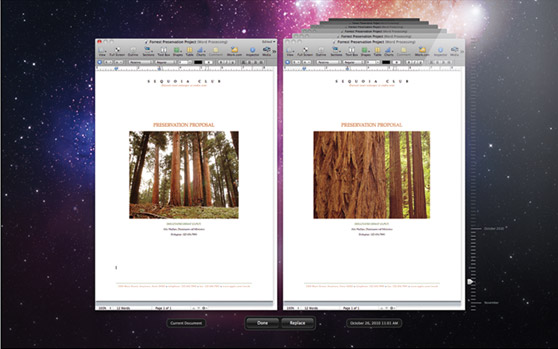
If you’re working with large files in Keynote, Pages, Numbers or other Versions-supported programs, and making multiple changes at regular intervals, Versions could just be eating up your hard disk and causing a big-slow down in your work.
If you want to reclaim all that space and speed things back up, go delete the .documentrevisions-V100 folder in the root directory of your hard disk, the place where Lion stores all your document versions. Be aware that this means you will lose ALL Version history for ALL your Version-supported applications. If you are comfortable with that, read on…
You need to do four things: enable the root user, show hidden files, change the permissions on the folder and finally check the folder’s contents and delete it. Here’s how:
1. Show hidden files
In Terminal (Applications > Utilities) type
defaults write com.apple.finder AppleShowAllFiles YES
Press ‘Return’, then type
killall Finder
2. Enable root user
Go to > System Preferences…Users & Groups
Click ‘Login Options’
Click ‘Network Account Server: Join’
In the resulting dialogue box, ignore the text input and click the button below, ‘Open Directory Utility’
Click the padlock at the bottom of the next box and enter your admin password.
At the top menu bar of Directory Utility, choose the ‘Edit’ menu > Enable Root User
If you are requested to set a password for it, set the same one as your Admin password (this ensures you won’t forget it).
Log out through > Log out (username), then log back in with user ‘root’ and the password you just enabled.
3. Change Permissions
Now go look in the root directory of your hard disk.
You should see a greyed out folder called ‘DocumentRevisions-V100’. If it has a ‘no entry’ icon on it, click the folder and press ‘Cmd-i’ on the keyboard (or right click the folder and choose ‘Get info’).
Scroll down to the bottom of the box, click the padlock, and enter your root password if necessary. Change all the permissions to ‘read & write’, and click on the ‘gear wheel/cog’ and choose ‘Apply to enclosed items’ if it appears.
Choose ‘OK’ in the warning dialogue box.
4. Deleting Versions history
Now you are ready to go and look inside the Versions directory. I recommend you have a nosey about and check the file sizes both of the folder itself and of the individual contents. Now, here’s a warning: you can’t just delete some of the contents in the folder. If you do, in about 24hrs Lion will see that the folder is corrupt and mark the whole thing as ‘bad’ and make a new Versions (.DocumentRevisions-V100) folder. What this means is that you will lose access to Versions in the UI, but you won’t get your disk space back as it won’t delete the ‘bad’ folder.
The only option is to either lock the thing back up and leave it alone, OR delete the entire .DocumentRevisions-V100 folder with all its contents.
Restart your computer logging in as your usual user.
Lion will make a new, empty DocumentRevisions-V100 folder to replace the one you deleted and start filling it up with versions you make from then on. You’ll have reclaimed your disk space (and removed all your previous versions), but you’ll need to keep doing the same process at regular intervals.
NOTES
a. No, this does not affect your original saves or any duplicates. Only the versions.
b. Messing about as a root user can have serious consequences if you mess with other stuff. Do as the instructions say and nothing else unless you know what you’re doing. After you’ve deleted the Versions folder and emptied the Trash, go back to Directory Utility > Edit and disable the root user.
c. To stop seeing the hidden files, type the same command as given in 1. above into Terminal, but change ‘YES’ to ‘NO’. Don’t forget to do the ‘killall’ command afterwards.
d. If you have trouble saving documents without re-booting after deleting .DocumentRevisions-V100, try this script from Apple Discussions user Yvan. This will recreate a clean (i.e., empty) Versions folder every time you reboot, saving you the hassle of regularly cleaning out the .DocumentRevision-V100 folder (as well as preventing any ‘Save’ issues.)
turn off Resume – the definitive solution!
Finally, someone’s come up with the definitive – and as far as I know only – successful solution to turning of the OS X Lion Resume feature. This little trick from poster billearl will stop your Mac opening all the apps that were still running when you shutdown/restart.
1. Close all windows and quit all apps.
2. In Finder, hold down the Option key and click ‘Go’ in the menu bar at the top.
3. Choose ‘Library’ (you have to have the Option key held down to see Library in the menu).
4. Navigate to Library > Preferences > ByHost > com.apple.loginwindow.[xxxxxxxxx].plist
The [xxxxxxxx] represent some interminable string of numbers and letters. Don’t mistake it for the similarly entitled Unix executable file. What you need to check is that its ‘loginwindow’ and ‘.plist’ at the end.
5. When you’re sure you’ve identified the right file, select it and press Cmd-i to show the ‘Get Info’ window. Click the ‘Locked’ option.
6. Now, test that it works. Close the ‘Get info’ window and the finder window. Open up Safari, Preview and a couple of windows. Do a restart and behold — if you followed the instructions correctly — a clean desktop!
Now, a small word of caution. One thing this trick won’t do is stop your apps like Safari and Preview from re-opening the last page/file when you manually fire them up after restart. In order to get them to forget your last opened page/file, you also need to do this:
7. Go to the ~/Library/ Saved Application State folder.
8. Select all the contents inside and send them to Trash.
9. Right-click on the Saved Application State folder’s icon and choose ‘Get Info’ (or press cmd-i).
10. Click the ‘Locked’ option. If it’s greyed out, go down to the padlock at the bottom, click on that and enter your password. You should now be able to check the ‘Locked’ option.
And finally, after those ten (phew…) steps…no more Resume!



 applehelpwriter.com