Category Archives: OS X Lion
running PowerPc apps on Lion

If you’ve upgraded to Lion from Snow Leopard and you can’t live without your PPC-only apps, you have a couple of choices. One answer would be to partition your disk and install Snow Leopard as well, allowing you to boot between the two operating systems by holding down the ‘option’ key when you power up. Alternatively, if you don’t want to use up your internal disk’s precious space, you could install Snow Leopard on its own dedicated external disk. Have a look here for instructions.
A different answer could be to run Snow Leopard concurrently within Lion using virtualisation software such as Parallels or VMware, though there is some question about the legality of this move (more on that below).
Note that I haven’t tried this myself, but the word around the community is that it does work. Take a look here for guidelines on how to get going, or follow this excellent guide here.. If you have Parallels and your SL install disks already, nothing to stop you from giving it a go. If you don’t have it, you can download the trial and test it out for free. If you decide to keep it, you’ll need to pay for Parallels when the trial expires.
Now, about that legality issue. In the past, the End User license agreement that Apple supplied with its OS disks prevented you from doing something like this. However, the new agreement under the App-store downloaded Lion states that you are allowed:
to install, use and run up to two (2) additional copies or instances of the Apple Software within virtual operating system environments on each Mac Computer you own or control that is already running the Apple Software. <— source
Now that doesn’t necessarily imply you’re allowed to run SL under a virtualisation machine. This agreement comes with Lion when its downloaded from the App Store, but its unclear whether it refers to all iterations of OS X or just the latest one. That’d be one for the lawyers I guess, but it is probably safe to say that so long as you’re using licenced Apple software and authentic Apple machines, you are unlikely to incur Apple’s ire. That said, always remember that what you do with your computer and your software, you do so at your own risk!
Related articles:
Macworld: VMware Fusion update lets users virtualize Leopard, Snow Leopard
how to turn a Lion into a (Snow) Leopard

Well, a lot of folks are so unhappy with the new Lion operating system that they’re returning to Snow Leopard. Even some people who are buying new Macs with Lion pre-installed are wishing they could get rid of the new hairy cat for the cooler and more efficient previous one.
In this post I’m going to point you to a few links that should help you do just that.
What you will need:
Snow Leopard Install disks
External Drive
Carbon Copy Cloner (free software).
Safety first, folks! Go to How to Clone your hard drive — do this before you start! It’s your insurance, and it’s far better and easier than Time Machine. Even if you use TM, make a clone too!
Take a look at How to Install Snow Leopard on an External Disk — If you’ve already got Lion on your internal, install SL on an external first. Try it out for a week or so. If you’re convinced you’re going to revert fully (rather than just run both in tandem, like I do), then clone it back to your internal HDD using carbon copy cloner, as detailed above in How to Clone your hard drive.
Finally, How to revert your Mac to Snow Leopard offers a comprehensive guide from ASC community member ds store.
Good luck!
Have you reverted to Snow Leopard? Let us know how it went, and why you decided to ditch the Lion in the comments below.
change the default app for a file type
OS X is known for its intuitive and simple way to achieve common user tasks, but one area where it fails is in setting or changing the default app to open a given file type. New OS X users migrating from Windows may find it especially frustrating given the ease with which this can be done in Windows 7 and so on. How, for example, do you make all your video files open with Quicktime instead of VLC by default or pdf files to open with Acrobat instead of Preview?
Here’s the answer:
1. In the Finder, select any file of the given type you want to change.
2. Using the keyboard, press Cmd-i or right-click on the file to display the contextual menu, and chose ‘Get Info’.
3. About 2/3rd of the way down the tall dialogue box, you should see ‘Open with…’ and a menu button. Click on the menu and choose the app you want.


4. After clicking on your preferred app, click the ‘Change All…’ button. This means that not only this file, but all files with the same extension will open with the app you just chose.
5. Press Cmd-w on the keyboard or click the red ‘Close’ button in the top-left corner to close the dialogue box.
assign apps to a desktop in Mission Control
Mission Control allows you to assign an app to particular desktop, so you can keep your work organised in different screens, and move between tasks with a swipe of the trackpad.
The easiest way to assign an app to a desktop is to first run the app so it appears in the Dock. Then, if you’re not already in the desired desktop, change to the desktop that you want the app to always appear in.
Next, place the cursor over the icon, and right-click (or two-finger tap if you have this gesture set for the trackpad).

Navigate through options and assign the app to ‘This Desktop’. That’s it!
how to add hyperlinks in Lion’s Preview
Preview 5.5 has some great changes from the previous version. One of them is a much neater and simpler way of adding hyperlinks, both within the document (sometimes called ‘bookmarks’) and to external URLs.
This short video shows how easy it is to add links to your pdfs.
https://www.youtube.com/embed/zO9NeZZO2hE?version=3&rel=1&showsearch=0&showinfo=1&iv_load_policy=1&fs=1&hl=en&autohide=2&wmode=transparent
Related Posts
how to merge PDF files in OS X
Kindle update now available from Amazon
Amazon have now made a Lion-compatible download available for Kindle for Mac here. Be aware that you may have to delete your current Library and re-download your purchases from the Archive. If you have a lot, you can just do this on an as-need basis or you could just spend the time doing it all in one go straight away.
Note that the update hasn’t appeared in the Apple app store at the time of posting.
OS X Lion 10.7 — the jury’s verdict

It’s been over 10 days since the jury went out to weigh up the evidence for and against Mac’s new operating system, 10.7 (OS X Lion). With Apple announcing a million downloads in the first 24 hours, there’s been no shortage of heated debate across the blogosphere and discussion boards (this thread runs to 60 pages and counting! Also see this witty and perceptive post about one user’s frustrations with the upgrade).
So it appears that some love it, others hate it, many are merely sanguine about the whole experience. A number of people are reporting trying it and reverting back to Snow Leopard with brow-mopping relief. My guess, though, is that the vast majority of Snow Leopard users are patiently waiting till a few updates have been released and all the early bugs ironed out.
It’s worth remembering the options: even if you buy Lion now to take advantage of the $30 opening price, you don’t have to install it now. You could buy it and leave the installer app in your Apps folder till the updates get released. Nor do you have to install it over the top of your existing installation. You could install Lion on an external disc instead, or move your Snow Leopard to an external disc and have Lion on your internal disc. Either of those options will allow you to play around with it and switch over fully when you’re truly ready. Don’t forget you can check out whether your existing software will work with Lion.
I have to say though, after ten days, 10.7 is starting to grow on me, and I think the external drive with Snow Leopard sitting on it is going to be gathering dust in a cupboard from now on. That’s not to say I’m thrilled with all that Lion has to offer. It’s a mixed bag, so sit back and let me read the court’s judgement in full. 🙂
The Good, …
— yes, I have unwillingly been converted. The four-finger screen swipe (left/right to change screen, up/down for Spaces and Expose, respectively) is addictive, and now I don’t think I could live without it. The truth is I could never get along with Spaces or Expose in Snow Leopard anyway, but Mission Control really does sort of force itself upon you. I do miss the App Switcher that is no longer available via the trackpad (Cmd-Tab still invokes it). There are free 3rd Party programs that you can get to add it back into the trackpad, but my experience is they are awkward at best.
— this is an app I use a lot and I love what they’ve done to it. Preview’s enhancements are one of the most undersold changes in all the talk about Lion. It’s always been ahead of Adobe Reader to my mind, but it did have shortcomings, particularly with adding and placing comments neatly and readably. The new Preview has tidied that up nicely, with the comment markers placeable with much finer precision and clear, neat lines indicating which comment each belongs to. The full screen feature also looks great and makes reading a pleasure.
— is growing on me. Switch it back to Classic view for a tidier interface, but there’s still lots of nice things about it. The animated display when you double-click to open a message is very neat (note: you won’t see the animation if you’ve got your IMAP account settings set to ‘Don’t keep copies of any messages’ in Mail Preferences | Advanced).
the Bad, …
Well, overall, the worst thing about Lion is that most of the good things are really cosmetic. There’s not a lot of new things you can do with Lion, and what there are, I don’t like much, particularly the triumvirate of data guardians otherwise known as
— Apple has gone to extraordinary lengths to ensure every keystroke, every page, every file you ever open is remembered somewhere (and often in multiple somewheres) on your internal drive and your backup drives. It’s worth noting that not all of these are places the average user can either find or remove. This is something that not everyone is thrilled about, and certainly it’s raised a few eyebrows among the security-conscious. If I were a Chinese blogger, I’m not sure I’d want to update to Lion (you think the Chinese don’t buy Macs? Oh,please!). Another thing worth noting about the Evil Trinity is that Apple has also made them extremely difficult to turn off. Resume, despite what you might be reading elsewhere, cannot be turned off by default (or at least no one’s found a way to do it yet).
However, with all these things, it’s not so much that you can’t beat them, but that you have to work around them. Adjusting your workflow to avoid Resume, Autosave and Versions is certainly possible, but something some may rightly begrudge paying $30 to have to do (in which case, that external backup of Snow Leopard I mentioned above is your friend!). I’ve already written about Resume, and I hope to post workarounds for Versions and Autosave in the near future (sign up for the RSS feed).
The only other ‘bad’ thing I have to say about 10.7 is LaunchPad. This is the iPad look-alike-finger-swiping app display (known as ‘springboard’ on the iPad). A complete waste of time: literally, it’ll take you forever to organise it, and even then it’s a very slow way to find anything but your most familiar apps. There have always been much faster and more efficient ways to get to both your most-oft used apps (the Dock) and those you only occasionally fire up (Finder).
…and the Ugly.
It’s not often that Apple do ugly, but its been universally acknowledged that the designs for iCal, Address Book and Photo Booth are a real eyesore. Fortunately, it’s easy to get rid of them with a bit of mucking about.
Conclusion
So should you upgrade or not? Well, why make it a black-and-white decision when you could have the best of both worlds? If you have a spare drive hanging around, whip it out, pay your $30 and take Lion for a test-drive. If it’s not for you right now, just put it away till the updates smooth it out and the time is right regarding compatibility. After all, if you’ve invested heavily in Apple products or have a lot of legacy material, then it’s probably only a matter of time before you give in and let the Lion tame you, too!
Time Machine – anywhere, anytime!
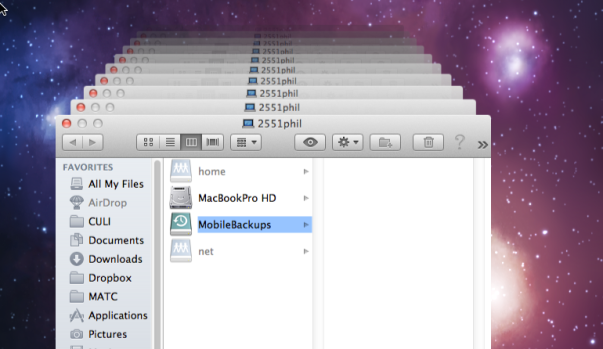
One of the nice new features of OS X Lion is that you can access your Time Machine backups even when you are disconnected from the drive such as on the commute to work or even while on holiday. The downside is it takes up a chunk of your HD that you might not want to give up. Fortunately, you can turn this feature on or off (it’s on by default in Macbook’s, but off by default in iMac/Mac Pro).
When the feature is on, local snapshots of the last few days’ Time Machine backups are stored on a local drive called MobileBackups. If your time machine backup disc should get corrupted for any reason, these can also serve as a second line of defence. Be careful though, these backups get replaced and updated without warning, so don’t rely on them for anything more than the last couple of days saves.

You can access these from the regular Time Machine icon. Alternatively, find them by clicking on the computer name at the bottom of the left-hand column in any Finder window, and then navigating to the MobileBackups drive.
If you want this option on your iMac/Mac Pro, you’ll have to enable it through Terminal. Open the Terminal application and paste in the following command:
sudo tmutil enablelocal
followed by your admin password and a return-key stroke (don’t expect to see anything when you type the password).
If Terminal returns to the prompt you should be good to go. Check by opening Time Machine preferences, which should now display the message that “Time machine keeps local snapshots as space permits and…” followed by the Time Machine backup schedule. If it hasn’t worked, it’ll just say “Time machine keeps:” and then the schedule.
If you wish to disable local snapshots to save disk space (mine takes up about 8GB), then just type:
sudo tmutil disablelocal

followed by your password. Don’t forget to quit Terminal straight after you’ve verified everything’s working. Enjoy!
Time Machine Preferences:
getting Lion ready for open-source
f you are using open source software on your Mac, like Gimp and Inkscape and other X11 environment programs, be sure to install the Macports for 10.7 update to make sure they work properly with OS X Lion. If you already had Macports installed under Snow Leopard, it’s nice and simple. Just download the .dmg here and click on the installer. When it’s done, you’re good to go! 🙂



 applehelpwriter.com