how to paste with no formatting
If you find it annoying that in Pages and other Apple apps, there’s no easy way to remove rich text formatting when you copy and paste from websites and other rich text sources, this could be just the tip for you.
The video begins with a demonstration and then shows you how to create the shortcut shown. If you don’t see captions at the bottom of the video, be sure to press the ‘CC’ button in the YouTube video controller bar at the bottom of the screen.
The procedure is fairly straightforward:
1. Open Automator.app and create a new service by clicking on the gear/cog.
2. Change the ‘Service receives’ menu to ‘no input’.
3. Type ‘Apples’ in the Action filter bar, and drag a ‘Run AppleScript’ action into the main pane.
4. Clear the default text, and copy/paste this into the window:
set the clipboard to «class ktxt» of ((the clipboard as text) as record)
5. Click the hammer icon to compile the code, and then ‘command-S’ to save it (you don’t need to choose a save location).
6. The service will now appear in your Services menu (eg. Pages > Services > plainTxt).
Whenever you copy some formatted text, just click on the plainTxt item in the Services menu before you paste, and you’ll get plain text instead.
7. Follow the second half of the video if you want to make a global shortcut.
Enjoy! 🙂
how to check what’s been installed on your mac

UPDATE: I’ve written a free app that pretty much supercedes what I wrote in this post. DetectX 2 now has a system analyser that records and displays changes to your system configuration over time.
Ever wondered if a link you clicked sneakily downloaded and installed some unwanted software on your mac? Or have you suddenly found your mac behaving weirdly, a situation that is often a result of installing new software that conflicts with something else on the system, but can’t remember what you recently installed? In these sorts of scenarios, what you need to do is check your install logs.
I’ll tell you how to do that in a moment – in a number of ways – but first let’s just make a few notes. Firstly, chances are you’ll find more than one install log in your logs folder. The most recent one is simply called install.log, older ones will have a filename ending with .bz2, indicating a compressed file. Secondly, the reason you may have more than one install log is that OS X creates new install logs every time the log file gets to around 1MB in size. It then compresses and keeps the old logs, typically up to five logs prior to the current one.
Pro Tip No.1: if you’re a Terminal whizz and you want to change how many old logs are kept or at what size the log file gets turned over, you can edit the
/etc/newsyslog.conffile, but be sure to read themanpage fornewsyslogfirst.
Typically, we’re only going to be interested in examining the most recent log file if troubleshooting new problems, but the process that I’m going to describe here can also be used to view the older logs, too. Apple buries the logs deep into parts of OS X that ordinary users typically don’t reach, but fortunately, there’s numerous ways to get at your install logs, and though some of them may be unfamiliar, none of them are particularly difficult or dangerous.
1. View only recently installed items
Open the Terminal.app (Utilities/Terminal.app) and copy and paste this command:
grep 'Installed' /private/var/log/install.log
This will return a list of every item successfully installed since the new log file was created. If there’s nothing of interest there, but you think there should be, then you’re going to need to see a bit more of the log file, and perhaps find out when it was ‘rotated’ or ‘turned over’ (i.e., the last time the system archived the install.log and created a new one).
2. View the entire install log
If you’d like to see the whole log for this reason, or perhaps you want to see whether something failed to install, it’s probably best having the log displayed in TextEdit rather than Terminal, so copy and paste this command into the Terminal window:
cat /private/var/log/install.log | open -f
You’ll see at the beginning of the file it’ll tell you when the file was turned over. Don’t forget you can use TextEdit’s search facility (Command-F) to search for particular instances or items you’re interested in finding. When you’re finished viewing this file, you can simply close TextEdit and discard it. It isn’t the actual log file, but rather a local copy of it.
3. Using Console
Alternatively,, if you don’t feel comfortable in Terminal, you can view all your install logs in the Console.app. You can open Console either through Finder by navigating to /Applications/Utilities/Console.app or just by typing ‘cons’ in either Spotlight or Launchpad. Once Console is open, scroll down the sidebar, looking for /var/log. Click the disclosure triangle if it’s not already pointing downwards and look for install.log. Click on that, and then in the filter bar in the main window, type installed (unlike the grep command I gave you above, this one is not case sensitive and will return both ‘Installed’ and ‘installed’).
examining an old, compressed install log
Notice in the screenshot above, I’m examining a turned over log, not the current one. As this particular install of Mountain Lion was only done on May 3rd, there’s only one turned over log file.
Pro Tip No.2: You can force the system to turn over all the log files, including install.log even if they haven’t reached their maximum size. As it says in the
manpage fornewsyslog, this can be “useful for diagnosing system problems by providing you with fresh logs that contain only the problems.”To force all log files to be turned over, simply enter
sudo newsyslog -Finto Terminal. Hit ‘return’ and supply your password, as always with thesudocommand.
4. Using Finder
If Console is a bit too off-territory for you, there’s nothing wrong with viewing your logs in Finder and TextEdit. To do that, click on the Finder, then hit ‘shift-command-G’ on the keyboard (or click ‘Go’ in the menu bar and choose ‘Go to Folder’). Type or paste this into the dialogue box:
/var/log
and hit the ‘Go’ button.

Right-click on any of the logs you want to open and choose ‘open with’ from the contextual menu. Choose ‘TextEdit’ or your favourite plain text editor app. If none of your text editors show up in the menu, click ‘Other’ and change the ‘Enable’ menu to ‘All Applications’. You will now be able to choose TextEdit or some other editor if you have one. Note that unlike Step 2 above when we used a Terminal command to open a copy of the install log in TextEdit, here you are viewing the actual files rather than a copy of them. Although the log files are not important to the running of your system and can be deleted or altered without causing any consequences, they do provide useful records for troubleshooting so its always good practice to keep them in tact if you can.
And that, in a nutshell, is how you view your install logs! 🙂
Related
Get Applehelpwriter’s free troubleshooting app DetectX 2
Featured picture: Rectangleum by *Eccoton
Setting up a VirtualHost in MAMP

If you’ve installed a MAMP dev environment and have found the instructions you’ve read elsewhere for setting up a virtual host on port :80 aren’t working, the following should get you sorted.
1. First of all, make sure Mountain Lion’s not running Apache separately from MAMP. To do so, open Terminal.app, and copy/paste this into the Terminal window:
sudo launchctl unload -w /System/Library/LaunchDaemons/org.apache.httpd.plist
(that’s all one line!)
Enter your admin password when prompted. Be aware that it will be invisible as you type, so type carefully. If you get an error message that says “Sorry, try again”, then indeed, try again. Only type more carefully this time! :D. On the other hand, if Terminal just returns the prompt after you hit ‘return’ or reports ‘Nothing to unload’ then you’re good to go to Step 2.
2. Assuming that you want to call your virtual host site ‘mytest’, then add to the last line of the /etc/hosts file:
127.0.0.1 mytest
3. That’s the easy part! Next, add to the end of the /Applications/MAMP/conf/apache/httpd.conf file the following text:
NameVirtualHost *
<VirtualHost *>
DocumentRoot “/Applications/MAMP/htdocs“
ServerName localhost
</VirtualHost>
<VirtualHost *>
DocumentRoot “/Users/shortusername/Sites/mytest“
ServerName mytest
</VirtualHost>
Note that there are quote marks around both DocumentRoot filepaths. Also, be sure to change the items highlighted in red to reflect your own shortuser name and site name.
4. Go into your Home folder in the Finder, and create a folder called ~/Sites/mytest/ (before creating the ‘mytest’ folder, you may need to create the parent folder ‘Sites’ if it doesn’t already exist).
5. Create an ‘index.html’ file inside ~/Sites/mytest/ that looks something like this:
<!DOCTYPE html>
<html>
<body>
<p>My virtual host site is up!</p>
</body>
</html>
6. Finally, be sure to restart the MAMP servers and you should be up and running! 🙂
MAMP Documentation
For further help with MAMP, please see the documentation here.
Related:
Learn Ruby on the Mac
search Safari Reading List

This is something I’ve been thinking about for a while. I have a pretty long Reading List and Spotlight often fails to find things in it. For that reason I came up with this little script which you might find useful.
1. Open up Automator by typing auto in Spotlight.
2. Click on ‘Service’ (the big cog wheel) and then ‘Choose’.

3. Change the Service receives option to “No input” from the dropdown menu.
4. In the small filter bar to the left, type ‘run app’. You should see an action called ‘Run AppleScript’ in the second column. Drag it to the big pane on the right.

5. Select all the purple text inside the window and delete it. You don’t need any of it.
6. Command click on the image below, and copy the code from the pastebin page that opens up in another Safari tab. Paste the code into the Automator pane.

7. Hit ‘Command-S’ and give it a name like ‘Search Safari Reading List’. Click ‘Save’ (note: you do not specify a location for the save as it will automatically be saved in your ~/Library/Services folder).
8. Now click on the main menu for any app and have a look in the Services submenu. You should see your new service there (to add the keyboard shortcut, see Step 10 below).

9. Test it to make sure it works as expected. You should end up with something that looks like this:

10. If you want to assign a universal shortcut key like mine in the screenshot from Step 8, do so by going to > System Preferences > Keyboard > Keyboard shortcuts. Look in Services for the name you gave it and add the shortcut by clicking in the empty space to the far right of the name.

A note on usage:
The reading list is really just a list of special bookmarks, with one difference: they contain short snippets or previews from each page. This has an impact on the way my script works in the following way: if the search string is in the preview snippet but isn’t in the URL, you’ll get back the line from the snippet but you won’t get the URL. It might be possible to code round that, but I haven’t had time to figure it out yet. If that’s a feature you want, send me a nag mail and I’ll put it on my list of things to do! ;). Otherwise it appears to function quite well as a workaround for the lack of a proper search facility.
protect your mac from malware, viruses and other threats

If you’re new to Mac, you’re probably thinking that it’s a no-brainer that you need some kind of anti-virus app. Once you start looking around the web for reviews, it’s inevitable that you’re going to come across the Great Mac AntiVirus Debate: in the one corner, those who say Mac users who forego antivirus protection are arrogant and just setting themselves up for a fall, and in the other those who’ve used Macs for umpteen years, never had or heard of any real threat, and consequently say AV software is a waste of time.
You can read round this debate for years and never come to a satisfying conclusion, largely because its as much about what you ‘ought’ to do as it is about what is the case. Just because you’ve never had any viruses, doesn’t mean you won’t get one tomorrow. And yet, there are NO viruses in the wild known to affect macs, and so when one does arrive, it will be unknown to your AV scanner. Hence, an AV Scanner is just a waste of system resources (and possibly money, if you paid for it). Yikes! What do I do!!
What you do is sidestep the whole debate and stop thinking only about virus scanners, which after all deal with only a small subset of all the possible attack vectors in the internet age, and start thinking in terms of vulnerability scanners. Unlike a simple virus scanner, a vulnerability scanner examines your system not only for malware but also for any vulnerabilities in commercial software, plug ins, your system setup (including network and other sharing settings) and other installed items. The scanner will not only explain the threat and its severity but also tell you what, if anything, you need to do, recommend patches and guide you to links for more info where available.
You can use something like Nessus for free if you are a home user, which will give you a far better insight into the possible attacks someone could implement on your system (and it will check your system against almost all of the major virus scanner databases like Symantec, etc).
Even better, a vulnerability scanner like Nessus won’t just examine your machine, it’ll look at everything else (and all the installed apps) of anything on your home network including phones (any platform), other computer systems (any OS), and even your router.
eject all your disks at once

Here’s a simple AppleScript one-liner that can be useful if, like me, you have several disks connected to your laptop at home or the office and you need to get up and go quickly.
1. Open the AppleScript Editor.app by typing Apples in the Spotlight search bar and hitting ‘return’.
2. Copy the following code into the editor window:

3. Hit ‘Command-K’ to compile and ensure you didn’t make any mistakes. Fix any typos if it doesn’t compile and try again. Save the script to your Desktop as ‘EjectAll.scpt’

4. If you don’t already have the Scripts menubar icon visible in your menu bar, hit ‘command ,’ (that’s the Command key and the comma key) and check the ‘Show Script menu in menu bar’ item in the General pane of AppleScript’s Preferences window.
5. From the Scripts menu, choose ‘Open Scripts Folder > Open Computer Scripts Folder’ and drag ‘EjectAll.scpt’ from the Desktop to the Computer Scripts Folder. You’ll need to authenticate with an Admin password to complete the move.
And that’s it. Now whenever you want to eject every disk with one simple operation, just hit the Script menu icon and click on ‘EjectAll’. 🙂
read two Kindle books at the same time

One of my favourite apps is Kindle for Mac, but if you’re doing any kind of research or study, the fact that you can only have one book open at a time can be a serious impediment to your workflow. Here’s a few ways round this:
1. Kindle Cloud Reader
Probably the easiest and most effective solution is to read your second book in Safari by way of the Kindle Cloud Reader. Go to read.amazon.com and get set up in moments with a few simple steps.
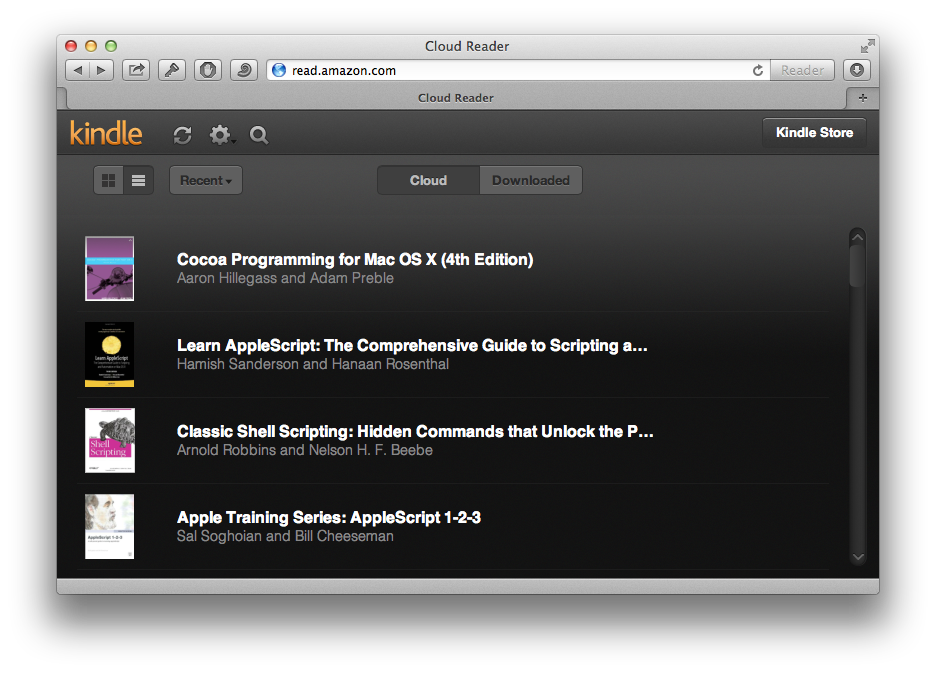
2. Calibre.app.
Another good choice, particularly if you’re not always wired to the net, is to get Calibre (an open-source e-reader). You can use this app to copy all your Kindle content into a format that Calibre can read, allowing you to have Kindle open on one desktop and Calibre on another. If any of your Kindle books are DRM’d (i.e., have software protections that mean they will only open in Kindle), use this free resource to un-DRM them.

3. Fast User Switching
My least favourite solution, but if 1. or 2. don’t appeal to you, set up a new user on your mac and register your Kindle for Mac app to that account also. This is a useful solution if the internet is unavailable or you are not comfortable with removing DRM on your Kindle purchases. The downside is that it’s slow and can be awkward to keep simultaneous notes (one solution here is to enable Dropbox on both user accounts, and save your notes in a file in your Dropbox).
🙂
Featured picture: Kindle by Wreathe
5 things you never knew about TextEdit

Although Apple’s oddball TextEdit.app has a variety of good formatting options, the chances are if you do any kind of word processing, you have one or more of the heavy duty apps like Pages, LibreOffice or Ms Word. If, on the other hand, you’re a coder or scripter who needs a plain text editor, you likely use Tincta, Sublime Editor 2, BBEdit, Coda or one of the many other full-featured editors that can do things like syntax colouring, snippet saving, script execution and so on that TextEdit can only dream of. Indeed, Apple have strangely forsaken giving their homegrown editor even a ‘line numbers’ option (though see tip 5 below), making it all but unusable for scripting.
Given its limitations, you might feel you haven’t been missing much by leaving TextEdit unloved and untouched in the Applications folder. However, here’s at least 5 reasons to think again.
1. Easiest way to create an audiobook.
I started off by calling TextEdit an ‘oddball’ app and here’s the first reason: name me another ostensibly “text editing” program that can make audio books? Dump any old text into a TextEdit window, and from the menu at the top choose ‘Edit > Speech > Start Speaking’. Plug in the headphones, sit back and relax! Works great with long online articles (but be sure to strip out any meta text and pictures first!). Also, don’t forget you can change the system voice in ‘System Preferences > Dictation & Speech’, and as I’ve pointed out elsewhere, foreign language learners can download optional voices and listen to foreign language text to improve their listening skills. For the parents among us, this one can also be great for the kids (both for them to listen to and create their own). 😉
To turn a TextEdit file into an audio book, select the entire text and from the menubar choose ‘TextEdit > Services > Add to iTunes as a Spoken Track’

2. Easy way to read, edit or save lengthy Terminal output
You can add
| open -f
to the end of any Terminal command, and (assuming TextEdit is your default editor) the output will be piped to a TextEdit window. This makes it easy to search, save or just scroll the output. This is particularly useful for reading and saving man pages. However, be aware that for some bizarre reason, man pages in particular tend to duplicate a number of characters in certain fields, which can affect readability. To prevent this here or with any other output you encounter that does the same, use
| col -b | open -f
after the Terminal command.
For example, if you enjoy hunting down defaults tricks, try this in Terminal. Type
defaults read | col -b | open -f
3. Easy way to get a file path
You can drag and drop any item from a Finder window into a TextEdit window to reveal that item’s path. This is a very handy trick if you need to quickly copy a file path to the clipboard. You can also drag urls from Safari’s address bar into a TextEdit window, or just drop them onto its Dock icon to get the same effect.
4. Easily share TextEdit content or files
Although TextEdit lacks the ‘Share’ icon in the menubar that was introduced to many apps in Mountain Lion, you can still access the ‘Share’ feature through the contextual (‘right/control click’) menu. Another oddity of TextEdit lurks here though: make sure the cursor in the TextEdit window is not on an empty line, or you won’t see the ‘Share’ option in the menu.

5. (not so) Easy way to get line numbers!
This one is for the coders among you. We all know TextEdit suffers from the lack of a ‘View line numbers’ option (come on, Apple – ridiculous!). There’s a few tips here. First, if you don’t know already, you can use the hotkey ‘command-L’ to go to any given line number. You can also find the total number of lines by using the ‘Find’ feature. Hit ‘control-F’ first, then click the spotlight in the filter bar. Choose ‘Insert Pattern’ and search for line breaks. You’ll see the total number of line breaks in the far right of the filter bar:

You can add pseudo (see below for why I call them ‘pseudo’) line numbers with a bit of Awk magic. Open Terminal.app and paste this into the window:
awk '{print FNR "\t" $0}'
Next drag and drop the file you want to add line numbers to into the Terminal window. Don’t worry, nothing you do here will change the original file. Apply your new found skill from Tip 2 above, typing a space and then a pipe onto the end of the command:
| open -f
so the whole thing might look something like this
awk '{print FNR "\t" $0}' ~/Desktop/myfile.txt | open -f
and hit ‘return’. Hey presto, you have a TextEdit file with “line numbers”.

Now, here’s the catch. I called these ‘pseudo’ line numbers because unlike real line numbers, the numbers are actually part of the text. That means if you select some portion of the text that spans line numbers, the numbers will be selected and copied too. In other words, you can’t properly copy and paste text, so be sure to keep your original version of the file for future editing purposes (*EDIT: see a workaround for this provided by Caroline in the Comments below).
So yes, TextEdit is an oddball program; it is like no other I know of for containing a bizarre mix of unrelated yet strangely powerful features coupled with the inexplicable absence of basic functionality that any other program would be handicapped without. Nonetheless, I hope this post has given you some ideas of how you can use TextEdit to better effect in your work and play. 🙂
Featured picture: Purple Glass Text Edit Icon by ~Drawder



 applehelpwriter.com
