Blog Archives
easiest way to find your serial number
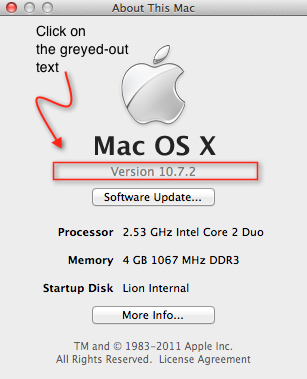
Click > About This Mac… then click on the greyed out text underneath the black ‘Mac OS X‘.
It probably says ‘Version 10.7.2’. When you click on it, it will change to the OS build number. Click on it again and you’ll see your serial number. Easy 🙂

why is my mac running so hot?
’ve previously covered one issue here about overheating macs, but kernel_task is not the only process that can get out of hand. For example, there’s a known issue with some releases of Parallels that can cause a process called prl_disp_service to run up to 99% too, leaving your mac sweating on the desktop even on a cold Winter’s eve!
In general, ‘hot’ issues can be found by looking at what’s going on in your Activity monitor, and solved by quitting (or force quitting) the process. Also, don’t wait to discover these by how hot your mac feels to the touch. Download and install a free copy of smcFanControl and have it running in the menubar. Now you’ll have a reliable means of seeing exactly how hot your mac is. 🙂
However, some processes may not re-start correctly after being quit in Activity monitor unless you reboot the machine or work a bit of Terminal magic. In the case of Parallels, for example, if you’ve identified prl-disp_service as the culprit, the correct solution is to first stop your VM and quit Parallels. Then, open Terminal.app and follow this procedure:
1. Paste this command into Terminal
sudo launchctl stop com.parallels.desktop.launchdaemon
Press ‘Return’. You will be prompted for your password. Note that when you type it in, your typing will be invisible. Press ‘Return’ again.
2. Now paste this command:
sudo launchctl start com.parallels.desktop.launchdaemon
and press ‘Return’.
3. You need to check that the process has correctly restarted before trying to start up Parallels, so one last command:
sudo launchctl list | grep com.parallels.desktop.launchdaemon
The output should look something like this:
36468 – com.parallels.desktop.launchdaemon
The number on the left will be different, but so long as it is anything except 0, you are good to go!
4. Finally, in Terminal, hold down the ‘control‘ key and press the ‘c‘ key at the same time. Now you can quit Terminal and get back to a cool Mac and your Parallels VM. 🙂
You can use these same ‘stop’, ‘start’, and ‘grep’ commands for other errant processes, but you need to find the correct name of the process. You can do this by first noting its name in Activity monitor, then in Terminal, paste:
sudo launchctl list
Look for a launchdaemon that corresponds with the name you found in Activity monitor. Then use the commands above but replace ‘com.parallels.destkop.launchdaemon’ with the name of the process you want to kill.**
🙂
**Warning: The sudo command gives you root privileges to the computer and can cause irreparable harm to your OS if used incorrectly. Never mess around with the sudo command unless you have a recent bootable clone of your system.
Related posts:
Why is my mac running so slow?
kernel_task at 103%!!
how to take a screenshot

We all like to take happy snaps at Christmas 🙂 , but there’s no need to buy expensive software to snap the wonders you or your family produce on your Mac computer screen. Mac OS X has a number of built-in ways to take screenshots. The simplest is to use the universal hotkey combination:
Command-Shift-3
This will immediately take a snapshot of your entire screen and dump it on your desktop as .png file. Try it now and have a look!
If you want to select only a specific region, try this
Command-Shift-4
Move your cursor, and you’ll see it’s turned into a cross-hairs by which you can select any part of the screen you want. You can also press the spacebar after you invoke this command, and the cursor will turn into a camera icon. This lets you accurately select individual windows for the shot, instead of drawing round them.
If you are taking the screenshot to immediately paste it into a post, email or document and you don’t particularly want to keep a saved copy of it, then add the control key to either of the previous commands (e.g., command-control-shift-3). This will dump the screenshot into the clipboard rather than save it as a file. All you do next is go to the window you want to paste it in, and hit Command-V.
Finally, if all these hotkeys are too much to remember for the occasional screenshot, remember you can always access screenshots through the Preview.app menu (see main image above).
Happy snapping folks! 🙂

Here’s the summary of the main commands:
get Kindle Cloud Reader for iOS/OS X

Well, you probably already have Kindle for iPad, but Amazon’s latest way to offer up your electronic texts, the Kindle Cloud Reader, could be the way of the future as far as non-App store developers are concerned.
Kindle Cloud Reader avoids the app store (and Apple’s 30% cut and other stringent conditions) by serving up your Kindle database through your web-browser. It’s basically a password protected web-site that also allows you to allocate offline storage space on your iPad or Mac OS (it’s not yet available for iPhone).
Amazon’s move follows in the footsteps of the Financial Times move in June this year to sidestep iTunes.
Cupertino, I think we have a problem…
how to become an Apple app developer
Developing apps for iPhone, iPod, iPad, and Mac OS seems like the California gold-rush of the 21st century — the press are full of reports of the riches to be had in this amazing land, stories of “little people” making “big bucks”. Anyone can be an app developer, they say, but what’s the truth behind the hype, and how do you actually learn how to do it?
Last I heard, there were currently something like 600,000 apps on the Apple App store (for iPhone/iPad) and some 100,000 or so on the App store for Mac OS. Apple have paid out (i.e., passed on customer payments after taking their 30% cut) literally billions of dollars to developers. That’s a lot of cash! The question is, can you get a slice of it too?
In theory, there’s no reason why not. As I’ll detail below, the route to becoming an app developer is not particularly hard, nor is it particularly costly. But that doesn’t guarantee success. Anyone can write a book, but writing a killer book that’ll sell like Harry Potter is not so easy, and writing a killer app that will sell like Angry Birds is every bit as difficult.
The analogy holds for success in both cases: you need a great idea, you need to execute it well, and you need to market it properly. Did I mention those 600,000 apps on the App store? How, exactly, are you going to make your fortune if your app is buried in a pile like that? Well, I’ll save ideas and marketing for a future post. In this one, I want to focus on the things that we know we can achieve and only have to depend on ourselves for: developing the skills needed to turn that great idea into an actual piece of software that will run on Apple machines.

Learn the language
If you want to write a killer novel, the first thing you have to do is learn the language that you want to write the novel in, be it French, Chinese, or English. If you want to write a killer app, the same goes. Visual Basic? Visual C++? Java? Yes, that kind of thing except…if you’re developing for iOS (the iPhone/iPad operating system) or Mac OS (Mac computer operating system) you have to learn the Apple language, not any of those common ones associated with lesser machines!
So what is the Apple language? It’s called ‘Objective-C’, and it runs in a programming environment called ‘Cocoa’. You’ll need to learn ‘Cocoa’, but in order to learn that you’ll need to learn ‘Objective-C’, and to learn that, you’ll need to learn the basics of the standard (Ansi) C programming language. Oh my!
And once you’ve got a hold on all that, you’ll then need to learn Xcode, which isn’t a language or a programming environment at all, but a very sophisticated development tool (in fact, Xcode is itself an app!), in which you do all your Apple programming. You’re probably now thinking that it’d be easier to write that next Harry Potter novel and are already hunting around for the back of an envelope to start scratching down your ideas, but wait…
I know it sounds disheartening, but there is some good news. After all, it can’t be that hard if so many other people are doing it, right? (Well, actually, yeah it can, there’s a lot of dedicated programming geeks out there!). But look, I’ve been down this road too, and while I haven’t produced any killer apps (still waiting for that great idea…), I have gone from knowing next to nothing about programming to being able to put together an application that does what I tell it to and doesn’t crash my system.
(OK, not entirely true that I didn’t know anything about programming: in the 1980s, I once learned how to get a monochrome computer screen to print “Hello World” in BBC BASIC, which basically involved nothing other than typing >Print “Hello World”; it seemed so ridiculously pointless in 1982 that it turned me off programming for the next thirty years! Other than that, I’m a newbie 🙂 ).
And the good news gets better: most all of the documentation you need to learn how to be an app developer is available free from Apple. Truly, and I mean this with no trace of irony, it is hugely generous of Apple to put the amount of free material they have online for anyone to use. Want to be a Windows developer? Find your local bookstore and start shelling out one heck of a lot of $$$!! The cynical, of course, will say that Apple only do the giveaway to benefit themselves; others might say that giving away free training justifies their 30% cut.
I think of it as a symbiotic relationship: would-be developers who aren’t in computer science departments or big companies could never afford to buy all the material. Likewise, Apple could never have built an App store with such a huge number and wide variety of programs to Wow! their users if they had only had universities and commercial software developers to rely on. This way, both the little people, that’s me (and — I’m assuming — you), and Apple get to win.
I’ll tell you how to get started in a minute, but before I do let me point out that the ride is not entirely free. There’s probably a point at the beginning and certainly one at the end where you will need to lay out some of your hard-earned. So let’s deal with that now.
What you need
Right off, you’re going to need a Mac computer. Sorry, if you don’t already have one, you’re going to have to buy one; a low-range Macbook Air or Mac Mini will do, anything that can run OS X Lion. You can’t develop Mac apps on your iPhone or iPad, I’m afraid (but it does work the other way too: you don’t need an iPad or iPhone to develop apps for these devices. More on this below).
And what about if you have a good-spec PC? Yes, you could get a Mac emulator (VMmare) or mess around with OSx86, but frankly, these options are likely to cause you more grief than they’re worth; you could end up with apps that don’t build properly, and/or which breach Apple’s licensing conditions.
I’m not saying don’t do it, that’s your choice; I am saying your chances of successfully building an app, making it stable, and getting it accepted into the App store by Apple are significantly reduced if you go that route. Given the price of a basic Mac Mini on Ebay, you could well end up spending more money (as well as time) trying to avoid buying a Mac than just buying a cheap one.
The other expense you might need to lay out for is a basic ‘Intro to C’ book. There’s plenty of web offerings, but really a good ‘idiots’ book like the Dummies or Absolute Beginners should be enough and has the benefit of being reasonably likely to get you to the level of proficiency you need in the shortest amount of time. After that, you learn the rest for free (Objective-C, Cocoa, Xcode) from Apple. At the end of the process, when your app is built and you want to submit your app to the App store, you’ll have to register with Apple for a licence as an app developer and vendor; current cost $99.
Take the first step
“Sign me up”, you say, “where do I start?” The first thing to do is to sign up to Apple’s developer community: this is free (don’t confuse it with the Developer Program or Licensing, which costs $99 and which you don’t need till you’ve built an app you want to upload to the App store).
Once you’re in the Developer Community, download Xcode 4, Apple’s development environment (a different thing from a programming environment, but don’t worry, you’ll get the hang of all this terminology easily enough once you start reading the docs). This is a 4GB monster of a program – bigger than your average operating system, so make sure you have the space – and it is also free. Xcode comes with free iPhone and iPad simulators and in itself, this is a piece of software that’s probably worth a couple of thousand dollars. So smile: you’re already making a profit even though you bought that Mac Mini! This is also the reason why you don’t need, and in fact can’t use, your own iPad or iPhone to test your apps: everything has to be done in Xcode, and this monster app only runs on Mac OS X.
Once you’ve downloaded Xcode, you can play around with it if you want, but unless you’ve worked with an IDE (integrated development environment) before, it’s pretty complicated, so it’s best to wait till you work through the tutorials. It’s not the kind of software you can learn through serendipitous exploration.
Instead, go to the documentation resources and start with the tutorial Your First Mac Application.
By the time you get through this, you’re going to realise why you need to learn Ansi C, Objective-C and Cocoa. So put Xcode away for now, and start on the path of learning to speak Apple’s language. When you get there, just add 1 great idea + 1 great marketing strategy, and you’re on your way to California!
The short guide:
1. Get a Mac
2. Learn C, learn Objective-C, learn Cocoa, learn Xcode
3. Come up with an idea for a great app and plan it out carefully
4. Build and test your app
5. Pay the licensing fee and submit your app to Apple
6. Once it’s been through the review process and accepted, implement your marketing strategy
7. Watch the millions role in and retire.
😃
OS X Lion 10.7 — the jury’s verdict

It’s been over 10 days since the jury went out to weigh up the evidence for and against Mac’s new operating system, 10.7 (OS X Lion). With Apple announcing a million downloads in the first 24 hours, there’s been no shortage of heated debate across the blogosphere and discussion boards (this thread runs to 60 pages and counting! Also see this witty and perceptive post about one user’s frustrations with the upgrade).
So it appears that some love it, others hate it, many are merely sanguine about the whole experience. A number of people are reporting trying it and reverting back to Snow Leopard with brow-mopping relief. My guess, though, is that the vast majority of Snow Leopard users are patiently waiting till a few updates have been released and all the early bugs ironed out.
It’s worth remembering the options: even if you buy Lion now to take advantage of the $30 opening price, you don’t have to install it now. You could buy it and leave the installer app in your Apps folder till the updates get released. Nor do you have to install it over the top of your existing installation. You could install Lion on an external disc instead, or move your Snow Leopard to an external disc and have Lion on your internal disc. Either of those options will allow you to play around with it and switch over fully when you’re truly ready. Don’t forget you can check out whether your existing software will work with Lion.
I have to say though, after ten days, 10.7 is starting to grow on me, and I think the external drive with Snow Leopard sitting on it is going to be gathering dust in a cupboard from now on. That’s not to say I’m thrilled with all that Lion has to offer. It’s a mixed bag, so sit back and let me read the court’s judgement in full. 🙂
The Good, …
— yes, I have unwillingly been converted. The four-finger screen swipe (left/right to change screen, up/down for Spaces and Expose, respectively) is addictive, and now I don’t think I could live without it. The truth is I could never get along with Spaces or Expose in Snow Leopard anyway, but Mission Control really does sort of force itself upon you. I do miss the App Switcher that is no longer available via the trackpad (Cmd-Tab still invokes it). There are free 3rd Party programs that you can get to add it back into the trackpad, but my experience is they are awkward at best.
— this is an app I use a lot and I love what they’ve done to it. Preview’s enhancements are one of the most undersold changes in all the talk about Lion. It’s always been ahead of Adobe Reader to my mind, but it did have shortcomings, particularly with adding and placing comments neatly and readably. The new Preview has tidied that up nicely, with the comment markers placeable with much finer precision and clear, neat lines indicating which comment each belongs to. The full screen feature also looks great and makes reading a pleasure.
— is growing on me. Switch it back to Classic view for a tidier interface, but there’s still lots of nice things about it. The animated display when you double-click to open a message is very neat (note: you won’t see the animation if you’ve got your IMAP account settings set to ‘Don’t keep copies of any messages’ in Mail Preferences | Advanced).
the Bad, …
Well, overall, the worst thing about Lion is that most of the good things are really cosmetic. There’s not a lot of new things you can do with Lion, and what there are, I don’t like much, particularly the triumvirate of data guardians otherwise known as
— Apple has gone to extraordinary lengths to ensure every keystroke, every page, every file you ever open is remembered somewhere (and often in multiple somewheres) on your internal drive and your backup drives. It’s worth noting that not all of these are places the average user can either find or remove. This is something that not everyone is thrilled about, and certainly it’s raised a few eyebrows among the security-conscious. If I were a Chinese blogger, I’m not sure I’d want to update to Lion (you think the Chinese don’t buy Macs? Oh,please!). Another thing worth noting about the Evil Trinity is that Apple has also made them extremely difficult to turn off. Resume, despite what you might be reading elsewhere, cannot be turned off by default (or at least no one’s found a way to do it yet).
However, with all these things, it’s not so much that you can’t beat them, but that you have to work around them. Adjusting your workflow to avoid Resume, Autosave and Versions is certainly possible, but something some may rightly begrudge paying $30 to have to do (in which case, that external backup of Snow Leopard I mentioned above is your friend!). I’ve already written about Resume, and I hope to post workarounds for Versions and Autosave in the near future (sign up for the RSS feed).
The only other ‘bad’ thing I have to say about 10.7 is LaunchPad. This is the iPad look-alike-finger-swiping app display (known as ‘springboard’ on the iPad). A complete waste of time: literally, it’ll take you forever to organise it, and even then it’s a very slow way to find anything but your most familiar apps. There have always been much faster and more efficient ways to get to both your most-oft used apps (the Dock) and those you only occasionally fire up (Finder).
…and the Ugly.
It’s not often that Apple do ugly, but its been universally acknowledged that the designs for iCal, Address Book and Photo Booth are a real eyesore. Fortunately, it’s easy to get rid of them with a bit of mucking about.
Conclusion
So should you upgrade or not? Well, why make it a black-and-white decision when you could have the best of both worlds? If you have a spare drive hanging around, whip it out, pay your $30 and take Lion for a test-drive. If it’s not for you right now, just put it away till the updates smooth it out and the time is right regarding compatibility. After all, if you’ve invested heavily in Apple products or have a lot of legacy material, then it’s probably only a matter of time before you give in and let the Lion tame you, too!



 applehelpwriter.com