Blog Archives
FastTasks – a utility for ten common terminal tasks
Update: I’ve since written a nice GUI version in AppleScript-ObjectiveC which you can download for free here»
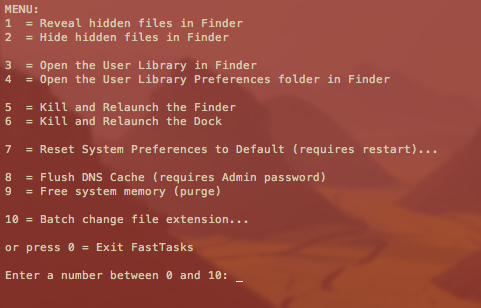
If you find you only ever go into Terminal to perform a small number of tasks that can’t be done (easily or at all) in the OS X graphical user interface, this little utility could be for you. It allows you to run a number of common tasks such as
reveal and hide hidden folders
batch change the extension on multiple files
purge system free memory
flush the DNS cache
restore system preferences to defaults
without having to bother looking up the commands. You will, however, have to do a little Terminal ‘dirty work’ to initially get the utility up and running (it’s a shell script which you need to turn into an executable file), but step by step instructions are all provided. 😉
Here’s what you do:
1. Copy or download the entire script from here FastTasks code and paste it into a text editor (TextEdit or Tincta, my favourite, will do).
2. Save the file as plain text onto your desktop with the name ‘FastTasks’
3. Open Terminal.app and paste this command:
sudo chmod 755 ~/Desktop/FastTasks
and press ‘return’ on your keyboard. You’ll be asked for you Admin password which will be invisible when you type it. If you’re wondering what you’ve just done, you’ve just changed that plain text file into an executable program.
4. Paste the next line into Terminal.app
cp ~/Desktop/FastTasks /etc/bin/FastTasks
then press ‘return’ on your keyboard.
As a result of that last command, you can now use the script by typing ‘FastTasks’ in a Terminal window or by double-clicking ‘FastTasks’ in Finder or on the Desktop.
5. By the way, if the Terminal window remains open after FastTasks has completed, change the following settings in Terminal’s Preferences:
Preferences > Settings > Shell > When the shell exits…
and change the dropdown menu from ‘Don’t close the window’ to ‘Close if the shell exited cleanly’.
And that’s it. You can now run any of the tasks in the menu without having to know the commands! 🙂
Fast tips for using FastTasks
1. FastTasks is actually quickest to run by using Spotlight and Terminal.
If you have the Spotlight hotkey set up (usually cmd-space by default), simply open Spotlight, and type ‘Term’ and hit ‘return’ on the keyboard. At the Terminal prompt type ‘fasttasks’ and hit ‘return’.2. Running it this way has another benefit. If you want to run FastTasks again after performing one task, just hit the ‘up’ arrow on the keyboard (hitting the ‘up’ arrow repeatedly will take you through previous commands entered at the Terminal prompt. Use the ‘down’ arrow to go forward), then ‘return’ when you see ‘fasttasks’ on the command line.

how to secure your mac (OS X Lion)

Security in OS X Lion is a big problem that not many people are aware of, and here’s why: your Lion computer contains the install/recovery disk on the internal drive. That means anyone with a basic knowledge of Mac and Lion can start up your mac and reset your passwords, thereby accessing your user accounts and all your personal data. The same trick can help kids easily get round restrictions applied through OS X’s ‘Parental Controls’ feature.
How is this possible, you may ask? First, a little history. Among the 250 changes vaunted about Lion over its predecessor, Snow Leopard, there is one that is widely known but whose implications are rarely pointed out: you download the OS rather than install it from a disc. In the past, if your OS went bad and needed to be recovered, or you forgot your admin passwords, the simplest answer was to insert your install disk. From that, you could restore the OS and reset your passwords. That made your Mac a little safer (though not entirely safe) so long as your disc was kept somewhere physically different from your computer.
With Lion having no install disc, Apple had to find an answer as to how to provide the recovery option. The solution was to install a Recovery partition on the same disk as the operating system itself. In the event that the OS goes bottoms up and needs to be recovered or re-installed, you just restart your computer holding down the ‘command’ and ‘r’ keys to access the Recovery partition.
So far so good, but likewise, just as with the old DVD install discs, you — or anyone else — can also reset the user account passwords from the Recovery partition. That means your passwords are effectively useless. Anyone who wants to hack your user account just has to restart your Mac holding down ‘command’ and ‘r’ and then use the built-in Password Utility to make new passwords for your accounts. Now I’m not going to tell you quite how to do it (you do need a little knowledge to get the user account names and know how to do the reset) but it is widely publicized elsewhere, and indeed even in Apple’s own online documentation (so if you really want to know, google is your friend or follow some of the links in this post…).
What’s the answer to this security nightmare? Here’s one thing that’s NOT the answer but which I have seen widely touted: setting a firmware password. If you’re not familiar with the concept of the firmware password, don’t worry. It is practically useless, since anyone can reset that simply by taking off the back of your computer, and then pulling out and then putting back in one of the memory chips.
Apple, of course, thought about this problem. Their own solution is to encourage you to use FileVault 2 (FV2) to encrypt all your data. Indeed, this is the BEST solution. Without your password, no one can access the disk on your computer no matter what they do (and that includes YOU if you forget it…). However, there are a couple of drawbacks to FV2. One is that it requires extra disk space, and if you have more than one partition on your hard drive, or a lot of data, and little space you may not be able to encrypt and decrypt your data. The other drawback is that FV2 places a little extra wear-and-tear on your hard disk (though that may be negligible given the security pay off).
Using FileVault 2 is really the only security option if you’re using Lion. However, if you don’t have the space for it, there is a ‘second-best’ strategy (see below why it’s only ‘second best’), and that is to remove the recovery disk and use a clone as your recovery option instead (WARNING: the Recovery disk is required for FileVault 2, so by removing it you will also remove the ability to use FV2).
There’s a couple of ways to remove the recovery partition on your internal disk, but this is probably the best:
1. Clone your current system to an external disk using Carbon Copy Cloner. This will clone your entire system exactly as it is now, but it will not copy the Recovery disk.
2. Still booted into your internal OS (the one on your machine), open Terminal.app and paste the following command:
defaults write com.apple.DiskUtility DUDebugMenuEnabled 1
Press ‘Return’.
3. Open Disk Utility.app (Applications/Utilities/Disk Utility.app). In the menu bar of Disk Utility, choose Debug > Show Every Partition.
4. In the left-hand pane of Disk Utility, you can now see the Recovery HD. Click on it. Then click on the Erase tab on the (larger) right-hand pane. Click the Erase button down there on the bottom right.
5. Quit Disk Utility.
Now you can use your bootable clone as your recovery disk if your OS becomes corrupt and no one can boot up your computer with ‘command-r’. If you keep the clone backed up on a regular incremental schedule (you can choose anything from once an hour, once a day, week, or month), you can simply restore a corrupted internal disk to exactly the same state as your last backup.
Why only ‘second best’?
As alluded to earlier, it is still possible for advanced users to start up your mac and reset the password without the Recovery partition (this was also true in Snow Leopard even without the install disc). In fact, what this procedure does is give your OS X Lion installation the same security level as an OS X Snow Leopard installation, which is not actually that great, but better than Lion with a Recovery disk! Also, if you are storing highly sensitive data, don’t neglect the fact that someone who has complete unfettered access to your hard drive could even remove the disk and recover the data using special software.
The short story is if you want to be absolutely certain that your data is secure, FileVault 2 is really your only option.
featured picture Security Workstation by digitalhadz



 applehelpwriter.com