uninstall flashback trojan
Among all the confusing posts and scare stories on offer this week about the flashback trojan, a lot of people seem to have missed the instructions for dealing with it.
Here’s F-Secure’s removal procedure:
Here’s Rich Mogull’s general advice for securing your mac in light of this new threat:
What you need to know about the flashback trojan
It’s also worth emphasizing that, for technical reasons, if your mac has Microsoft Office 2008 or 2011 or Apple’s XCode installed, this particular trojan will not have been able to infect your computer.
learning the Terminal – Part Two

In the last post, we learned how to see all the contents of a folder – invisible and visible files – in the Terminal. However, most of us prefer working in the GUI, so this post is going to show you how to work a bit of Terminal magic to easily turn on and off your invisible files and folders in Finder and the desktop.
Open Terminal, and type or copy/paste the following to the command prompt:
defaults write com.apple.finder AppleShowAllFiles TRUE; killall Finder
(note that all commands in these posts should always be assumed to be case-sensitive).
Press Return.
Now switch out of Terminal and have a look at Finder or your desktop. You should see some ‘hidden’ files now in a sort of greyed-out 50% opacity (files like .DS_Store). If you can’t see such files, go back and check that you typed or copied the entire command correctly.
Assuming you can now see your invisible files in Finder, switch back to Terminal. Press the up arrow key on your keyboard. Notice that the last command you typed reappears.
That’s a handy trick to remember. You can move between your previous commands with the up arrow and down arrow keys to save time re-typing or modifying commands.
In this case, we want to use the last command again, but we also want to modify it. Use the left arrow key to move the cursor back to “True” and then use delete to remove “True”. Leave the cursor where the letter ‘T” was and type FALSE. Make sure the semi-colon ; is still there.
Press Return — you don’t need to move the cursor to the end of the line as you would with a word processor. You can hit Return no matter where the cursor is in the command line and it will execute (or try to) whatever is typed on the whole of the command line.
Now, if you switch back to Finder or the desktop, you should see that all your hidden files have disappeared again.
OK, now that we have tested these commands to check that they work, let’s do something a bit more useful with them.
Switch back to Terminal. Type
^FALSE^TRUE
and press Return.
Wow! Did you see what just happened? You substituted the word “FALSE” from the last command with the word “TRUE” and executed the entire command. In other words, you just made your hidden files visible again! Go and look at the desktop and you’ll see that your invisible files just returned. Try it again. Switch back to Finder and type
^TRUE^FALSE
to replace the word “TRUE” in the last command with the word “FALSE”. Hit Return to execute it.
Using the pattern ^error^correction is a great way to both correct commands you type incorrectly and to run two commands one after the other that have only one term or option different.
Back in Terminal, hit the up arrow to bring the last command back onto the command line. This time, I want you to hit control-A on your keyboard. Notice that this brings the cursor to the start of the command line, which is what we want as we’re going to type in a new command before the “defaults…” part.
With the cursor at the beginning of the line, type
echo
and a space. Then type a double quotation mark right next to the ‘d’ of ‘defaults, so the beginning part looks like this
echo “defaults…
(the ellipsis or ‘…’ is used here just to show that the command continues and should not be in your actual command line)
On the keyboard, press control-E.
This takes the cursor to the end of the command line (remember: control-A to go to the start, control-E to go to the end).
Type another double-quotation mark right after the word ‘Finder’ so the ending looks like this
… ; killall Finder”
Now hit the spacebar once, and type a double right angle-bracket
>>
Hit the spacebar again and type
.bash_profile
The entire command should look like this:
echo “defaults write com.apple.finder AppleShowAllFiles FALSE; killall Finder” >> .bash_profile
Now press Return. Type
^FALSE^TRUE
and press Return one more time.
What did we just do?
To see what you did, type
emacs .bash_profile
As you can see, after testing those two commands on the command line, we’ve now sent them to the .bash_profile file, saving us the job of typing them out again (and possibly making an error when we do so). However, we can’t leave the commands like that – if we do, then they will run every time we log into the Terminal. Rather, we want to use these commands to define functions, just like we did last time with ‘show’ and ‘up’.
To do that, press control-L on the keyboard, then use the down arrow key to bring the cursor to the beginning of the first line with a ‘defaults’ command on it.
Press Return. Press the up arrow once, then type
function hide_all
Press Return and in the new line created type
{
Use the down arrow key to move the cursor down to the line below the “Defaults…FALSE” line and press Return.
In the new line created type
}
Then press Return. Type
function show_all
Press Return and type
{
Use the down arrow key to move the cursor below the “Defaults…TRUE” command. (If you can’t go below the last typed line, then on the keyboard press control-E to move the cursor to the end of the line, the press Return).
Then type
}
Check that the whole thing looks like this:

Once you’re satisfied, hold down the control key while pressing first the x and then c keys. Press y when prompted to confirm the save. You should be returned to the command line. Type
exit
to logout. Then press command-W and command-N to close and reopen Terminal.
What did we do this time?
We just made some new, easy-to-remember commands to show and hide our hidden files in Finder and the desktop. On the way, we learned how to append commands to files using the >> function, as well as how to move the cursor to the beginning and end of a line using ‘control-A’ and ‘control-E’ respectively. We also learned how to recall previous commands on the command line using the arrow keys and how to correct or modify previous commands using the ^error^correction pattern.
Wow, you’ve come a long way in two short tutorials!
To test out what you just did, type
show_all
then press Return.
Switch to Finder and there’s all your hidden files! To make them invisible again, switch back to Terminal and type
hide_all
then Return.
From now on, whenever you want to see your hidden files, just use the show_all command in Terminal. Hide them again with hide_all. 😃
SUMMARY
control-A – places the cursor at the beginning of the command line (also works in emacs editor)
control-E – places the cursor at the end of the command line (also works in emacs editor)
control-L – on the command line, this clears the screen (equivalent to the ‘clear’ command); in emacs, this places the caret inside the editor allowing you to edit (=insert point)
up & down keyboard arrows – moves through history of commands
^error^correction – replaces the term after the first ^ with the term given after the second ^ in the previous command, then executes the entire command
echo – sends the following string or command to the specified file (if no file is specified, the string will output back to your terminal screen. In other words, if you type echo hello, the Terminal will print “Hello” on the next line; hence the term ‘echo’! )
Related Posts:
learning the Terminal – Part One
learning the Terminal – Part Three
learning the Terminal – Part Four
how to change all Desktop backgrounds
Fasttasks – a utility for ten common terminal tasks
learning the Terminal – Part One
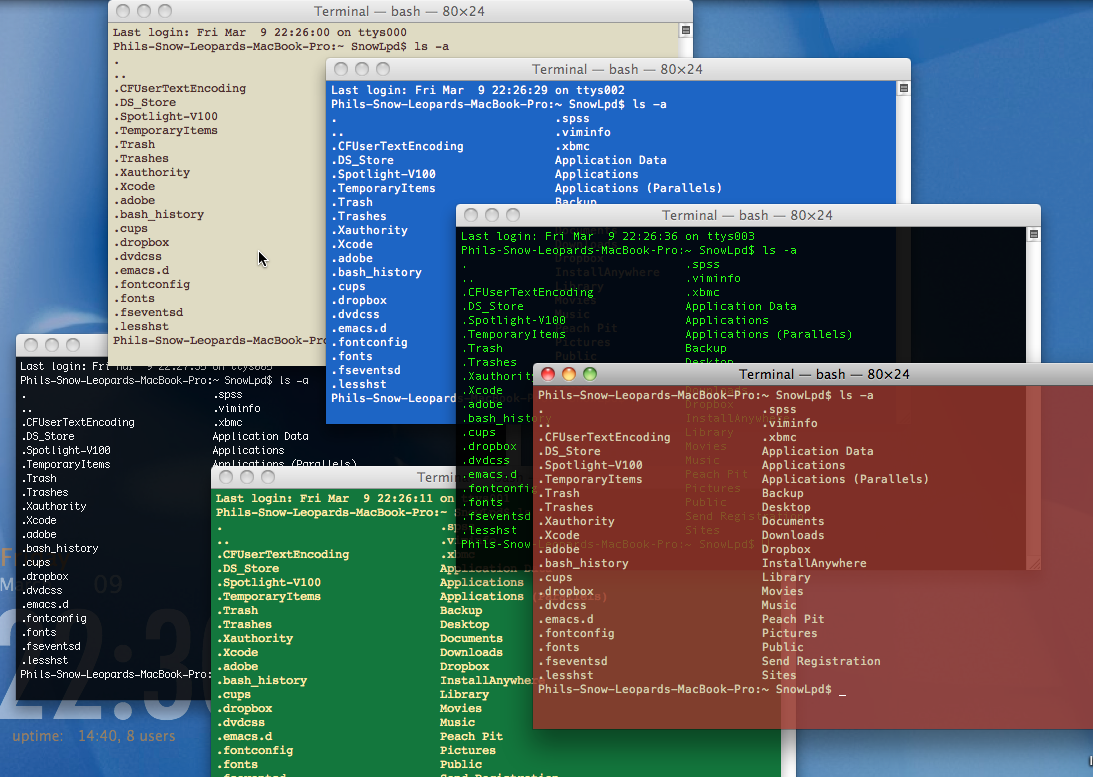
This is the first in a series of planned tutorials for anyone who wants to find out what Terminal can do and how they can use it to increase the usability of their computer. Unlike other Terminal tutorials, I’m going to assume that you’re not interested in giving up the desktop for the command line to do things like move and copy files that you can do more easily in Finder. Rather, I’m only going to focus on those things that it’s generally more difficult (or impossible!) to do in the GUI than it is in Terminal.
Let’s get started. Open Spotlight (try the hotkey command + spacebar or click the spy glass in the top right corner) , then type term and press Return.
When Terminal opens, the first thing you may want to do is make the text a bit easier to see in the Terminal window.
Hold down command-shift-+ to increase the size. Try it a couple of times till the text is a comfortable size. If you overshoot, just use command- – (minus key) to reduce text size.
Now you’re sitting comfortably in your Terminal window, let’s learn our first spell. Actually, we’re not going to learn one so much as make our own!
In order to do that, we want to open a hidden file and edit it. In Terminal, type
emacs .bash_profile
(There’s a space after ’emacs’, and, don’t forget that . dot right before the ‘b’)
What you see after this screen may vary depending on whether .bash_profile has any pre-existing content or not. If there is anything in the file already, ignore it and use the arrow key to move the cursor to a clean line at the bottom. If the file is empty, then just start typing. The first line we want to type is
function show
Now press Return and enter a single, left curly bracket
{
Press Return again and type (or copy and paste) this:
ls –alF
There’s a space between the ‘s’ and the dash, and all the letters are lowercase except the ‘F’, which must be uppercase.
Press Return and provide the closing curly bracket
}
It should look like the area inside the orange rectangle:

Now hold down the control key on your keyboard while you first press x and then c. Notice at the bottom of the screen you get a ‘save’ warning.
Press the y key on your keyboard, and you should find yourself returned back to the Terminal prompt.
Type exit at the prompt to logout of the Terminal, and then on the keyboard press Command-W to close the window, and Command-N to open a new Terminal session.
What did we just do?
We defined and saved a new Terminal command called show which we can now use whenever we enter Terminal to easily see all the files and folders – including all the hidden ones – in any given directory. To see what we just did, type show at the command line. You should get an output that is formatted something like this:

As you can see I’ve annotated the screenshot to show some of the features that the show command gives us. First of all, notice the file and folder names that begin with a . dot. These are your hidden files and folders (Remember: they are usually hidden for a reason, so don’t go messing with them unless you know what you’re doing!). The show command also helps us distinguish between files and folders by appending a / slash to the end of folder names. Although not shown here, you may also see some names with an * at the end. That means it’s an executable file — in other words, its purpose is to run some programme or command.
The show command is very useful for seeing exactly what is in a folder, but of course we need to know how to move between folders in order to see anything other than our own home directory.
Suppose I want to have a look in that folder called ‘Shared’. Then what I do is I type
cd Sh
then press the tab key on the keyboard. The rest of the name is filled in for me by Terminal:
cd Shared/
The tab key is a very useful trick for moving around in Terminal when you are faced with long names. Generally, you only have to type in enough to make the file or folder name unique and hitting tab will complete the rest of the name for you. However, if I only type
cd S
and then press tab, nothing happens. Terminal can’t complete the name because there’s more than one choice. However, if I press tab again, Terminal will give me a list of the all names that begin with S:
cd S
pressing tab twice gives:
cd S
Shared/ SnowLpd/
Now I can see all the options, and how much I have to type to make a unique choice. In this case, I only have to type either ‘cd Sh’ or ‘cd Sn’ to allow Terminal to know which one I want when I press the tab key. Pressing Return after the tab completion will take me to the folder.
Try it with a folder from your own list.
After changing to a new folder, perhaps your screen is getting a bit messy. Let’s clean it up before doing show again. On the keyboard, press control-L to get a clear screen (notice that all your previous commands and outputs are still available if you scroll up!).
Now type show again to see your files and folders, pick a folder (if there is one), and type cd plus the first few letters of the name. Fill it out with the tab key and then press Return.
Again, type show to find out what’s inside. You can keep going deeper into the directory tree by using cd and show on any folders you find.
The last thing we need to know for today is how to go back up the tree, or to move back to the parent folder. Again we’re going to use the ‘cd’ command, but this time you don’t need to type any names. Just a space and then two dots
cd ..
(don’t forget there’s a space between the ‘d’ and the two dots). This will always take you to the parent folder of the folder you’re currently in, all the way up to your hard disk’s parent directory. If you want, you can make a new up command (just like we made show) as a shortcut for ‘cd ..’. Have a look at the smallest of the screenshots above and see if you can do it. 🙂
So now you know how to move around and see all the hidden and un-hidden contents of your drive, go and explore and get yourself used to these first basic commands.
When you’ve finished with your Terminal session, type exit and press Return. You can then close the window and go back to GUI land!
SUMMARY
. at the beginning of a name means ‘hidden’
/ at the end of a name means ‘Folder’
* at the end of a name means ‘executable file’
cd – move in to that folder
cd .. – move back to the parent folder
emacs – opens the Terminal textfile editor
show – shows a complete list of a directory, including hidden files
control-L – clears the Terminal screen
tab – will try to complete file or folder names
tab (twice) – will offer choices
Related Posts:
learning the Terminal – Part Two
learning the Terminal – Part Three
learning the Terminal – Part Four
easy way to install Ubuntu on Mac OS X

If you have Parallels or VMFusion, you can download and run Ubuntu as a guest OS for free. Ubuntu has some nice features including a Spaces-like desktop switcher and loads of free software available in the Ubuntu App Store.

For those still on Snow Leopard but wishing they could have the benefits of iCloud, Ubuntu provides an interesting option: the open source OS comes with its own Cloud service and 5GB free space. You can sync it with Windows, Android and iOS, and it even allows you to stream music from the Cloud to your devices. If you run Ubuntu in Parallel’s ‘Coherence’ mode, you can take advantage of Ubuntu’s mail, calendar and music apps and have all your other devices synced to your Mac.
If you want to read more, go to the Ubuntu website. When you’re ready to give it a spin, it couldn’t be simpler:
1. Go to the Ubuntu download page, and choose either 32-bit or 64-bit depending on your current Mac OS (if you’re running SL 10.6.8 or later, go for the 64-bit). Ignore the advice about creating a CD or USB stick (it doesn’t apply to us as we’re going to install it via Parallels).

2. Click the big red/orange ‘Download’ box, and make a cup of tea while the .iso file downloads to your computer.
3. After the download has finished, start up Parallels. From the Parallels Desktop menubar, choose File > New.
4. From the resulting dialogue box, click the drop down menu and select Choose an image file…. Browse to your downloads folder and choose the .iso file you downloaded in step 1.
5. From here on in, Parallels will pretty much take care of everything else for you. Your virtual machine will restart a couple of times and you will get asked to choose a couple of options (like setting a language, region and password), but it’s all fairly self-explanatory. Accept the default options for now.
When the install finishes, the first thing to do before trying it out is to set the amount of RAM available to the Ubuntu install. You’d want to set this to at least 2GB, but 4GB is better to get a really fast machine.
6. To set the RAM, first shut down Ubuntu. Do so by going to the Parallels menubar and choosing Virtual Machine > Shutdown.
7. After the OS has shutdown, go back to the Parallels menubar and choose Virtual Machine > Configure. Click on General and set the slider to as much RAM as you can spare…

8. Finally, go play! Depending on your download speed, the whole procedure shouldn’t take much more than an hour or so. If you need documentation, just go back to the Ubuntu site and you’ll find plenty of resources there.
Enjoy. 🙂
how to remove ‘Top Sites’ in Safari

If you are fed up with the ‘Top Sites’ feature in Safari 5, here’s how to remove it.
1. In Safari > Preferences > General, change ‘New windows open with’ and ‘New tabs open with’ to either ‘Homepage’ or ‘Empty page’ (as you prefer).

2. In Safari > Preferences > Bookmarks, uncheck ‘Include Top Sites’.

Now you also need to get rid of the caches, and to stop Safari from continually storing imagesof your web page history (Tip: Safari will still track your History in the normal way, but here we are going to prevent it from downloading the image files that are used in Top Sites), so:
3. In Safari > Reset Safari…, check ‘Reset Top Sites’ and ‘Remove all webpage preview images’.

Click ‘Reset’.
4. Go to your home folder Library (~/Library) by clicking on the Folder icon in the dock, pressing ‘shift-command-g’, and typing ~/Library in the box.
Navigate to Caches > com.apple.Safari.
5. Click once on the Cache.db file. Hit ‘command-i’ on the keyboard. In the Get Info panel that opens, check the ‘Locked’ box. Close the panel.
6. Click on the Webpage Previews folder in com.apple.Safari and press ‘command-i’. Check the ‘Locked’ box. Close the panel.

7. Navigate back to Caches > Metadata > Safari> Bookmarks. Go into the Bookmarks folder, hit ‘command-a’ and then ‘command-delete’ to send all the selected files to the Trash.
8. With the Bookmarks folder selected in Finder, press ‘command-i’ and check the ‘Locked’ box. Close the panel.

That’s it. No more ‘Top Sites’, and no more wasted time or space downloading and storing webpage previews! :- )
And what about later versions of Safari? There’s no way to remove Top Sites in Safari 7 that I know of (if you know different, please leave a comment below). However, there’s no reason to suffer in silence! Let Apple’s Safari dev team know how much you dislike it:
http://www.apple.com/feedback/safari.html

Related Posts
How to Troubleshoot Your Mac with FT2
how to clear Safari’s cookies on quit (Safari 7)
FastTasks – download the free OS X utility app from Applehelpwriter
are keyloggers ethical?
I recently helped a user track down a keylogger on his computer. While this case was certainly one of being ‘snooped’ on (the keylogger had been installed on his own machine by a third party), this got me to thinking: are keyloggers ever ethical?
While they can be used for nefarious purposes (spying on your partner or colleagues, for example), they can also help you track down a stolen laptop, aid companies in detecting illegal behaviour or corporate espionage by employees, and help parents protect their children from internet pests.
Feeling conflicted, I thought the best people to ask would be you! So what do you think? Click on one of the options below and hit ‘vote’ to take the poll, and/or leave your thoughts in the Comments!
Take Our Pollhow to remove a boot.efi file from Trash

Click on the Trash can on the Dock, hold down the ‘option’ key and click the ‘Empty’ button over there on the left side of the window. If this doesn’t do it, the file may be in the .Trash folder of your Time Machine (TM) or some other disk.
To find out if that’s so, follow this procedure:
1. Open Terminal.app, copy and paste the following command into the Terminal window
defaults write com.apple.finder AppleShowAllFiles TRUE; killall Finder
Then press ‘Return’.
2. Open a Finder window. Navigate to the TM disk starting from its icon in the left hand column. You should see some greyed out folders called .Trash and .Trashes. Click on these and have a look for the boot.efi file that we’re hunting down.
To remove the boot.efi file from the hidden trash, try the following:
3. Go back to Terminal and copy and paste the following:
sudo rm -rf
Do NOT press ‘Return’. Instead, press the Spacebar once, then use your cursor to drag the boot.efi file from the hidden folder in Step 2 and drop it in the Terminal window. Now press ‘Return’. You will be asked for an administrator password and given a warning which you can ignore. Type in your password, but notice that your typing will be invisible, so type carefully.
Press ‘Return’.
4. If you typed your password incorrectly, repeat step 3. If you typed it correctly, hopefully, your Trash is empty. 🙂
5. The last thing is to hide all the hidden files again, so copy and paste this:
defaults write com.apple.finder AppleShowAllFiles FALSE; killall Finder
Then press ‘Return’.
You can close Terminal now.
Good luck!
how to remove Lion Recovery disk

If you have reverted your mac to Snow Leopard from Lion, its important that you also remove the Recovery HD, as it can compromise the security of your Snow Leopard installation (for security issues with Lion, see here). Reverting to SL via Time Machine or restoring from a clone will leave the Recovery partition in place, meaning anyone can boot into it and reset your Snow Leopard passwords merely by restarting your mac while holding down the ‘option’ key.
To remove the Recovery disk follow this procedure:
1. Revert back to Snow Leopard using Time Machine or a clone.
2. Once you’re up and running and have confirmed everything is good, go to Terminal (Applications > Utilities > Terminal) and paste/type this command to confirm the presence of the Recovery HD:
diskutil list
then press ‘Return’. If you see a partition labelled something like this
Apple_Boot Recovery HD (see image above)
then you will need to continue with the rest of the procedure. If the Recovery HD is not listed here, you do not have the Recovery partition and need not worry further.
3. If you find the Recovery HD in the list, paste the following command into Terminal:
defaults write com.apple.DiskUtility DUDebugMenuEnabled 1
Press ‘Return’.
Now open Disk Utility (Applications > Utilities > Disk Utility). In the menubar at the top, choose Debug > ‘Show every partition’
On the left in the main Disk Utility window, you’ll be able to see ‘Recovery HD’ (it’ll be greyed out). You can click ‘Mount’ in the taskbar to make it active, and you can now delete it using control-click/right click – erase or by using the ‘erase’ tab in DU’s window.
If you want to confirm that the Recovery disk is no longer present, go back to Terminal and type the command from step 2.
Related posts:
how to secure your mac (OS X Lion)
how to remove your name from Lion’s menubar


If you do not want your account name showing in the menubar (perhaps you’re doing screenshots or some screencasting), there’s a simple way to remove it.
1. Go to > System Preferences… > Users & Groups
2. Click the padlock at the bottom and enter your Admin password.
3. Click ‘Login Options’, then select ‘Icon’ from the dropdown menu associated with the Show fast user switching menu as option.
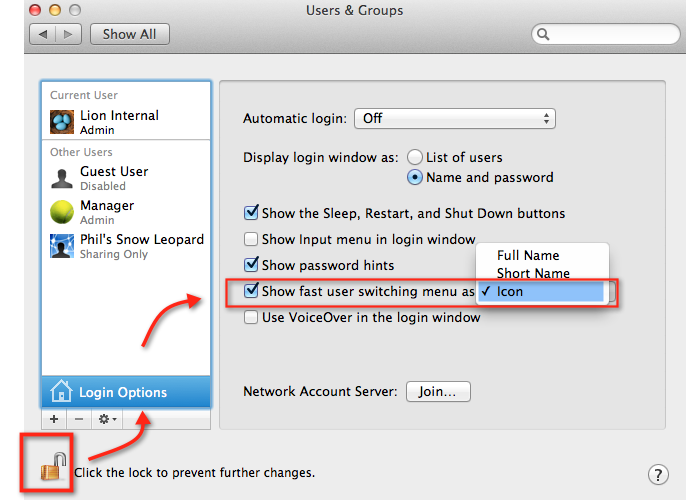
You can also just deselect the option entirely if you don’t use fast switching at all.
how to restore Bounce in Mail

If you were a fan of the ‘bounce’ feature in the previous version of Mail, you may be disappointed that it has been removed in Mail Version 5.x
If you want the feature badly enough, you can either
1. Use this add-on for Mail.app in Lion
Restore Bounce Mail Button To Lion’s Mail
or
2. Use Mozilla’s Thunderbird.app instead of Mail, and get the ‘Mail Redirect‘ add on.



 applehelpwriter.com