Blog Archives
Deciphering the searchpartyd macOS process and its impacts
The searchpartyd process in macOS is an integral part of Apple’s innovative location tracking system, introduced with macOS 10.15 Catalina, iOS 13, and iPadOS 13.1. This daemon is a cornerstone of the Find My service, enabling users to locate their devices, even when offline. Understanding searchpartyd, its functionality, and addressing common issues like high CPU usage is crucial for macOS users.
The Integral role and functionality of searchpartyd
At its core, searchpartyd serves as a major daemon within the Offline Finding (OF) system of the Find My app. Its primary function is to generate the necessary cryptographic keys and perform all related cryptographic operations. This process is vital for synchronizing keys, sending location reports as a finder device, and obtaining location reports for devices owned by the user.
When a device equipped with the Find My feature is lost, it emits Bluetooth Low Energy (BLE) signals containing a public key. These signals are picked up by finder devices, which then use the key to encrypt the location of the lost device and send this information back to Apple’s servers. The Find My app accesses these reports to help users locate their missing devices.
The dual nature of searchpartyd process
Although the authentic searchpartyd process is an integral component of macOS’s security and geolocation functionalities, it is crucial for users to remain vigilant against potentially intrusive programs (PIPs) that could disguise themselves with analogous nomenclature. Such deceptive applications have the capability to alter web browser configurations, leading to unwarranted redirects and the proliferation of diverse forms of online advertisements. This activity not only disrupts user experience but also contributes to a noticeable reduction in the Mac’s operational efficiency.
Addressing high CPU usage and management concerns
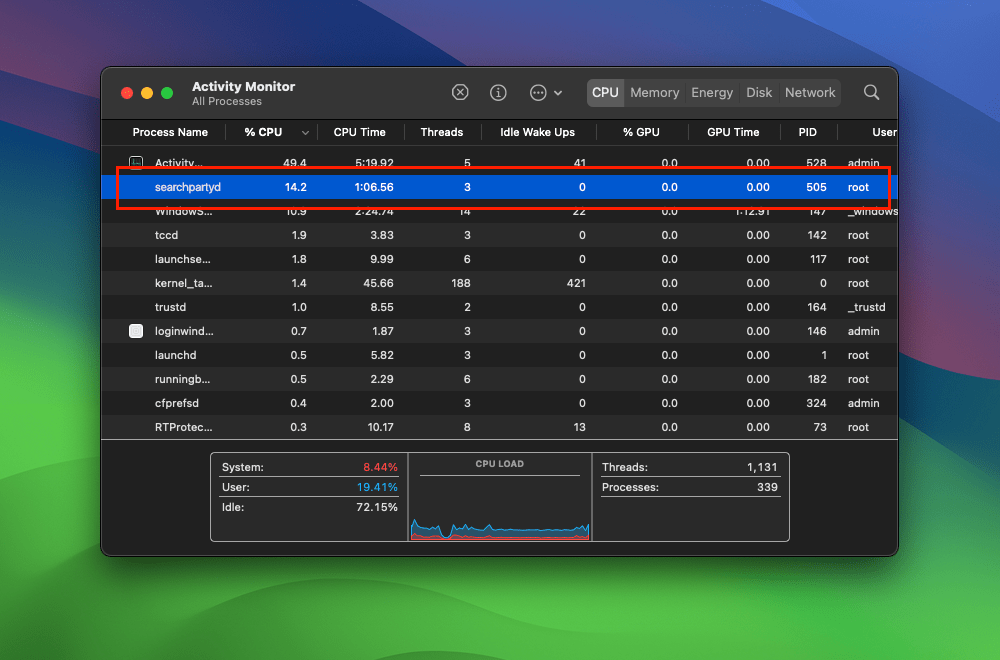
A frequently reported issue among macOS users is the high CPU usage associated with searchpartyd. This can lead to problems like overheating and rapid battery depletion. Despite some misconceptions, searchpartyd is not a form of malware or virus but an authentic and essential part of macOS. However, users have limited control over this process due to its protected status within the operating system. Tools like EtreCheck are invaluable in identifying applications that may be causing excessive CPU usage by searchpartyd.
how to reverse malware on macOS
Resources for learning malware analysis and reverse engineering abound for the Windows platform and PE files, but by comparison there’s very little literature or tutorials for those who want to learn specifically about how to reverse macOS malware and macOS malware analysis techniques.
In this series of posts, you’ll take a sample file and use native tools and techniques to understand what a file does and to build a list of IoCs (Indicators of Compromise) that can be used in detection.

As there’s a lot of ground to cover, the tutorial is split over several parts. In Part 1, you’ll learn how to set up a safe environment to test malware on macOS. You’ll install all the tools you need (bonus: doesn’t cost a cent!) and learn where you can source samples of macOS malware from. You’ll examine an application bundle and its contents to understand how it works and find an interesting encrypted text file. In Part 2, you’ll learn the fundamentals of static analysis of Mach-O binaries, the native executable file type for macOS. In Part 3, you’ll use dynamic analysis techniques to execute a malware file in a controlled manner and read code from memory.
If you have ever wanted to learn how to reverse malware on macOS, this is the place to start! Continue reading…
how to love (and read) crash reports

Crash Reports are essential, if often opaque, guides to problems in your app that every developer has to deal with from time to time.
For small enterprise developers like myself, commercial analytics aren’t really an option. And while there are open source alternatives like UKCrashReporter, I’ve been lucky enough to suffer relatively few crashes and typically just ask users to manually submit crash reports (stored in ~/Library/Logs/DiagnosticReports) as and when they occur.
Choosing a method of collecting crash reports is one thing, but scouring them for useful information is quite another, and the reams of data often included can seem a little overwhelming.
On a good day, your crash report may include a direct reference to the method or function that’s caused the issue, like this one from an early version of my troubleshooting app DetectX Swift:


On other days, though, you might get presented with nothing but a bunch of unhelpful memory addresses:


It’s at this point that you need to enlist the help of the built-in command-line tool atos. In the remainder of this post, we’re going to learn what it does and how to use it to find the line in our source code that caused the crash.
How does atos help?
The beauty of atos is that it will give you a reference to the source file, function and even line number in your code where the crash occurred. Given that it can do this for a crash that occurred on another user’s machine that you can’t reproduce locally and don’t have access to, this seems like nothing short of magic.
Here’s an example of what atos might provide from a crash log like the one above:
ViewController.checkReg(isCli:) (in DetectX Swift) (ViewController.swift:4042)
The output from atos tells me the name of the Swift source file, the name of the function and — here’s the truly wonderous part — even the line number: 4042.
This is all part of the magic of symbollication, which is such an esoteric word I’m not even going to try to spell it again :-). Instead, let’s just get down to the practical nitty-gritty of how to get this kind of data out of our users’ crash reports.
How to use atos
The method is fairly simple and goes like this:
1. Create a folder called “CrashWork”.
2. Go to Xcode’s ‘Organizer’, and right-click on the archive of the version of the app that crashed.


Choose “Show in Finder”. That takes you to the .xcarchive file in Finder, from which right-click again and choose “Show Package Contents” to open the package:


3. Click on the .dSYM file and make a copy of it. Switch back to your CrashWork folder and paste the copy in there. Grab a copy of the same version of your app that crashed (you can also get that from the Products folder in the .xcarchive package, if you don’t have one handy elsewhere) and place it in the same folder:


Important: Be sure you’re working with the same version of your app as the user; atos needs that to match up the addresses in the crash report, and any other version will produce incorrect results or an error.
4. It’s now time to head on over to the Terminal. cd into your CrashWork directory:
cd ~/Desktop/CrashWork
5. The format of the command is generally going to be like this (see man atos for options):
atos -o <path to executable> -arch x86_64 -l <load address> <address>
<path to executable> is the path all the way to the Mach-O binary in your app bundle in the CrashWork folder, so the path in my example looks like this:
atos -o DetectX\ Swift.app/Contents/MacOS/DetectX\ Swift -arch x86_64 -l <load address> <address>

You need to be careful to get the <load address> and the <address> the right way around. They are the reverse order of what you see in the crash log:
Now my complete example looks like this:
atos -o DetectX\ Swift.app/Contents/MacOS/DetectX\ Swift -arch x86_64 -l 0x10a10e000 0x000000010a16a601

6. Hitting ‘return’ produces the magic:


7. Now, going to my source file, I see exactly where the app crashed (lo! and behold, what do you know? An unwrapped optional, of course!):
Enjoy! 🙂
Featured pic: crash by febra-febra

discover 10 new OS X shortcuts

No matter how many times I visit this page, I always find something new that I hadn’t tried before. So the title of this post is more of a suggestion than a description. Why not take a poke around Apple’s shortcut list and discover ten that you don’t already know? I’m going to give a quick round up of ten shortcuts that I use on a regular basis.
1. ⌘ ⌃ Space
Command-Control-Space is a universal shortcut (i.e., you can use it no matter what application is currently active) for bringing up the character viewer (see the screenshot, top of page). In order for it to work, the cursor must be in a text field where character entry is possible, but you can use it literally anywhere: text documents, search fields, browser bars, save dialogs, etc. I used it heavily in creating this post!
2. ⌘ ⌃
Command-Control-Eject saves you having to trawl all the way up to the icon top left of your screen and choose ‘Restart…’. It’ll give you the chance to save any unsaved work or cancel the shutdown. This shortcut has a cousin, too: add the option key (⌘ ⌥ ⌃  ) to the mix and you get Shutdown instead of Restart.
3. ⌘ ⌫
One of my pet annoyances is continually being asked if I want to save ‘Untitled’ documents, those that I’ve never saved before, when trying to quickly quit an app. Having to take my fingers off the keyboard to move the cursor down to that ‘Delete’ button is time-consuming, and tabbing to it takes multiple hits of the tab key. Fortunately, ‘Command-Delete’ will let you discard the document immediately from the keyboard in one quick shot.

4. ⌘ G
Most people are familiar with invoking ‘Find’ on a page by using ‘Command-F’, but have you ever got annoyed by having to mouse up to those tiny little jump arrows in order to cycle through the hits?

Save your eyes and use Command G instead! Note that you have to invoke Find with ‘Command F’ first.
5. ⌃A, ⌃E, ⌃K
That’s three separate shortcuts not one! In any text field, Control-A moves the cursor to the beginning of the line; Control-E moves it to the end, while ⌃K deletes everything from the cursor to the end of the line. Old-hands of the Terminal and other command-line utilities will know these well, but even they may be surprised that these work across a wide-range of GUI apps, too. Particularly useful in Web browser address bars, search fields, Spotlight and so on.
6. ⌘ L
Command-L in Safari and other browser-based apps (including Xcode’s Documentation viewer  ) will immediately move the focus to the address bar/search bar and allow you to edit its contents. No clicking necessary!
7.⌘ ⌃ 1, ⌘ ⌃ 2, ⌘ ⌃ 3
Three commands new for Safari’s sidebar. Respectively, open the sidebar with Bookmarks showing, with Reading list showing, and with Shared links showing. Hitting the same shortcut again toggles the sidebar closed. Note that those are the numbers ‘1’, ‘2’ and ‘3’, not F1, F2, F3.
8. ⌘ ⇧ A, ⌘ ⇧ U, ⌘ ⇧ H, ⌘ ⇧ D
Again, that’s 4 different shortcuts, this time for the Finder. OK, hands up all those that switch to the Finder, hit Command-N to open a new window, and then click to their Desktop? Save yourself the grief (and the time), just activate Finder and hit Command-Shift-D. No need to open a window first, the shortcut will open a new window for you showing your Desktop folder. The others do the same thing but for different folders: Command-Shift-A opens your Applications folder, Command-Shift-U the Utilities folder, Command-Shift-H opens your Home folder.
9. ⌘ F1
This one’s for those of you with dual monitors or when your Mac is hooked up to a projector. Command-F1 toggles between mirroring and separate monitor views. Great for presentations.
10.(fn) ⌃ F8
Control-F8 activates the Status bar (top right row of icons on your screen). Use the left/right arrow keys to move along them, and the up/down arrows to select things in any menu. Hit ‘enter/return’ to perform the action. Note that on laptops you may need to invoke the fn ‘Function’ key, depending on your settings in Keyboard Preferences.
This is a great one for turning on/off Bluetooth, Wifi and checking Mavericks’ new Energy monitor in the Battery/Power icon. Mostly though, I use it for manually starting Time Machine backups or entering TM’s “star wars” interface (oh, and as a bonus…note that (fn) ⌃ F2 activates the other side of the menu bar (i.e., the menu). Enjoy!

Got your own favourite shortcuts? Tell us what you use most in the Comments! 🙂
how to recover disappearing Notes

There appears to be a bug in Apple’s Notes.app in OS X 10.8 that sometimes causes notes to disappear. If you need to recover the text of any note that’s gone missing on your mac, try pasting this into Terminal.app. It’s all one line, so copy and paste it as a whole, then hit ‘return’:
cd ~/Library/Containers/com.apple.Notes/Data/Library/Notes; strings NotesV1.storedata | grep body | open -f
The resulting TextEdit window can be searched or scrolled through for your missing text.
Due to this problem, a lot of people are giving up using Notes.app altogether and switching to alternatives like Evernote or nvALT. However, if for some reason you either want or need to keep using Notes, you might try saving that command above as its own little App that you can keep in the Dock (beats having to dig out or remember the Terminal code all the time).
To do so, we’re going to use the Applescript Editor. It lives in the /Applications/Utilities folder, but you can access it simply by clicking on Spotlight and typing Apples.
With the Editor open, paste this into the window (note, this is slightly different from the command above, as we have to tell AppleScript how to use the code):
do shell script "cd ~/Library/Containers/com.apple.Notes/Data/Library/Notes; strings NotesV1.storedata | grep body | open -f"
Press ‘Command-K’ to compile the script. If there are no errors, hit ‘Command-R’ to run it. If everything checks out fine, then hit ‘Command-S’ to bring up the ‘Save’ box. Change the ‘File Format:’ option at the bottom to ‘Application’, give the app a snappy name (‘findNotes’ ??), then choose your Applications folder as the destination before hitting ‘Save’.

The last thing to do is to go to your Applications folder and drag the icon to the Dock. Now, you can simply click the icon to produce the TextEdit window whenever a Note goes missing.
(Final tip: by the way, if you don’t like the Applescript icon in your Dock, you can always change it to an icon of your own! 🙂 ) )
Related posts:
getting to grips with AppleScript
sync notes between mac and android
FastTasks – download the free OS X utility from Applehelpwriter
sync notes between mac and android

Having an Android phone and Mac computer…not what intended…and syncing between them can be awkward. I use Dropbox on both and avoid iCloud for various reasons (some related to security), but I’ve always found syncing notes a problem.
My Android phone has a couple of notes apps , and my mac has, of course, the horribly-lemon yellow Notes.app, Stickies, and even Reminders can be used , not to mention TextEdit. The result was that I found I was keeping notes in several different places and then not knowing where to look for something, hunting around trying to remember which application I’d left some obscure, half-remembered note to myself in.
Then I discovered Notational Velocity. This is a great, free, open-source app built for OS X and it’s got all the simplicity I need. It has a combined search and enter field reminiscent of Spotlight, and the interface is clean, fast and efficient, requiring minimal keystrokes or trackpad movements.
On top of that, it can link to a web-based notes app called Simplenote.com (also a free service). Notational Velocity and Simplenote.com will sync to NV’s sister-app, Notational Acceleration, which is basically NV for the Android platform (and if you have an iOS device, there’s a Simplenote app for that too). Once you’ve got all of these set up, you have a notes app that you can use on your android phone, you mac, or log into from someone else’s computer, and the whole lot will keep in sync automatically!
Total cost: zero!🙂
how to remove a boot.efi file from Trash

Click on the Trash can on the Dock, hold down the ‘option’ key and click the ‘Empty’ button over there on the left side of the window. If this doesn’t do it, the file may be in the .Trash folder of your Time Machine (TM) or some other disk.
To find out if that’s so, follow this procedure:
1. Open Terminal.app, copy and paste the following command into the Terminal window
defaults write com.apple.finder AppleShowAllFiles TRUE; killall Finder
Then press ‘Return’.
2. Open a Finder window. Navigate to the TM disk starting from its icon in the left hand column. You should see some greyed out folders called .Trash and .Trashes. Click on these and have a look for the boot.efi file that we’re hunting down.
To remove the boot.efi file from the hidden trash, try the following:
3. Go back to Terminal and copy and paste the following:
sudo rm -rf
Do NOT press ‘Return’. Instead, press the Spacebar once, then use your cursor to drag the boot.efi file from the hidden folder in Step 2 and drop it in the Terminal window. Now press ‘Return’. You will be asked for an administrator password and given a warning which you can ignore. Type in your password, but notice that your typing will be invisible, so type carefully.
Press ‘Return’.
4. If you typed your password incorrectly, repeat step 3. If you typed it correctly, hopefully, your Trash is empty. 🙂
5. The last thing is to hide all the hidden files again, so copy and paste this:
defaults write com.apple.finder AppleShowAllFiles FALSE; killall Finder
Then press ‘Return’.
You can close Terminal now.
Good luck!
easiest way to find your serial number
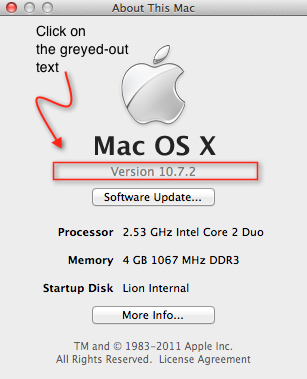
Click > About This Mac… then click on the greyed out text underneath the black ‘Mac OS X‘.
It probably says ‘Version 10.7.2’. When you click on it, it will change to the OS build number. Click on it again and you’ll see your serial number. Easy 🙂




 applehelpwriter.com